📌 How To Save Videos From Pinterest
Ever stumbled upon an inspiring DIY tutorial or a mouth-watering recipe video on Pinterest and wished you could keep it forever?
You’re not alone; many users want to save these dynamic pins for offline viewing or future reference.
I’ve personally navigated the ins and outs of various platforms to archive my favorite digital content, and I’m here to share the most reliable methods to download Pinterest videos directly to your device.

Quick Overview
This guide will walk you through the practical steps to save Pinterest videos, ensuring you can revisit your favorite content anytime, anywhere.
- Time needed: 5-15 minutes (depending on method and internet speed)
- Difficulty: Beginner
- What you’ll need: A device with internet access (computer or smartphone), a Pinterest account, and optionally, a trusted third-party downloader or screen recording app.
Step-by-Step Instructions
Step 1: Locate Your Desired Pinterest Video
First, open your Pinterest app or navigate to pinterest.com on your web browser. Browse through your feed, boards, or use the search bar to find the specific video pin you wish to save.
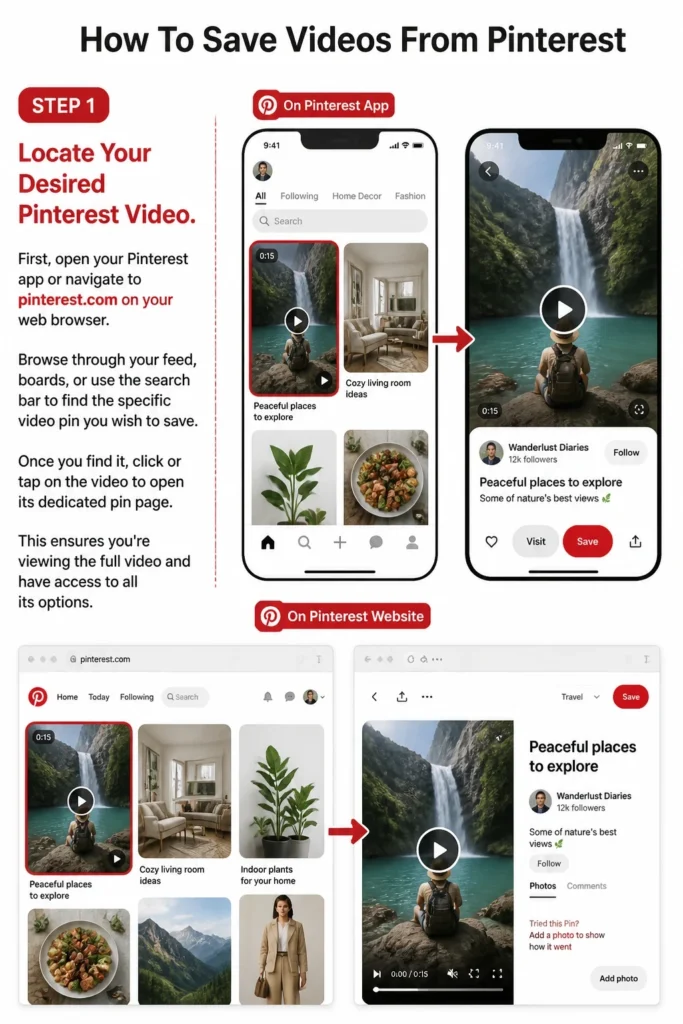
Once you find it, click or tap on the video to open its dedicated pin page. This ensures you’re viewing the full video and have access to all its options.
Step 2: Copy the Video Pin’s Link
With the video pin open, you need to get its unique URL. On a desktop, look for the “Share” icon (often an arrow pointing right or a paper airplane) usually located near the video.
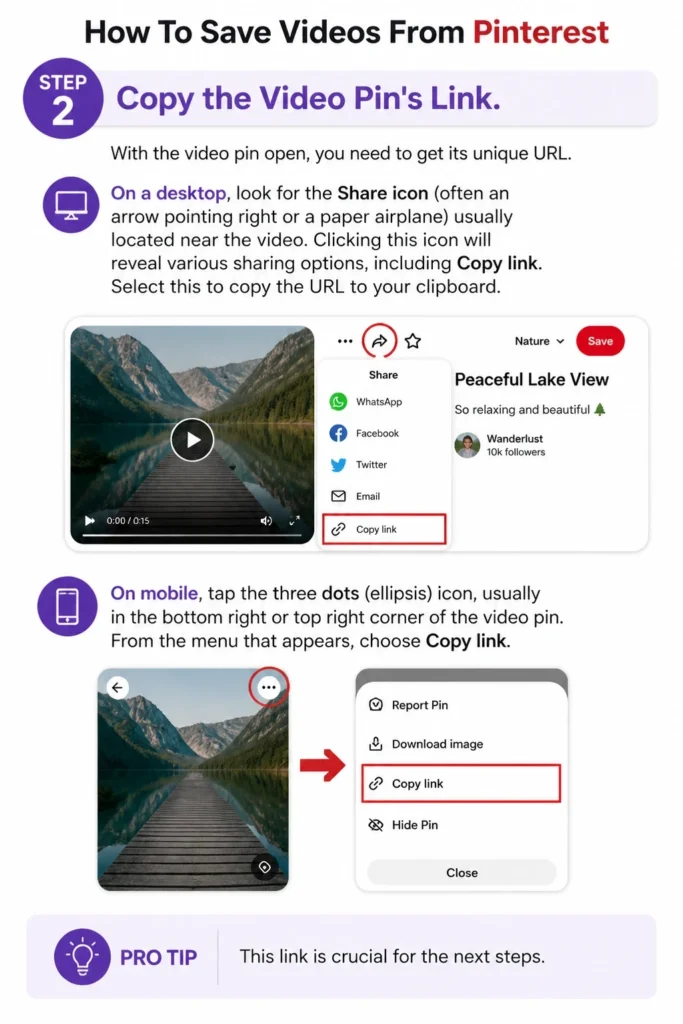
Clicking this icon will reveal various sharing options, including “Copy link.” Select this to copy the URL to your clipboard.
Pro Tip: On mobile, tap the three dots (ellipsis) icon, usually in the bottom right or top right corner of the video pin. From the menu that appears, choose “Copy link.” This link is crucial for the next steps.
Step 3: Choose Your Saving Method
Pinterest does not offer a direct “Download” button for videos due to copyright and platform policies. Therefore, you’ll need to use either a third-party online tool or your device’s screen recording feature.
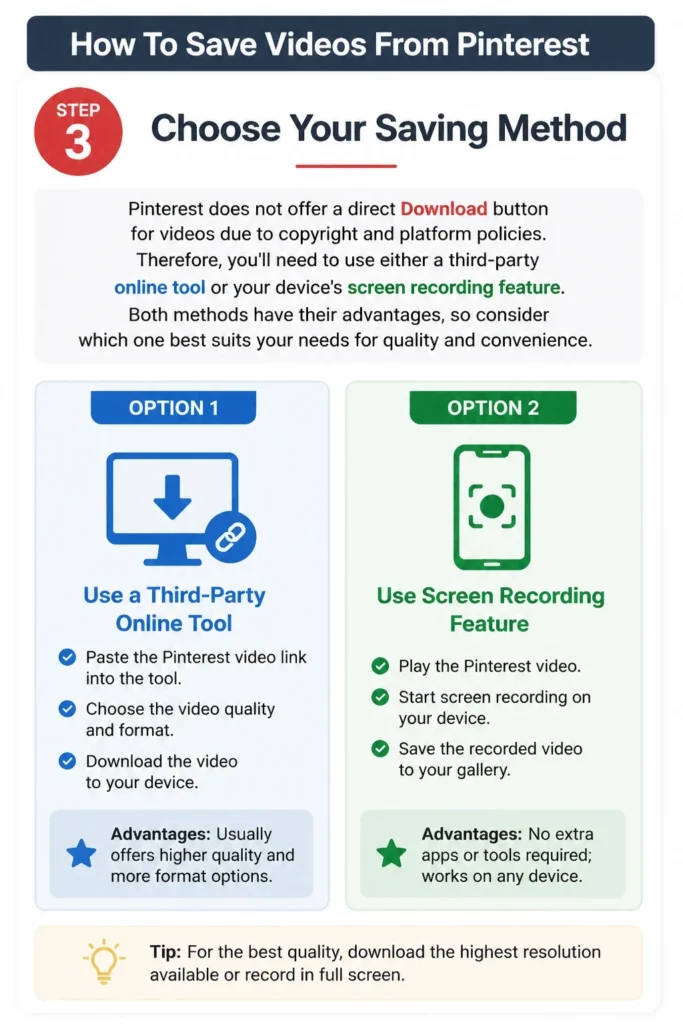
Both methods have their advantages, so consider which one best suits your needs for quality and convenience.
Step 4: Use an Online Pinterest Video Downloader (Recommended)
This is often the quickest and highest-quality method. Open a new browser tab or app and search for “Pinterest video downloader online” or “save Pinterest video.” You’ll find several websites that offer this service.
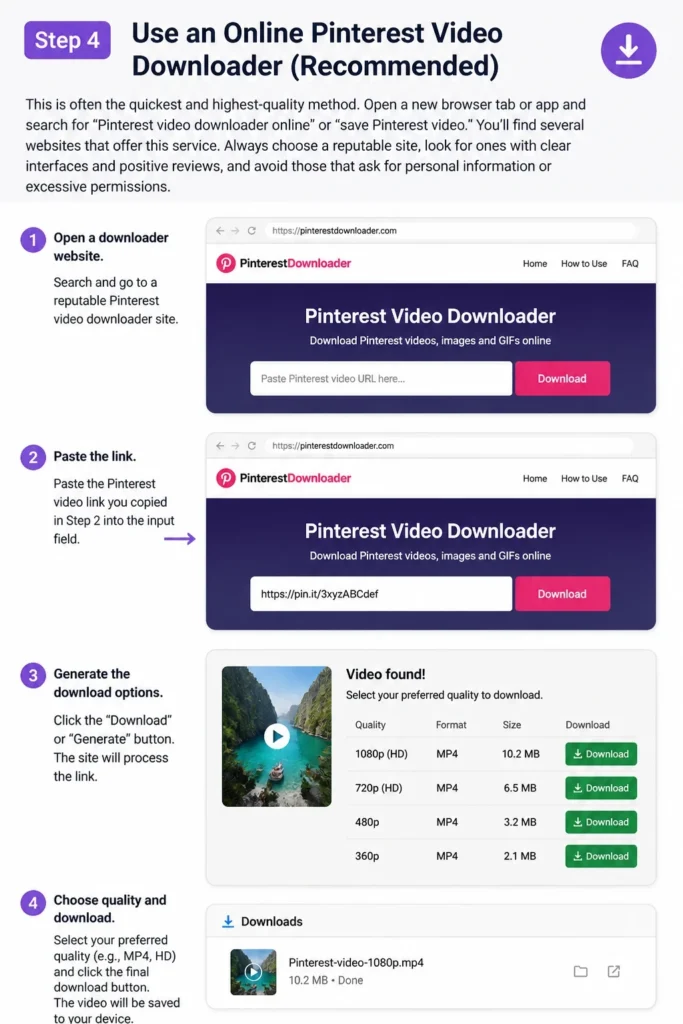
Always choose a reputable site; look for ones with clear interfaces and positive reviews, and avoid those that ask for personal information or excessive permissions.
Once on the downloader website, locate the input field, which is usually labeled “Paste Pinterest video URL here” or similar. Paste the link you copied in Step 2 into this field.
Click the “Download” or “Generate” button. The site will process the link and usually present you with different download options, often including various resolutions (e.g., MP4, HD).
Select your preferred quality and click the final download button. The video will then save to your device’s default downloads folder.
Pro Tip: Some downloaders might show ads. Be careful not to click on any suspicious pop-ups. Stick to the main download buttons clearly associated with your video.
Step 5: Screen Record the Video (Alternative Method)
If you prefer not to use third-party websites or are having trouble with them, screen recording is a reliable alternative. Most modern smartphones and computers have built-in screen recording capabilities.
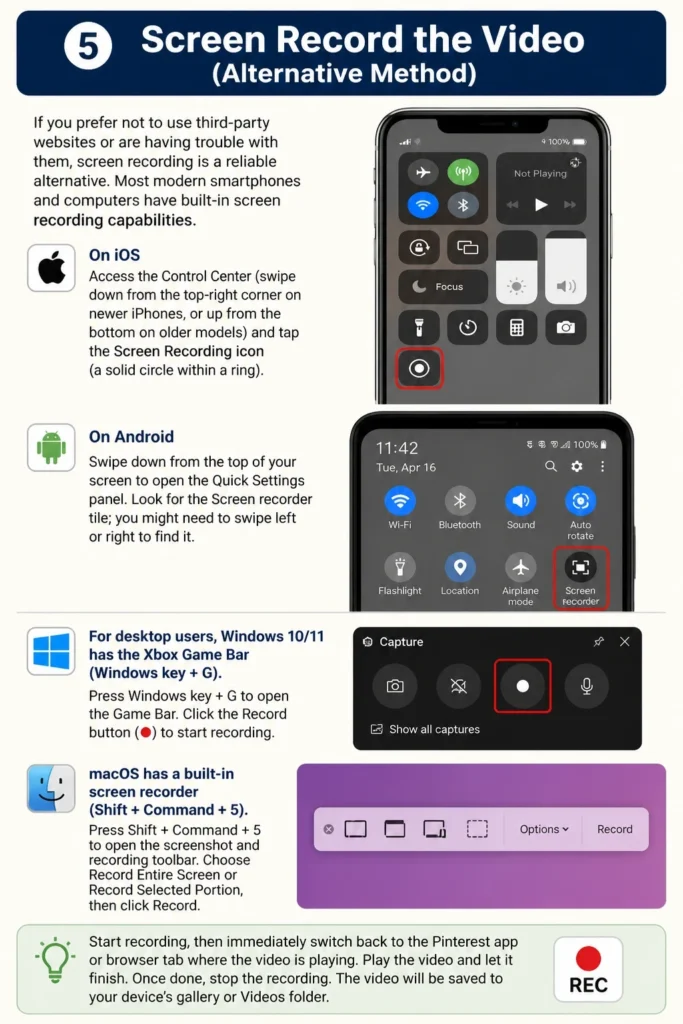
On iOS, access the Control Center (swipe down from the top-right corner on newer iPhones, or up from the bottom on older models) and tap the “Screen Recording” icon (a solid circle within a ring).
On Android, swipe down from the top of your screen to open the Quick Settings panel. Look for the “Screen recorder” tile; you might need to swipe left or right to find it.
For desktop users, Windows 10/11 has the Xbox Game Bar (Windows key + G), and macOS has a built-in screen recorder (Shift + Command + 5).
Start recording, then immediately switch back to the Pinterest app or browser tab where your video is playing. Play the video from start to finish, ensuring no other elements or notifications appear on screen.
Once the video finishes, stop the screen recording. The recorded video will be saved to your device’s photos or video gallery. You might need to trim the beginning and end of the recording to remove the setup and stop actions.
Step 6: Verify Your Downloaded Video
After downloading or screen recording, navigate to your device’s downloads folder, camera roll, or gallery. Locate the video file and play it to ensure it saved correctly and is of satisfactory quality.
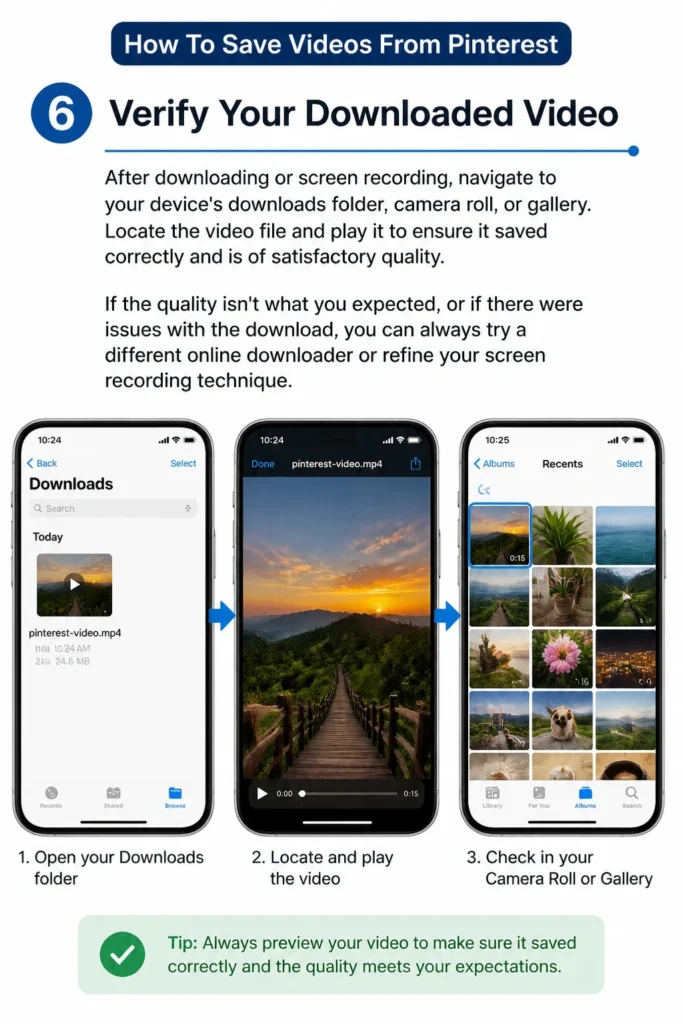
If the quality isn’t what you expected, or if there were issues with the download, you can always try a different online downloader or refine your screen recording technique.
Common Mistakes to Avoid
Ignoring Copyright and Fair Use
One common pitfall is downloading videos without considering copyright. While saving for personal, offline viewing is generally acceptable, re-uploading or sharing downloaded content without permission from the original creator can lead to legal issues.
Always respect the intellectual property of others. If you plan to use the video publicly, seek permission or ensure it falls under fair use guidelines.
Using Unreliable Third-Party Downloaders
Another mistake is blindly trusting any website that claims to download Pinterest videos. Some sites can be malicious, riddled with intrusive ads, or even contain malware.
Always exercise caution. Look for websites with secure connections (HTTPS), read reviews if available, and avoid sites that demand excessive personal information or ask you to install suspicious software.
Not Checking Video Quality Before Saving
Users sometimes download a video only to find the quality is poor or the format is incompatible. This often happens when rushing through the download process or not paying attention to the options provided by the downloader.
Before finalizing your download, take a moment to see if the downloader offers different resolutions or formats. Choose the highest quality available that is compatible with your device for the best viewing experience.
Forgetting to Trim Screen Recordings
When using the screen recording method, a frequent oversight is forgetting to trim the recording. This leaves awkward moments at the beginning and end, showing you starting and stopping the recording.
Always take a few seconds to edit your screen recording. Most devices have built-in editing tools in their photo or gallery apps that allow you to easily trim video clips, making your saved content look much cleaner.
Troubleshooting
Download Link Not Working
If you paste a Pinterest video link into a downloader and it fails to generate a download option, the link might be incorrect, or the downloader might be temporarily down or incompatible with that specific video.
First, double-check that you copied the correct link directly from the video pin page. Try using a different online Pinterest video downloader. If the issue persists, the video might be from a source that prevents downloading, or it could be a story pin which behaves differently.
Poor Video Quality After Download
You might find that a downloaded video looks pixelated or blurry, especially if it was a high-resolution video on Pinterest. This usually happens if you selected a lower quality option during the download process or if the original video quality was not very high to begin with.
Go back to the downloader website and look for options to download in a higher resolution, such as HD or 1080p. If those options aren’t available, try a different downloader, or consider using the screen recording method if your device records in high quality.
Video Plays Without Sound
Sometimes, a downloaded or screen-recorded video might play without any audio. This can be due to a few reasons: the original Pinterest video had no sound, your device’s volume was off during screen recording, or the downloader tool processed the audio incorrectly.
First, verify if the original Pinterest video had sound by playing it on the Pinterest app. If it did, ensure your device’s volume was up during screen recording. If using a downloader, try a different tool. Some screen recorders also have settings to include internal audio; make sure this is enabled.
Key Takeaways
- Pinterest does not natively support direct video downloads; third-party tools or screen recording are necessary.
- Always copy the direct link of the video pin for online downloaders to function correctly.
- Utilize reputable online Pinterest video downloaders for the best quality and convenience.
- Screen recording is a universal alternative, especially useful if downloaders fail, but requires post-recording trimming.
- Prioritize video quality during the download process by selecting the highest available resolution.
- Be mindful of copyright and fair use principles when saving and using content from Pinterest.
Frequently Asked Questions
Is it legal to download videos from Pinterest?
Downloading videos from Pinterest for personal, offline viewing is generally considered acceptable. However, re-uploading, distributing, or using copyrighted content for commercial purposes without the creator’s permission is usually against copyright law and Pinterest’s terms of service. Always use downloaded content responsibly.
Can I download Pinterest videos on my iPhone/Android?
Yes, absolutely. The methods outlined in this guide work for both iPhones and Android devices. You can use mobile-friendly online downloader websites through your phone’s browser, or utilize the built-in screen recording features available on most modern smartphones.
Why don’t some Pinterest videos have a download option?
Pinterest intentionally does not provide a direct download button for videos. This is primarily to protect the intellectual property of content creators and to maintain control over the content hosted on their platform. This is why external tools or screen recording are required.
Do I need to sign up for an account to use a Pinterest video downloader?
Most reputable online Pinterest video downloaders do not require you to sign up for an account or provide any personal information. They typically operate by simply pasting the video link and initiating the download. Be wary of any site that asks for excessive details or payment.
Your Creative Journey Awaits
Now that you’re equipped with the knowledge to save your favorite Pinterest videos, your collection of inspiration, tutorials, and delightful clips can grow unbound.
Don’t let those fleeting moments of online discovery disappear. Take action today and start building your personal library of Pinterest treasures.
Explore related guides on organizing your digital content or enhancing your video editing skills to make the most of your saved pins.
Our Top Recommended Finds
- External Hard Drive: Essential for storing a vast collection of videos and other digital media securely.
- High-Capacity microSD Card: Perfect for expanding storage on smartphones and other portable devices, allowing you to save more videos on the go.
- Quality Headphones: Enhance your viewing experience by allowing you to fully appreciate the audio of your saved videos without disturbing others.