📱 How To Make Your Home Screen Aesthetic
For years, my phone screen was a jumbled mess of default icons and random wallpapers.
It was functional, sure, but it never truly felt like mine.
After countless hours of experimentation and redesign, I’ve transformed my digital space into something beautiful and efficient, and now I’m here to show you exactly how to do the same.

Quick Overview
Transforming your home screen into a personalized work of art is a rewarding journey. This guide will walk you through every essential step, from conceptualizing your style to implementing intricate details.
- Time needed: 1-3 hours (depending on complexity and platform)
- Difficulty: Intermediate
- What you’ll need: A smartphone (iOS or Android), internet access, App Store/Google Play access, a few specific apps for customization.
Step-by-Step Instructions
Step 1: Define Your Aesthetic Vision
Before you change a single icon, take a moment to imagine your ideal home screen. What colors, moods, and styles resonate with you?

Consider whether you prefer a minimalist look, a vibrant and playful theme, or something sleek and professional. This initial reflection will guide all your subsequent choices.
- Brainstorm keywords that describe your desired look, like “minimalist,” “dark academia,” “pastel,” or “futuristic.”
- Gather inspiration from platforms like Pinterest, Instagram, or even dedicated aesthetic subreddits. Save images that capture the essence of what you want.
- Create a simple mood board, even if it’s just a mental one, to solidify your theme. This foundation is crucial for a cohesive outcome.
Pro Tip: Don’t be afraid to combine elements from different styles. Your aesthetic is unique to you, so feel free to experiment with blending ideas to create something truly original.
Step 2: Choose Your Wallpaper
Your wallpaper is the backdrop for everything else on your screen. It sets the entire tone and mood, so selecting the right one is paramount.

Look for high-quality images that align perfectly with the aesthetic you defined in Step 1. Think about both your lock screen and home screen; they can be different but should complement each other.
- Select a wallpaper that features your chosen color palette and theme. Avoid overly busy images if you plan to have many widgets or icons, as they can create visual clutter.
- Consider abstract art, scenic landscapes, subtle gradients, or textured backgrounds. Websites like Unsplash, Pexels, or even your phone’s built-in wallpaper selection offer excellent options.
- Test different wallpapers with a few apps on your home screen to see how they interact. Ensure icons and text remain easily legible against the background.
Pro Tip: For a truly dynamic feel, explore live wallpapers. Just be mindful that they can sometimes consume more battery life compared to static images.
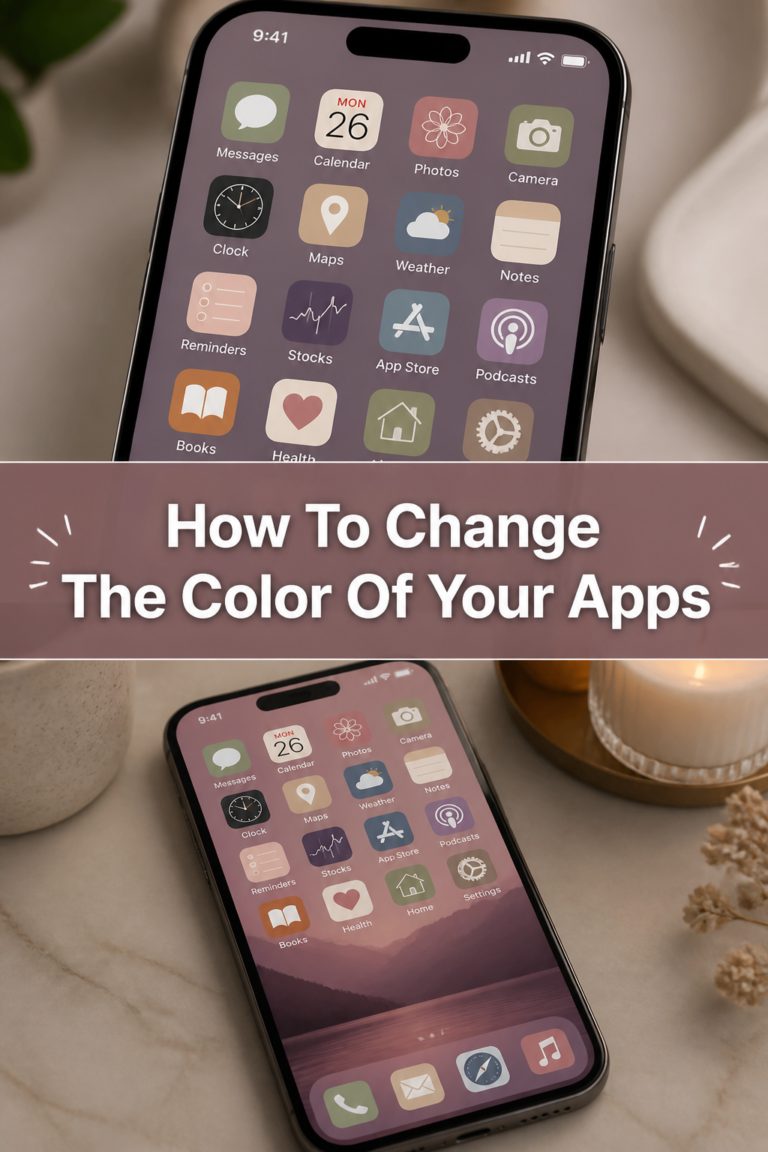
Step 3: Curate Your App Icons
This is where your home screen truly starts to reflect your personal style. Customizing app icons allows you to replace generic designs with ones that fit your chosen aesthetic.

The method for changing icons varies between iOS and Android, but both offer powerful tools to achieve stunning results.
- For iOS users: Utilize the Shortcuts app. You can create a new shortcut that opens an app, then assign a custom image from your photo library as its icon. This creates a shortcut icon on your home screen.
- For Android users: Download a third-party launcher like Nova Launcher, Lawnchair, or Action Launcher. These launchers allow you to apply entire icon packs, which are collections of themed icons.
- Find icon packs on your app store or search for individual icon images online. Many artists create beautiful icon sets specifically for aesthetic purposes.
- Replace default icons with your chosen custom images or apply a full icon pack. Take your time to ensure every essential app has an icon that matches your theme.
Pro Tip: Strive for consistency. Using icons from the same pack or a similar design language across your entire screen will make it look much more polished and intentional.
Step 4: Master the Art of Widgets
Widgets are functional elements that display information at a glance, but they can also be powerful aesthetic tools. They add depth and utility to your home screen.

Customizing widgets allows you to display information like time, weather, calendar events, or photos in a style that perfectly complements your theme.
- For iOS users: Explore apps like Widgetsmith, Color Widgets, or Widgy. These tools let you design custom widgets with various fonts, colors, and layouts.
- For Android users: Apps like KWGT Kustom Widget Maker or Zooper Widget Pro offer unparalleled customization for widgets. You can design them from scratch or use pre-made templates.
- Design widgets that blend seamlessly with your wallpaper and icon choices. Think about the information you want readily available and how it can be presented beautifully.
- Add your newly created widgets to your home screen by long-pressing an empty space and selecting the widget option. Experiment with different sizes and positions.
Pro Tip: Don’t overcrowd your screen with too many widgets. Choose a few key pieces of information or visual elements that enhance your aesthetic without making it feel cluttered.
Step 5: Organize Your Apps Strategically
An aesthetic home screen isn’t just about pretty pictures; it’s also about thoughtful organization. How you arrange your apps impacts both visual appeal and ease of use.
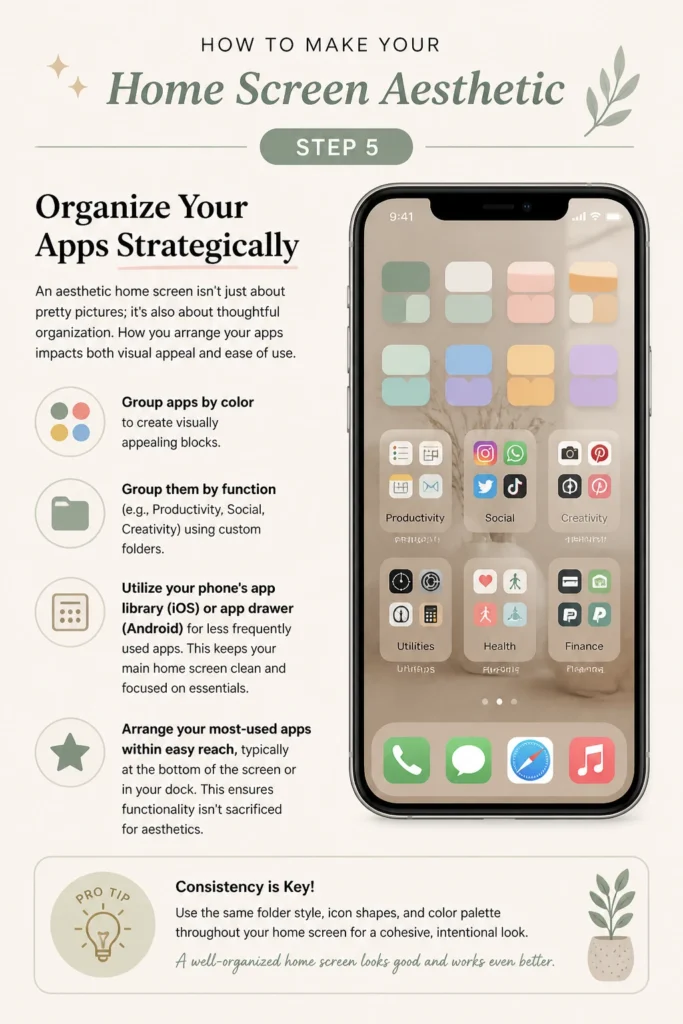
Move beyond simple alphabetical order and think about grouping apps in ways that make sense for your workflow and visual harmony.
- Group apps by color to create visually appealing blocks. Alternatively, group them by function (e.g., “Productivity,” “Social,” “Creativity”) using custom folders.
- Utilize your phone’s app library (iOS) or app drawer (Android) for less frequently used apps. This keeps your main home screen clean and focused on essentials.
- Arrange your most-used apps within easy reach, typically at the bottom of the screen or in your dock. This ensures functionality isn’t sacrificed for aesthetics.
Pro Tip: Consider creating multiple home screen pages, each dedicated to a specific category or mood. This allows for more apps while maintaining a clean look on each individual page.
Step 6: Declutter and Simplify
The path to an aesthetic home screen often involves removing what doesn’t serve you. Over-cluttering is the enemy of visual appeal and can make your phone feel overwhelming.

Take a critical look at every app and widget on your screen and ask yourself if it truly needs to be there.
- Delete any apps you no longer use or that don’t contribute to your daily workflow. Every unused app takes up valuable visual space.
- Minimize the number of icons and widgets on your primary home screen. Aim for a balanced layout that feels open and breathable.
- Hide notifications for apps that don’t require immediate attention. A clean notification badge is part of a clean aesthetic.
Pro Tip: Try a “digital detox” approach. Remove everything from your home screen except for your absolute essential apps for a day or two, then slowly add back only what you truly miss.
Step 7: Sync Across Devices (Optional but impactful)
If you use multiple devices like an iPad, tablet, or even a desktop computer, extending your aesthetic to them can create a truly cohesive digital ecosystem.

This step helps reinforce your chosen theme and ensures a consistent visual experience across all your personal tech.
- Apply similar wallpapers and color schemes to your other devices. This creates an immediate visual connection.
- Consider using the same icon style or widget layout where applicable. While not all customization options transfer directly, the general feel can be maintained.
- Maintain visual harmony by using consistent fonts or themes in your browser or other frequently used applications. This creates a seamless transition between devices.
Pro Tip: Don’t feel pressured to make everything identical. The goal is a complementary look, not necessarily a clone. Slight variations can add interest while maintaining the overall aesthetic.
Common Mistakes to Avoid
Overcrowding Your Screen
A common pitfall is trying to cram too many apps, widgets, and folders onto a single home screen. This leads to a cluttered, overwhelming appearance that detracts from any aesthetic effort.
Instead, prioritize essential elements. Less is often more when it comes to visual design, allowing individual components to stand out and breathe.
Inconsistent Theme
Mixing and matching wildly different icon styles, widget designs, and wallpaper themes can result in a disjointed look. Your home screen will feel haphazard rather than intentionally designed.
Stick to a defined color palette, a consistent icon style, and a complementary wallpaper. Cohesion is key to achieving a truly aesthetic and polished result.
Neglecting Functionality
While aesthetics are important, your phone is primarily a tool. Designing a beautiful home screen that is difficult to navigate or use defeats the purpose.
Always balance form with function. Ensure your most-used apps are easily accessible and that widgets display useful information clearly, even as you prioritize visual appeal.
Forgetting to Back Up
After spending hours perfecting your home screen, it would be devastating to lose it due to a phone reset or app issue. Many customization settings are not automatically saved.
If using a third-party launcher on Android, utilize its backup feature. For iOS, while less direct, taking screenshots of your setup can help you recreate it if needed.
Troubleshooting
Icons Not Changing/Applying
Sometimes, custom icons don’t seem to stick or apply correctly. This can be frustrating when you’re trying to perfect your aesthetic.
Ensure you’ve granted all necessary permissions to your launcher or icon-changing app. For Android, try clearing the cache of your launcher. For iOS, double-check that your Shortcuts are correctly linked to the apps.
Widgets Not Updating/Loading
If your custom widgets aren’t showing current information or appear blank, there might be a background refresh issue. They need permission to run and update.
Go into your phone’s settings and ensure the widget app has permission for background app refresh and access to location services (if it’s a weather widget, for example). Sometimes simply removing and re-adding the widget can resolve the issue.
Battery Drain Issues
While an aesthetic home screen is beautiful, some elements can be resource-intensive. Live wallpapers, complex animated widgets, and certain launchers can impact battery life.
Monitor your battery usage in your phone’s settings to identify power-hungry apps. Consider opting for static wallpapers or simpler widgets if battery drain becomes a significant concern.
Key Takeaways
- Define your aesthetic vision early to ensure a cohesive and intentional design.
- Your wallpaper is the foundation; choose one that perfectly sets the tone.
- Custom icons and widgets are transformative tools for personalization.
- Strategic app organization is vital for both visual appeal and ease of use.
- Prioritize functionality alongside aesthetics to create a truly enjoyable experience.
- Regularly declutter and simplify your screen to maintain a fresh, clean look.
Frequently Asked Questions
Is it safe to use third-party icon packs and launchers?
Generally, yes, but caution is always advisable. Download apps and icon packs only from reputable sources like the official App Store or Google Play Store. Read reviews and check developer credentials to ensure they are trustworthy.
Will custom themes slow down my phone?
It depends on the complexity of your customization. Heavy live wallpapers, numerous animated widgets, or feature-rich launchers can consume more system resources, potentially leading to a slight slowdown or increased battery usage on older devices. Minimalist setups usually have negligible impact.
Can I revert to my original home screen easily?
Yes, most customization methods are reversible. On Android, you can usually switch back to your device’s default launcher in your phone settings. For iOS, simply deleting the custom shortcut icons will revert to the original app icons, and you can remove widgets from your home screen as well.
How often should I change my home screen aesthetic?
There’s no right or wrong answer; it’s entirely personal preference! Some people enjoy changing their theme with seasons or moods, while others prefer to set it once and keep it for a long time. Experiment and see what brings you joy.
Our Top Recommended Finds
- Premium Icon Pack Subscription: Investing in a high-quality, professionally designed icon pack provides access to a vast library of consistent, beautiful icons that can elevate your aesthetic.
- Advanced Widget Creator App: Apps like KWGT (Android) or Widgy (iOS) offer unparalleled control over widget design, allowing you to create truly unique and functional elements.
- Wireless Charging Pad: A sleek wireless charger keeps your phone powered and your desk tidy, contributing to an overall clean and aesthetic environment that extends beyond your screen.
Your Digital Canvas Awaits
Your smartphone is more than just a tool; it’s a reflection of your personality and style. With these steps, you now have the power to transform it into a digital canvas that inspires and delights you every day.
Don’t be afraid to start small, experiment with different ideas, and iterate until you find what truly resonates. This journey of customization is about making your technology feel uniquely yours.
Take the first step today. Define your vision, pick a stunning wallpaper, and begin crafting the aesthetic home screen you’ve always dreamed of.