✨ How To Make Your Phone Aesthetic
Remember that feeling of a fresh start, a clean slate?
Your phone, used daily, deserves that same personalized touch, a reflection of your unique style.
Having spent countless hours curating my own digital spaces, I’ve gathered the most impactful strategies to transform your device into something truly yours.
Quick Overview
This guide will walk you through transforming your phone from a generic device into a personalized, visually appealing digital sanctuary.
You’ll learn how to harmonize colors, organize apps, and select elements that truly resonate with your personal style.
- Time needed: 1-3 hours for initial setup, with ongoing minutes for refinement.
- Difficulty: Beginner
- What you’ll need: A smartphone (iOS or Android), internet access, app store access, and a dose of creativity.
Step-by-Step Instructions
Step 1: Define Your Aesthetic Vibe
Before you change anything, spend some time envisioning your ideal phone look. Think about specific colors, textures, and overall moods you want to convey.
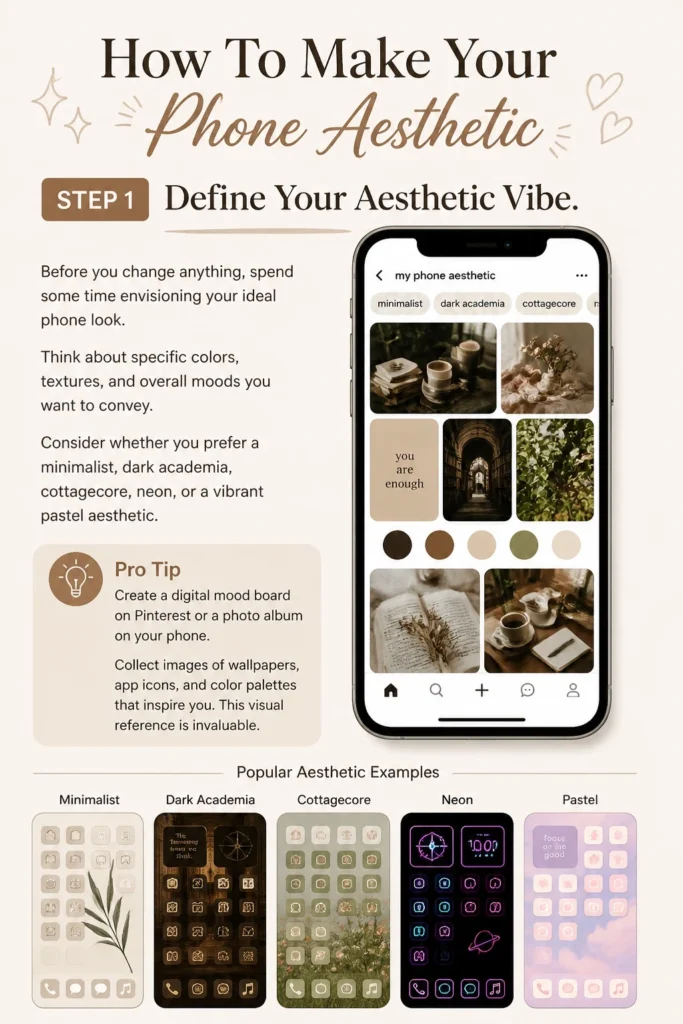
Consider whether you prefer a minimalist, dark academia, cottagecore, neon, or a vibrant pastel aesthetic. Having a clear vision guides all subsequent choices.
Pro Tip: Create a digital mood board on Pinterest or a photo album on your phone. Collect images of wallpapers, app icons, and color palettes that inspire you. This visual reference is invaluable.
Step 2: Choose Your Wallpaper Wisely
Your wallpaper is the foundation of your phone’s aesthetic, setting the tone for both your lock screen and home screen.
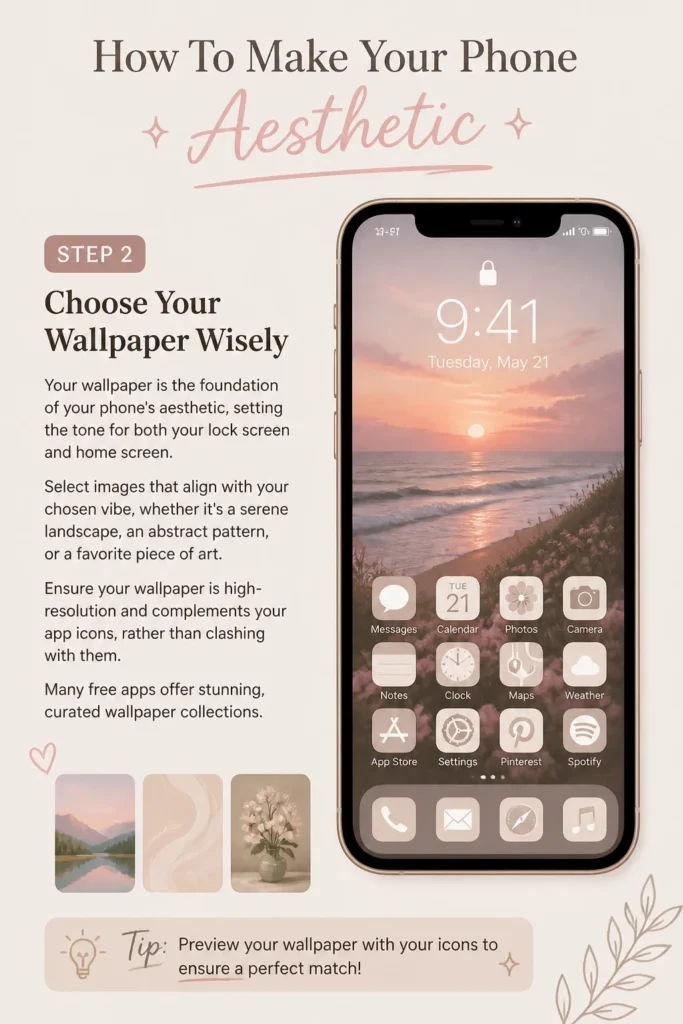
Select images that align with your chosen vibe, whether it’s a serene landscape, an abstract pattern, or a favorite piece of art.
Ensure your wallpaper is high-resolution and complements your app icons, rather than clashing with them. Many free apps offer stunning, curated wallpaper collections.
Step 3: Curate Your App Icons
Default app icons can often disrupt a cohesive aesthetic, but thankfully, you have options to customize them.
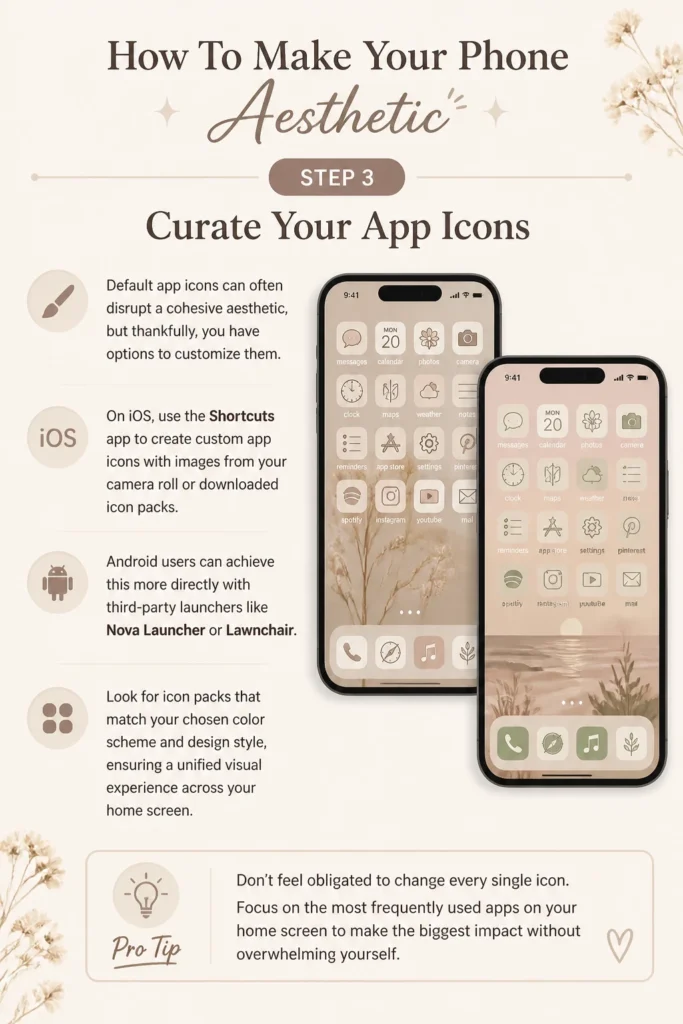
On iOS, use the Shortcuts app to create custom app icons with images from your camera roll or downloaded icon packs. Android users can achieve this more directly with third-party launchers like Nova Launcher or Lawnchair.
Look for icon packs that match your chosen color scheme and design style, ensuring a unified visual experience across your home screen.
Pro Tip: Don’t feel obligated to change every single icon. Focus on the most frequently used apps on your home screen to make the biggest impact without overwhelming yourself.
Step 4: Master the Widget Game
Widgets offer both functionality and aesthetic appeal, providing quick access to information and enhancing your home screen’s look.
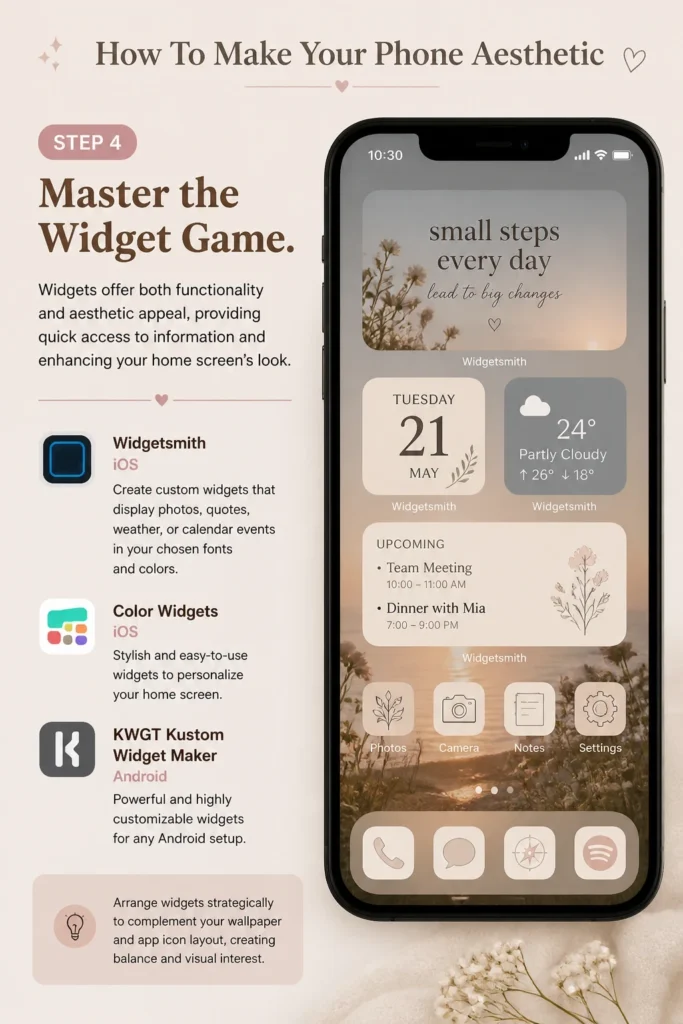
Utilize apps like Widgetsmith, Color Widgets (iOS) or KWGT Kustom Widget Maker (Android) to create custom widgets that display photos, quotes, weather, or calendar events in your chosen fonts and colors.
Arrange widgets strategically to complement your wallpaper and app icon layout, creating balance and visual interest.
Step 5: Organize for Clarity and Calm
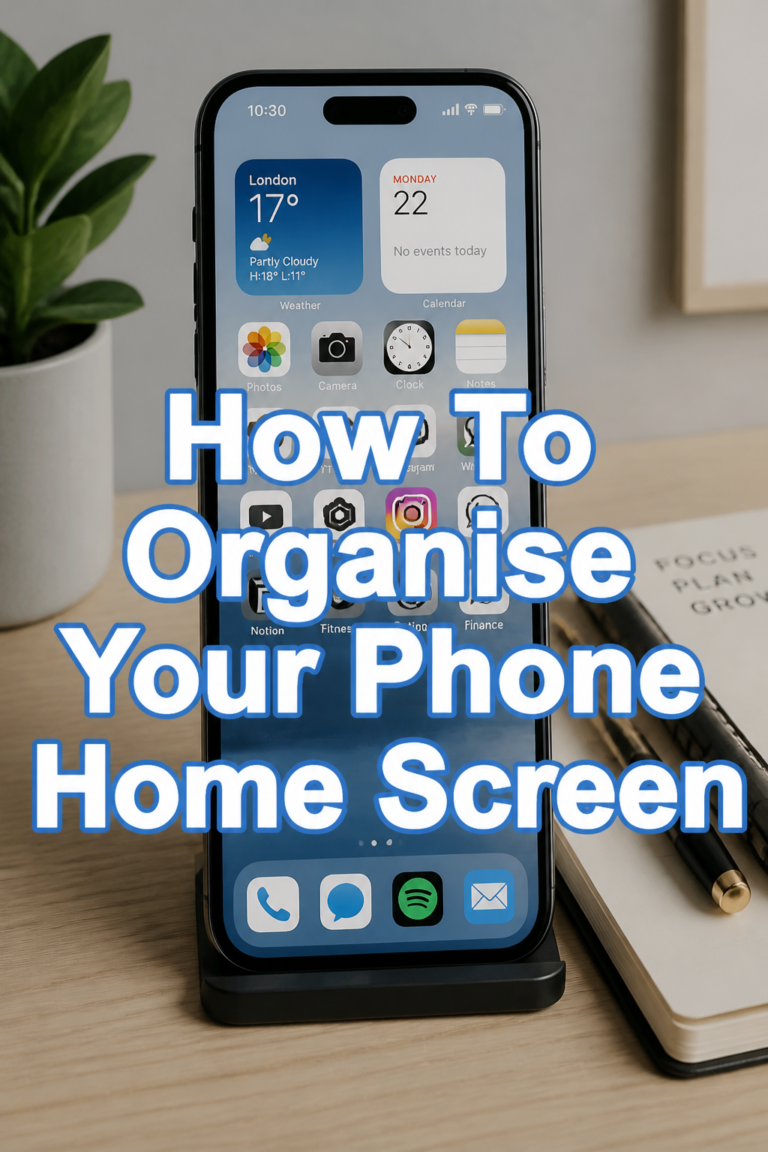
A cluttered home screen can detract from any aesthetic effort, so thoughtful organization is crucial.
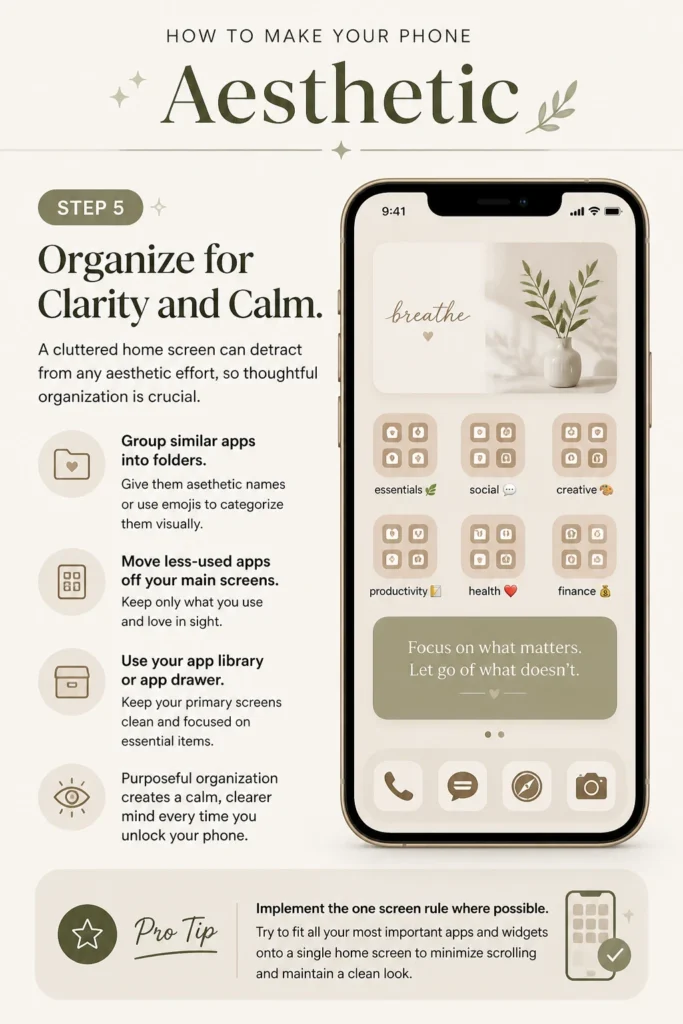
Group similar apps into folders, giving them aesthetic names or using emojis to categorize them visually. Consider moving less-used apps off your main home screens entirely.
Utilize your phone’s app library or app drawer to keep your primary screens clean and focused on essential items.
Pro Tip: Implement the “one screen rule” where possible. Try to fit all your most important apps and widgets onto a single home screen to minimize scrolling and maintain a clean look.
Step 6: Select Complementary Sounds & Haptics
An aesthetic phone experience extends beyond just visuals; sound and tactile feedback also play a role.
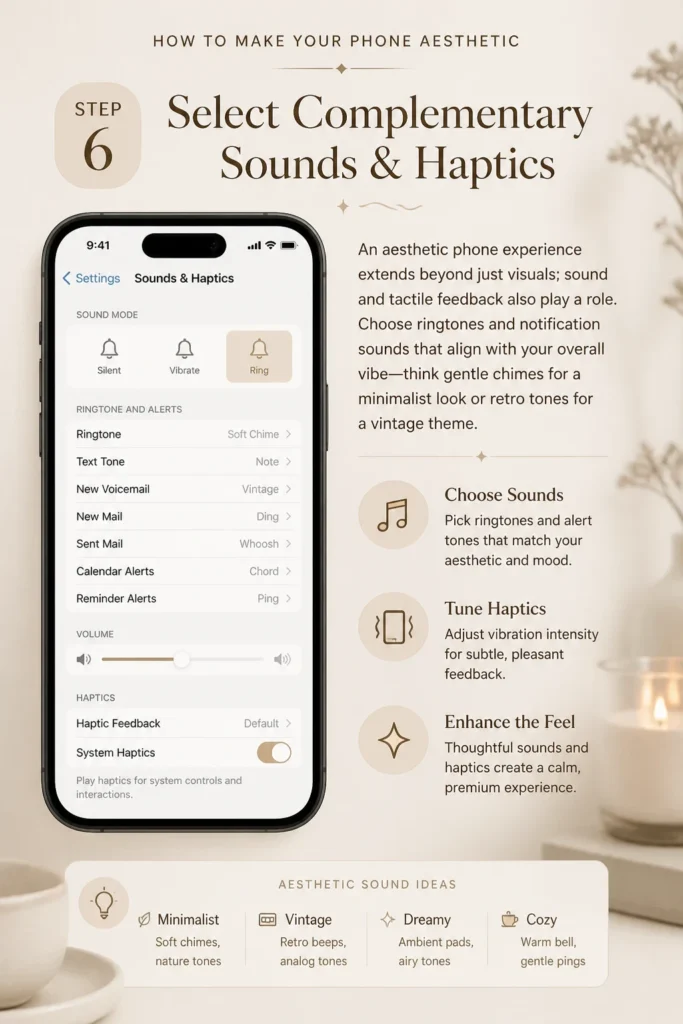
Choose ringtones and notification sounds that align with your overall vibe—think gentle chimes for a minimalist look or retro tones for a vintage theme.
Adjust haptic feedback settings to provide subtle, pleasant vibrations rather than jarring alerts, enhancing the premium feel of your device.
Step 7: Explore Themed Keyboards
Your keyboard is another frequently used interface that can be customized to match your phone’s aesthetic.
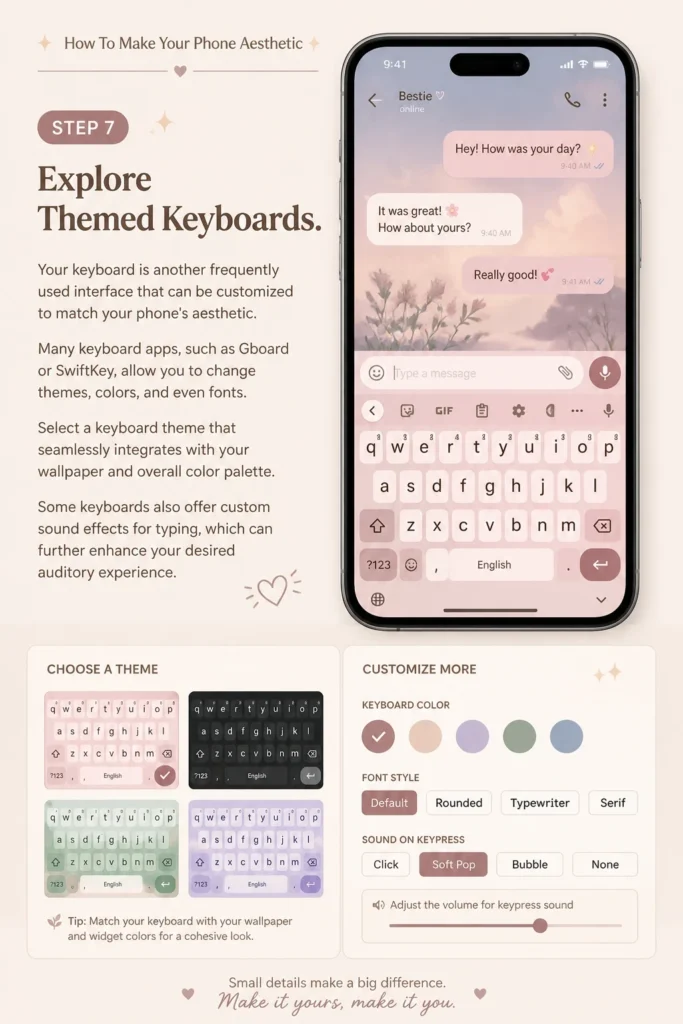
Many keyboard apps, such as Gboard or SwiftKey, allow you to change themes, colors, and even fonts. Select a keyboard theme that seamlessly integrates with your wallpaper and overall color palette.
Some keyboards also offer custom sound effects for typing, which can further enhance your desired auditory experience.
Step 8: Maintain & Evolve Your Look
An aesthetic isn’t a one-time setup; it’s an ongoing journey of refinement and personal expression.
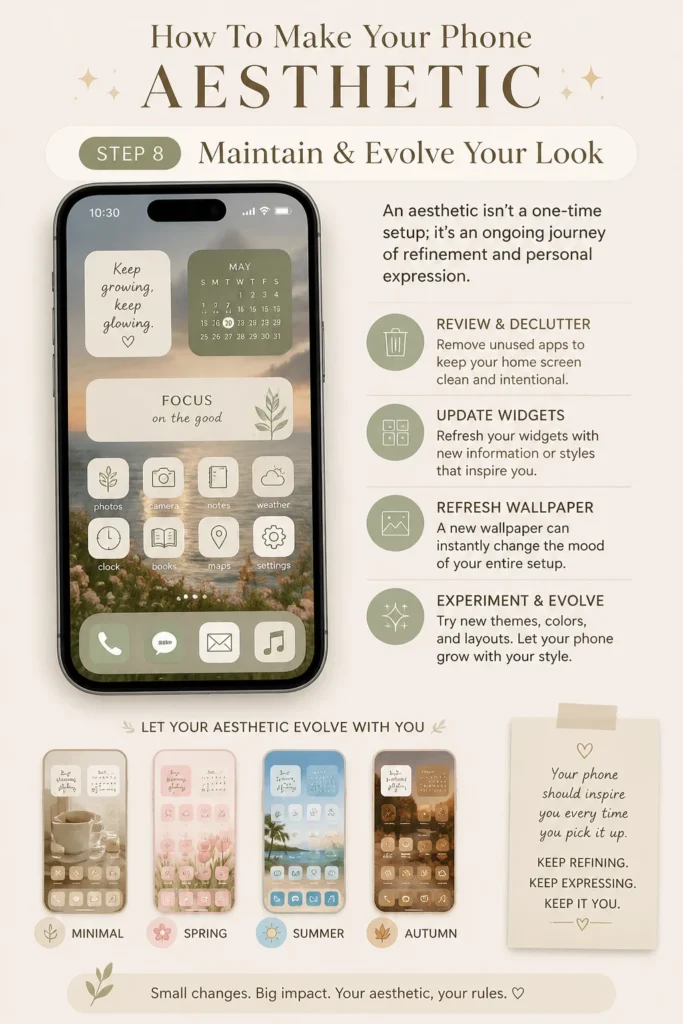
Periodically review your home screen and app organization. Remove unused apps, update widgets, and refresh your wallpaper to keep things feeling fresh.
Don’t be afraid to experiment with new themes or seasonal aesthetics, allowing your phone to evolve with your changing tastes.
Common Mistakes to Avoid
Overdoing It with Elements
Attempting to incorporate too many different colors, icon styles, or widget types can lead to a chaotic and visually overwhelming phone.
Instead of adding everything you like, focus on a cohesive theme with a limited color palette and a consistent design language. Simplicity often yields the most elegant results.
Ignoring Functionality for Form
While aesthetics are important, your phone’s primary purpose is to be functional and easy to use. Prioritizing beauty over usability can lead to frustration.
Ensure that customized icons are still recognizable and that widgets provide useful information without obscuring important app access. A truly aesthetic phone is both beautiful and practical.
Inconsistent Theme Application
Applying a dark aesthetic to your wallpaper but then using bright, conflicting app icons or widgets will break the immersion.
Strive for consistency across all visual elements, from your lock screen to your app folder colors. This creates a harmonious and polished overall look.
Neglecting Regular Updates
Leaving your aesthetic untouched for too long can make it feel dated or less appealing over time. Tastes change, and new customization options emerge.
Make it a habit to refresh your theme every few months or with the seasons. This keeps your phone feeling new and exciting, reflecting your current preferences.
Troubleshooting
Battery Drain from Customization Apps
Some third-party widget apps or live wallpapers can consume significant battery power due to constant refreshing or animations.
Check your phone’s battery usage settings to identify power-hungry apps. Consider reducing widget refresh rates or opting for static wallpapers if battery life becomes an issue.
Custom Icons Not Changing or Opening Slowly
On iOS, custom icons created through Shortcuts sometimes introduce a brief delay as they open the Shortcuts app before launching the actual application.
Ensure your Shortcuts are correctly configured. For Android, verify that your custom launcher is set as the default and has all necessary permissions to apply icon packs.
Widgets Not Updating or Displaying Correctly
Widgets require background app refresh and sometimes location services to display current information like weather or calendar events.
Go into your phone’s settings and grant the widget app all necessary permissions, including background app refresh and location access. Restarting the app or your phone can also resolve temporary glitches.
Key Takeaways
- Start with a clear vision and mood board to define your aesthetic.
- Choose high-quality wallpapers that set the foundation for your theme.
- Customize app icons and leverage widgets for both beauty and utility.
- Organize your home screen and apps for a clean, functional layout.
- Don’t forget to personalize sounds and keyboard themes for a full experience.
- Regularly review and refresh your aesthetic to keep it current and engaging.
Frequently Asked Questions
Is this phone aesthetic customization only for iPhone or Android?
No, both iOS and Android platforms offer extensive customization options. While the methods might differ slightly (e.g., Shortcuts on iOS versus launchers on Android), the core principles apply to both.
Do aesthetic changes slow down my phone’s performance?
Most aesthetic changes, like wallpapers and icon packs, have minimal impact. However, overly complex live wallpapers or multiple resource-intensive widgets can sometimes consume more RAM and battery, potentially affecting performance on older devices.
Can I easily revert to my phone’s old look if I don’t like the aesthetic?
Absolutely. You can always change your wallpaper back, remove custom widgets, and either delete custom icon shortcuts (iOS) or switch back to your default launcher (Android) to restore your phone’s original appearance.
What are the best apps for phone customization?
For iOS, Widgetsmith, Color Widgets, and the native Shortcuts app are popular. On Android, Nova Launcher, KWGT Kustom Widget Maker, and various icon pack apps from the Play Store are excellent choices.
Our Top Recommended Finds
- Stylus Pen: Great for precise navigation, drawing on photo widgets, or detailed note-taking, enhancing the interactive experience.
- Phone Ring Holder/Stand: A practical accessory that can be chosen to match your aesthetic, providing grip and a convenient stand for media consumption.
- Microfiber Screen Cleaning Kit: Essential for maintaining a pristine display, ensuring your beautiful new aesthetic is always seen clearly without smudges.
Craft Your Unique Digital Canvas
Your phone is more than just a tool; it’s a constant companion, a window into your digital world.
By taking the time to personalize its appearance, you’re not just making it look good; you’re creating a space that inspires and reflects who you are.
Start small today. Pick one element—your wallpaper, an icon, or a widget—and transform it. Soon, you’ll have a fully curated device that feels uniquely yours.