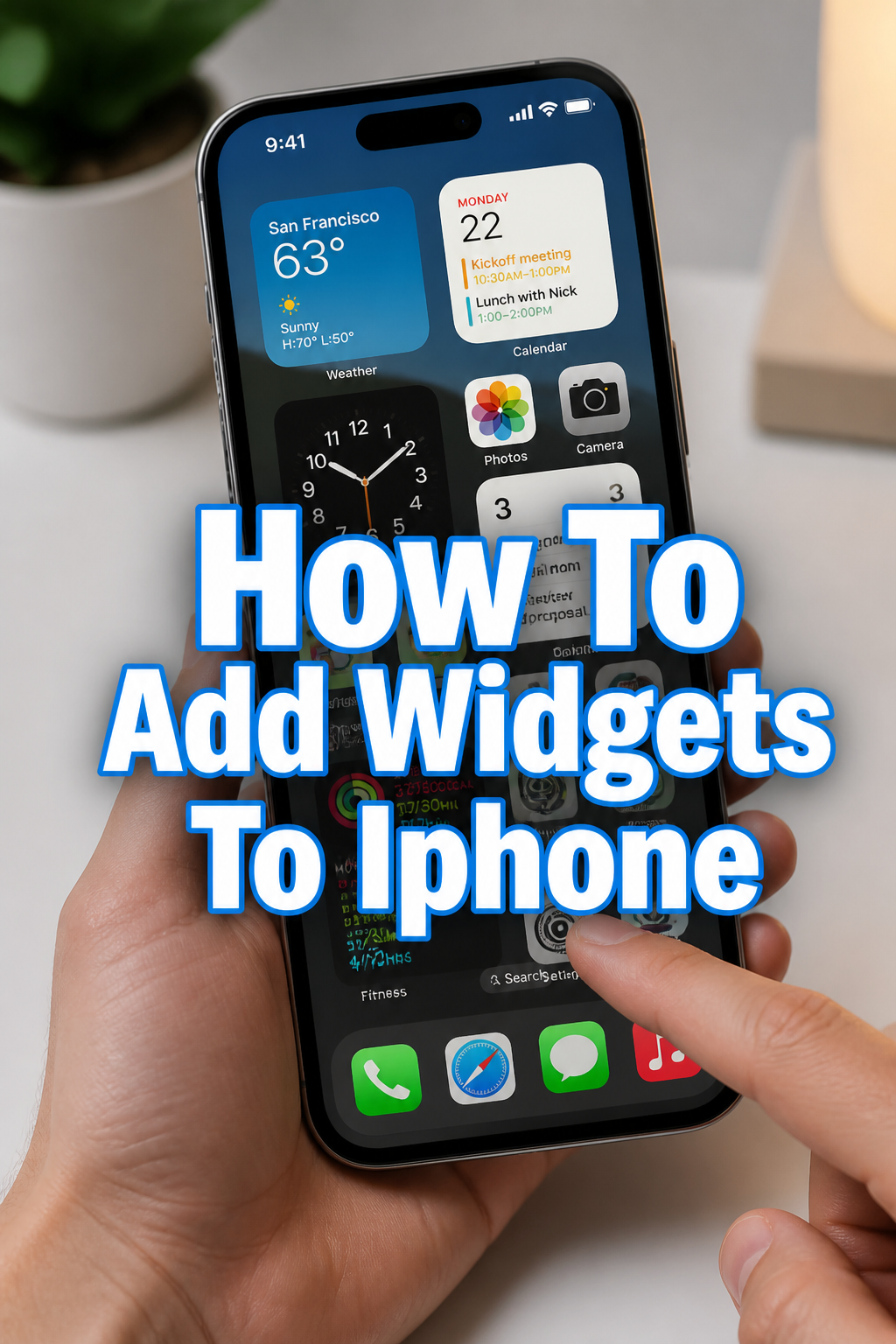
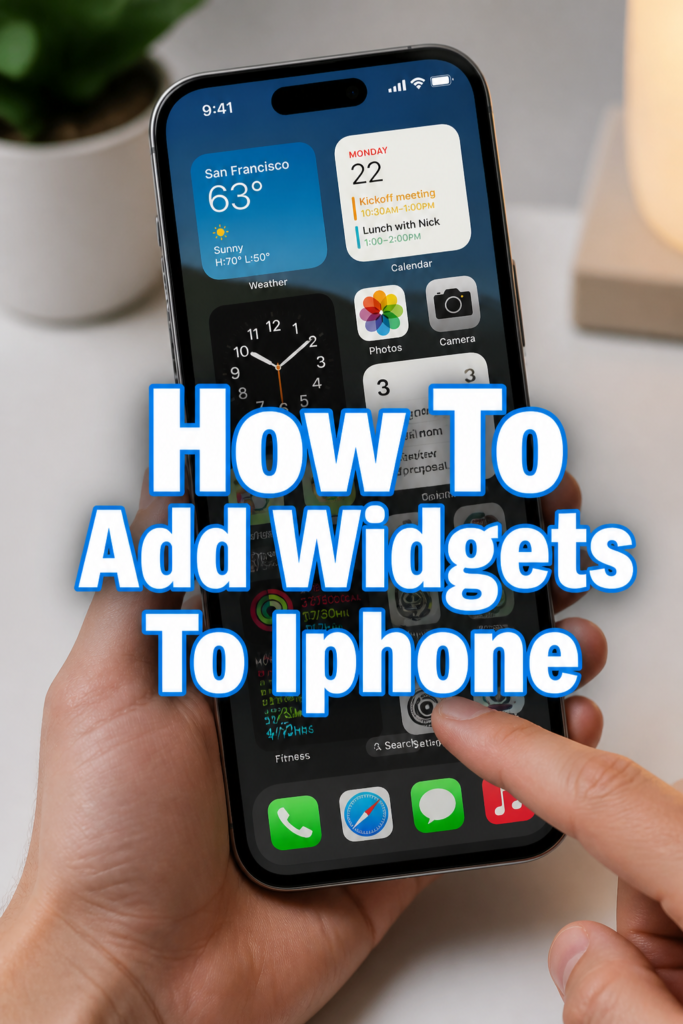
📱 How To Add Widgets To Iphone
Remember when iPhone home screens felt static and uninspired?
I certainly do, and for years, customizing them felt like a dream.
I’ve spent countless hours personalizing iPhones, and I can confidently say that widgets are a game-changer for daily use and aesthetic appeal.
Quick Overview
This guide will walk you through the simple yet powerful process of adding widgets to your iPhone.
You’ll learn how to transform your home screen into a dynamic, information-rich hub tailored to your exact needs and preferences.
- Time needed: 5-15 minutes (depending on customization depth)
- Difficulty: Beginner
- What you’ll need: An iPhone running iOS 14 or later, apps that support widgets
Step-by-Step Instructions
Step 1: Enter Home Screen Editing Mode
The first step to adding any widget is to activate your iPhone’s home screen editing mode.
This mode allows you to rearrange apps, delete them, and, crucially, add new widgets.
- Press and hold your finger on any empty space on your iPhone’s home screen.
- Keep holding until all your app icons begin to jiggle.
- Notice the small minus signs appearing on the top-left corner of each app icon, confirming you are in editing mode.
Pro Tip: Avoid pressing directly on an app icon, as this might trigger its context menu instead of the editing mode. Aim for an empty spot.
Step 2: Tap the Add Widget Button
Once your app icons are jiggling, a new option will appear on your screen.
This button is your gateway to the widget gallery, where all available widgets reside.
- Look for a plus (+) button located in the top-left corner of your screen.
- Tap this plus (+) button to open the widget gallery.
- Observe the gallery pop up, displaying a selection of suggested widgets and a search bar.
Step 3: Browse and Select Your Desired App’s Widget
The widget gallery presents a vast array of options from both Apple’s built-in apps and third-party applications.
You can scroll through suggestions or search for a specific app’s widget.
- Scroll through the list of available apps and their corresponding widgets.
- Use the search bar at the top of the gallery if you have a specific app in mind, typing its name.
- Select the app you want to add a widget from by tapping on its icon or name in the list.
Pro Tip: Many apps offer multiple widget sizes and types. Take a moment to explore all the options for your favorite apps before making a choice.
Step 4: Choose a Widget Size and Type
After selecting an app, you’ll be presented with different configurations for its widget.
Widgets typically come in small, medium, and large sizes, each offering varying amounts of information and functionality.
- Swipe horizontally through the different widget sizes and styles offered by the selected app.
- Review the preview of each widget to understand what information it displays and how it looks.
- Decide which size and type best fit your needs and the aesthetic of your home screen.
Step 5: Add the Widget to Your Home Screen
Once you’ve settled on the perfect widget configuration, adding it to your home screen is a straightforward action.
It will initially appear in a default position, but you can easily move it later.
- Tap the “Add Widget” button located at the bottom of the widget preview.
- Watch as the chosen widget appears on your current home screen, usually in the first available space.
- Confirm its placement, knowing you can adjust it if needed.
Step 6: Reposition and Arrange Your Widget
After adding, your new widget might not be in its ideal spot.
The home screen editing mode allows for complete flexibility in arranging your widgets and apps.
- Drag the newly added widget around your home screen by pressing and holding it.
- Place it in any desired empty space, or even between existing apps.
- Move it to a different home screen page by dragging it to the edge of the current screen.
Pro Tip: Consider creating dedicated home screen pages for specific widget categories, like a productivity page or a health and fitness page, for better organization.
Step 7: Customize Widget Settings (If Available)
Some widgets offer additional customization options directly from the home screen.
This allows you to fine-tune the information displayed without needing to open the parent app.
- Tap and hold the widget you wish to customize while in home screen editing mode.
- Select “Edit Widget” from the context menu that appears.
- Adjust settings such as the specific playlist for a Music widget, the city for a Weather widget, or the list for a Reminders widget.
Step 8: Exit Home Screen Editing Mode
Once you’re satisfied with your widget placement and customization, you need to exit the editing mode.
This locks your home screen layout in place until your next customization session.
- Tap “Done” in the top-right corner of your screen.
- Alternatively, swipe up from the bottom of the screen on iPhones without a Home button, or press the Home button on older models.
- Observe that your app icons stop jiggling, and the minus signs disappear, indicating you’ve exited editing mode.
Common Mistakes to Avoid
Not Entering Editing Mode Correctly
Many users new to widgets might try to tap the plus button without first entering the jiggle mode.
If your apps aren’t jiggling, the plus button for adding widgets simply won’t appear, leading to frustration.
Always ensure you press and hold an empty space on your home screen until the apps begin to animate before looking for the add widget button.
Forgetting to Configure Widgets
Some widgets, especially those from third-party apps, require initial configuration to display relevant information.
Simply adding a widget without customizing its settings might leave it blank or displaying generic data, diminishing its utility.
Always check if an “Edit Widget” option is available after adding it, and take a moment to set it up according to your preferences.
Overcrowding Your Home Screen
It’s tempting to add every useful widget you find, but too many widgets can make your home screen feel cluttered and overwhelming.
An overly busy home screen can defeat the purpose of widgets, which is to provide quick, at-a-glance information.
Prioritize widgets that offer the most value to your daily routine, and consider using multiple home screen pages to organize different categories of widgets.
Not Updating Apps
Widgets are often introduced or improved with app updates.
If you’re looking for a specific widget or experiencing issues, an outdated app could be the culprit.
Make sure all your apps, especially those you want widgets from, are updated to their latest versions through the App Store to ensure full widget functionality.
Troubleshooting
Widget Not Appearing in Gallery
If you can’t find a specific app’s widget in the gallery, there are a few common reasons.
First, confirm that the app itself is installed on your iPhone and is updated to its latest version from the App Store.
Some apps may not yet support widgets, or their widget functionality might be part of a newer update you haven’t installed.
Widget Displaying “No Content” or Blank
A widget showing “No Content” or remaining blank usually means it needs to be configured or granted permissions.
Tap and hold the widget, select “Edit Widget,” and check if there are any options to select data or grant access to information.
Also, ensure the parent app has the necessary permissions in your iPhone’s Privacy settings, such as Location Services or Calendar access.
Widget Not Updating Information
If your widget isn’t showing the most current information, it might be due to background app refresh settings or a temporary software glitch.
Check “Settings > General > Background App Refresh” and ensure the app is enabled there.
A simple restart of your iPhone can often resolve minor display or update issues with widgets.
Key Takeaways
- Widgets offer a powerful way to personalize your iPhone home screen with glanceable information.
- Always begin by entering home screen editing mode (jiggle mode) to access the widget gallery.
- Explore different sizes and types of widgets available for your favorite apps to find the best fit.
- Reposition and arrange widgets freely across your home screens to create an organized layout.
- Remember to customize widget settings directly from the home screen for optimal functionality.
- Avoid common pitfalls like overcrowding or neglecting to update apps for the best widget experience.
Frequently Asked Questions
Can I add widgets to the Lock Screen?
No, standard widgets can only be added to your iPhone’s home screen or the Today View (accessed by swiping right from the first home screen).
However, iOS 16 and later introduced Lock Screen customization options that include smaller, inline widgets for the clock and below it, which are distinct from home screen widgets.
How do I remove a widget from my home screen?
To remove a widget, enter home screen editing mode by long-pressing an empty space.
Then, tap the minus (-) icon that appears on the top-left corner of the widget you wish to remove.
Confirm your choice by tapping “Remove Widget” in the prompt.
Are there any limits to how many widgets I can add?
While there isn’t a strict numerical limit, your iPhone’s home screens have a finite amount of space.
Widgets occupy space that could otherwise be used by app icons, so the practical limit is determined by the physical layout of your screens.
It’s best to prioritize quality over quantity to maintain a clean and functional home screen.
Can I stack multiple widgets on top of each other?
Yes, you can create Smart Stacks or manually stack widgets of the same size.
To do this, simply drag one widget on top of another widget of the same size while in home screen editing mode.
You can then swipe through the stack to view different widgets, saving valuable home screen real estate.
Our Top Recommended Finds
- Anker Portable Charger: Keep your iPhone powered up, especially when running multiple widgets that might consume more battery.
- Screen Cleaning Kit: Maintain a pristine screen to fully appreciate your beautifully arranged widgets and apps.
- Stylus Pen: For precise placement and interaction with widgets, especially if you have larger fingers or prefer accuracy.
Transform Your iPhone Experience Today
Adding widgets to your iPhone is more than just a cosmetic change; it’s about enhancing functionality and personalizing your digital space.
You now have the knowledge to create a home screen that truly works for you, providing immediate access to the information you need most.
Don’t hesitate to experiment with different apps, sizes, and layouts to discover your perfect setup.
Start customizing your iPhone home screen with widgets right now and unlock a new level of convenience and aesthetic appeal.