📱 How To Save Your Best Friends Contact
I remember the panic of losing my phone and realizing I didn’t know my best friend’s number by heart.
Since that day, I have perfected the art of organizing my inner circle’s digital information to ensure they are always a tap away.
This guide comes from years of testing the best ways to keep your closest connections accessible, personalized, and safe.
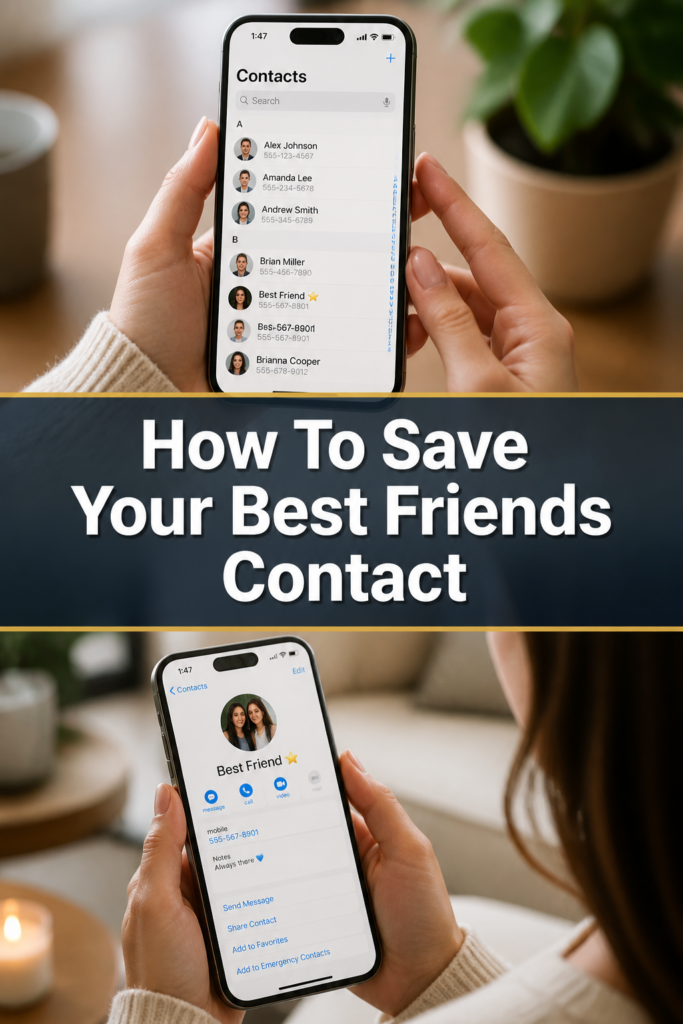
Quick Overview
Managing a best friend’s contact is about more than just a phone number. It is about creating a digital profile that reflects your unique bond and ensures you can reach them in any situation.
- Time needed: 10-15 minutes
- Difficulty: Beginner
- What you’ll need: A smartphone, your friend’s current details, and a favorite photo of them.
Step-by-Step Instructions
Step 1: Open Your Contacts Application
Launch the default contacts or phone app on your smartphone device.
Tap the plus (+) icon or the “Create New Contact” button usually found at the top or bottom of the screen.
Starting fresh ensures you don’t have old, conflicting data from previous entries or social media syncs.
Pro Tip: If you already have a basic entry for them, select it and tap “Edit” instead of creating a duplicate.
Step 2: Enter the Full Legal Name
Type their first and last name into the dedicated fields provided by the software.
Even if you never call them by their formal name, having it on record is vital for official sharing or travel purposes.
It also helps your phone’s voice assistant recognize exactly who you are talking about when you ask it to make a call.
Step 3: Choose a Meaningful Nickname
Scroll down to the “Nickname” field or the “Add Field” section to find the nickname option.
Input the name you actually use in real life, whether it is an inside joke or a shortened version of their name.
Many modern phones allow you to “Prefer Nickname,” which means their fun name shows up in your messages instead of their formal one.
Pro Tip: Using a nickname helps you quickly identify them in a long list of professional or casual acquaintances.
Step 4: Input Multiple Phone Numbers
Add their primary mobile number first, ensuring you include the correct country code if they travel often.
Select the “Add Phone” option to include a work number or a home landline if they have one.
Labeling these correctly as “Mobile,” “Work,” or “Home” helps you choose the right way to reach them depending on the time of day.
Step 5: Add a High-Quality Contact Photo
Tap the circular photo icon at the top of the contact edit screen.
Select a photo from your gallery that makes you smile or represents a great memory you shared together.
Having a photo makes it much easier to spot their incoming calls at a glance, especially when you are busy or driving.
Step 6: Assign a Custom Ringtone and Vibration
Find the “Ringtone” or “Sounds” section within the contact’s specific settings menu.
Pick a song or sound effect that is distinct from your default notification sound.
Create a custom vibration pattern so you can identify their text messages even when your phone is silenced in your pocket.
Pro Tip: Setting a unique tone allows you to know it is them calling without even looking at your screen.
Step 7: Configure Emergency Bypass Settings
Toggle the “Emergency Bypass” switch to the “On” position within the ringtone settings.
This feature allows their calls and texts to ring through even if your phone is set to “Do Not Disturb” or “Silent” mode.
This is a critical step for best friends who might need to reach you during an actual emergency late at night.
Step 8: Include Important Personal Dates
Tap the “Add Birthday” field and enter the month, day, and year of their birth.
Look for an “Add Date” option to include your “friendship anniversary” or other milestones you celebrate.
Your phone will automatically sync these dates to your calendar, ensuring you never forget to send a thoughtful message.
Step 9: Add Their Physical Address
Enter their home address into the address fields, including the apartment or suite number.
This makes it incredibly easy to use GPS navigation to get to their house with just one click.
It also simplifies the process of sending them surprise gifts or flowers through various delivery apps.
Step 10: Use the Notes Section for Personal Details
Navigate to the “Notes” box at the bottom of the contact card.
Write down small but important details like their coffee order, their allergies, or the names of their pets.
These details show you care and help you stay organized when you are planning hangouts or buying gifts.
Common Mistakes to Avoid
Using Only First Names
Many people save their best friend as just “Sarah” or “Mike.” As your contact list grows over the years, you will likely end up with five people with the same name. Always include a last name or a very specific identifier to prevent confusion and accidental messages to the wrong person.
Forgetting the International Country Code
If you or your friend travels abroad, a phone number saved without a country code might fail to connect. Always use the “+” symbol followed by the country code (like +1 for the USA) before the area code. This ensures the number works perfectly regardless of where you are in the world.
Ignoring the Emergency Contact Tag
Failing to designate your best friend as an official emergency contact in your phone’s health settings is a major oversight. If something happens to you, first responders look for this specific tag on your lock screen. Simply saving the name is not enough for the phone’s system to recognize them as a priority contact in a crisis.
Neglecting Regular Updates
People change phone numbers, move to new apartments, and get new jobs more often than we realize. If you don’t update their contact card annually, you might find yourself with outdated information when you need it most. Make it a habit to check their details whenever they mention a change in their life.
Troubleshooting
Duplicate Contacts Appearing
Sometimes your phone will show the same friend two or three times because of syncing with email accounts or social media. To fix this, use the “Merge Contacts” feature found in your settings menu. This combines all the different pieces of information into one clean, comprehensive card without losing any data.
Photos Not Showing Up on Incoming Calls
If the contact photo isn’t appearing when they call, it is usually because the photo is saved in a low-resolution format or cloud syncing is delayed. Try re-uploading the photo directly from your local camera roll while your phone is connected to Wi-Fi. Also, ensure that your “Caller ID” settings are not restricted by your service provider.
Ringtones Resetting to Default
If your custom ringtone stops working, it might be because the audio file was moved or deleted from your device. Ensure the song or sound you chose is downloaded locally to your phone’s storage rather than just being streamed from a cloud service. Re-assigning the tone after a major software update often solves this glitch.
Key Takeaways
- Personalize the profile with a high-quality photo and a unique nickname to make the contact stand out.
- Enable Emergency Bypass so their calls can reach you even when your phone is on silent.
- Add physical addresses and birthdays to turn the contact card into a helpful personal assistant for your friendship.
- Include “Notes” about their preferences and life details to help you be a more attentive and organized friend.
- Use full names and country codes to ensure the contact remains functional and easy to find as your list grows.
- Regularly back up and merge your contacts to prevent data loss or confusing duplicates.
Frequently Asked Questions
Can I save my best friend under a funny name without it looking weird in my email?
Yes, most smartphones have separate fields for “Full Name” and “Nickname.” If you put their real name in the name fields and their funny nickname in the nickname field, you can set your phone to display the nickname only in your private messaging apps. This keeps your professional email syncs looking clean while keeping your personal list fun.
How do I make my best friend an emergency contact on my lock screen?
On most devices, you need to go to your “Health” app or “Safety” settings. Look for the “Medical ID” or “Emergency Contacts” section and select your friend from your list. This allows anyone to contact them from your lock screen without needing your passcode, which is vital for safety.
Will my friend know what I named them in my phone?
Generally, no. The name you save in your contacts is private to your device. However, if you “Share Contact” with someone else, they will see whatever name you have saved. Also, some third-party caller ID apps might scrape your contact list, so it is usually best to keep nicknames relatively respectful.
What should I do if my friend has two different phone numbers?
You should always keep both numbers within a single contact card rather than creating two separate entries. Use the “Label” feature to mark one as “Personal” and the other as “Work” or “Travel.” This keeps your messaging threads organized and prevents you from having to guess which “Sarah” you are texting.
Our Top Recommended Finds
- Portable Power Bank: Keeping your phone charged ensures you can always access your contacts when you are out with your best friend.
- Stylus Pen: A fine-tip stylus makes it much easier to type detailed notes and addresses into contact fields without making typos.
- Cloud Storage Subscription: Services like iCloud or Google One ensure that your carefully curated contact list is backed up and never lost if your phone is damaged.
Taking Your Digital Connections Further
Now that you have perfectly saved your best friend’s information, you might want to consider organizing your entire “Favorites” list.
Setting up group chats or shared calendars can also help you stay even more connected with your inner circle.
Take five minutes today to update at least three other close contacts using these same steps to ensure your digital life is as organized as your social life.
Your future self will thank you the next time you need to find an address or remember a birthday in a hurry.