🚀 How To Use Shortcuts To Change Apps
Do you ever feel like you are constantly clicking around, wasting precious seconds switching between programs?
There is a much more efficient way to navigate your digital workspace.
I have personally streamlined my workflow using these exact techniques, and now you can too.

Quick Overview
This guide will teach you how to master keyboard shortcuts and system features to seamlessly switch between your open applications. You will learn to navigate your computer with speed and precision, saving time and reducing frustration.
- Time needed: 15-25 minutes (to read and practice)
- Difficulty: Beginner
- What you’ll need: A computer (Windows or macOS) with multiple applications open
Step-by-Step Instructions
Step 1: Understand the Basics of App Switching
Before diving into specific shortcuts, it’s important to grasp the core concept. App switching involves moving your focus from one open application window to another. This is different from minimizing or closing an app.
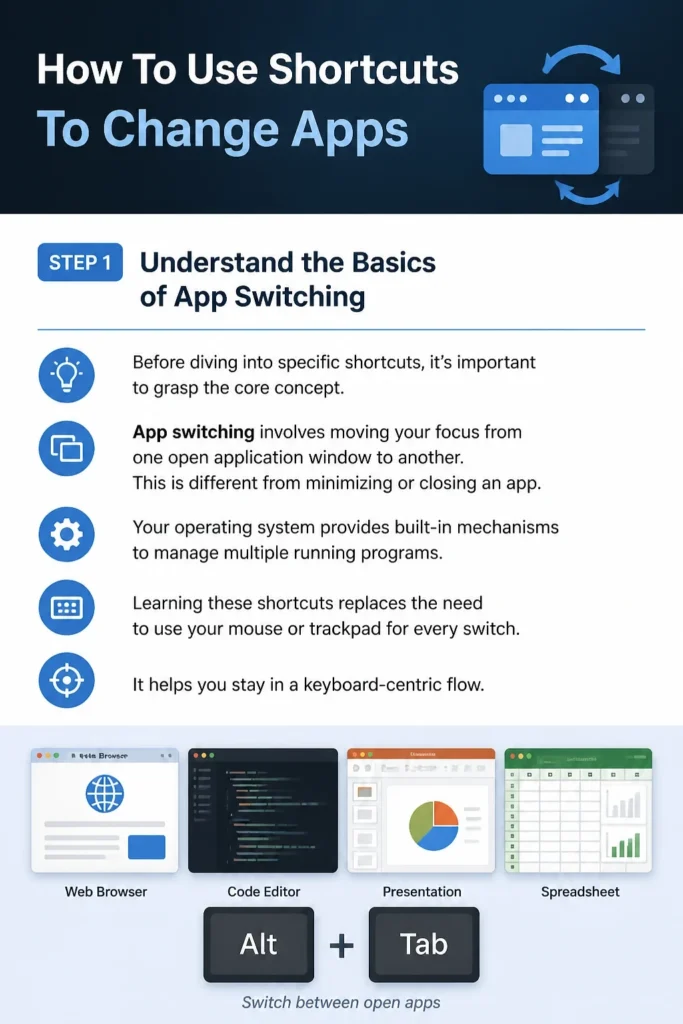
Your operating system provides built-in mechanisms to manage multiple running programs. Learning these shortcuts replaces the need to use your mouse or trackpad for every switch. It helps you stay in a keyboard-centric flow.
Step 2: Master the Quick Switch (Windows: Alt+Tab / macOS: Cmd+Tab)
This is the most fundamental and frequently used shortcut for changing apps on both major operating systems. It brings up an overlay showing all your open windows.
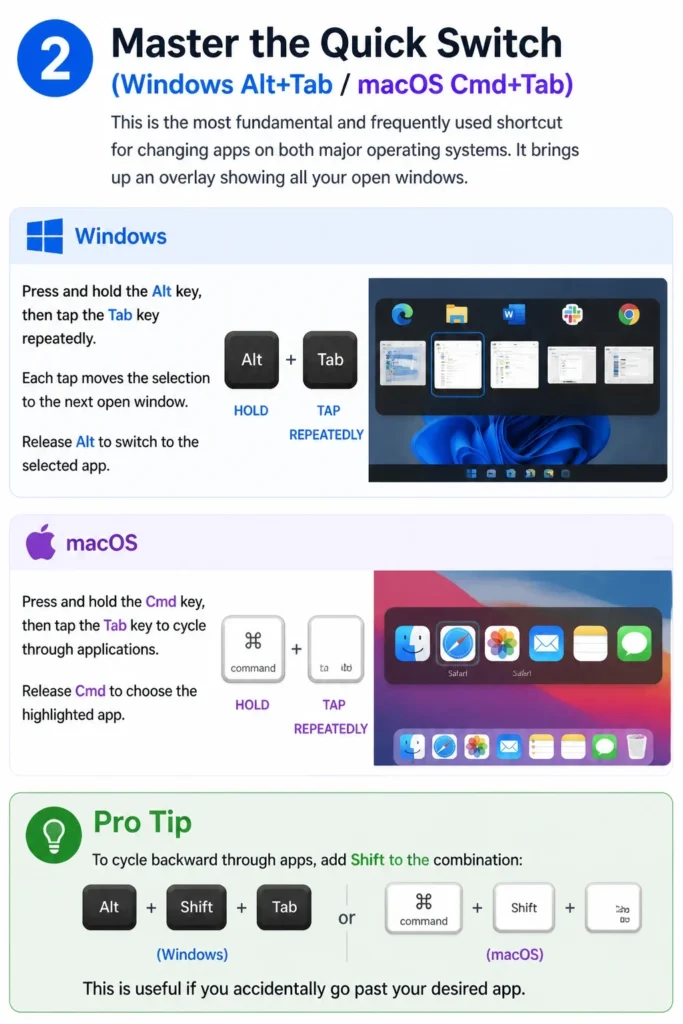
On Windows, press and hold the `Alt` key, then tap the `Tab` key repeatedly. Each tap moves the selection to the next open window. Release `Alt` to switch to the selected app. On macOS, press and hold `Cmd`, then tap `Tab` to cycle through applications. Release `Cmd` to choose the highlighted app.
Pro Tip: To cycle backward through apps, add `Shift` to the combination: `Alt+Shift+Tab` (Windows) or `Cmd+Shift+Tab` (macOS). This is useful if you accidentally go past your desired app.
Step 3: Utilize Task View / Mission Control for Visual Switching
Sometimes you need a more visual overview of your open applications, especially if you have many windows. Both Windows and macOS offer dedicated features for this.
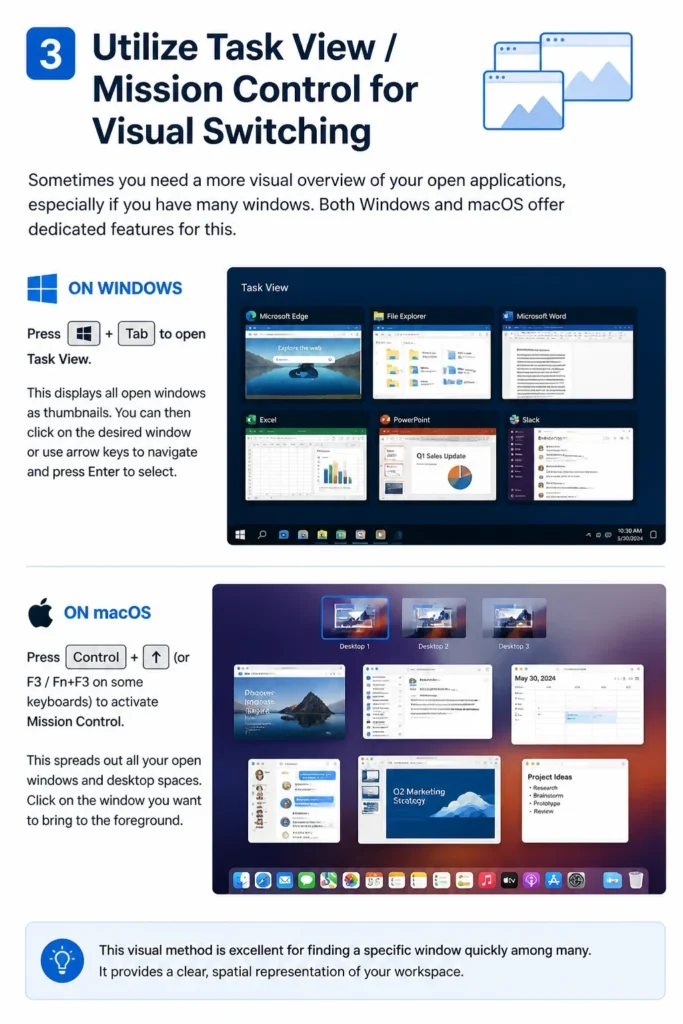
On Windows, press `Win + Tab` to open Task View. This displays all open windows as thumbnails. You can then click on the desired window or use arrow keys to navigate and press Enter to select. On macOS, press `Control + Up Arrow` (or `F3`/`Fn+F3` on some keyboards) to activate Mission Control. This spreads out all your open windows and desktop spaces.
Click on the window you want to bring to the foreground. This visual method is excellent for finding a specific window quickly among many. It provides a clear, spatial representation of your workspace.
Step 4: Switch Directly to Pinned Apps (Windows Only)
Windows users can quickly jump to applications pinned to their taskbar. This is incredibly efficient for frequently used programs like browsers, email clients, or chat apps.
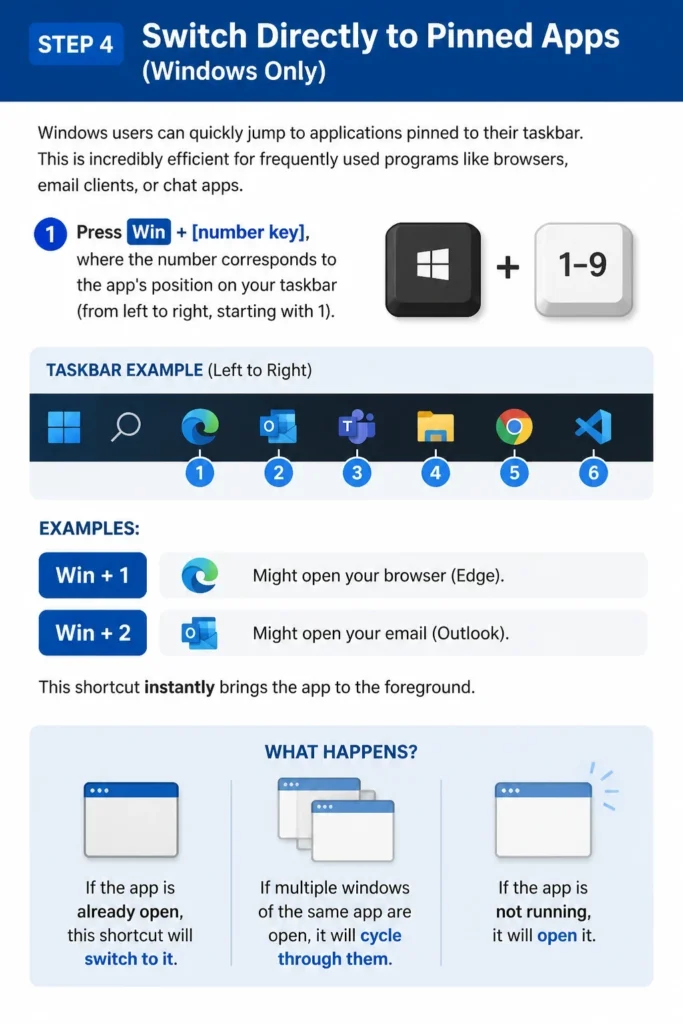
Press `Win + [number key]`, where the number corresponds to the app’s position on your taskbar (from left to right, starting with 1). For example, `Win + 1` might open your browser, and `Win + 2` your email. This shortcut instantly brings the app to the foreground.
If the app is already open, this shortcut will switch to it. If multiple windows of the same app are open, it will cycle through them.
Step 5: Hide and Minimize Apps (macOS: Cmd+H, Cmd+M / Windows: Win+D)
While not strictly “app switching,” knowing how to quickly hide or minimize apps helps manage your visible workspace. This clears clutter without closing programs.
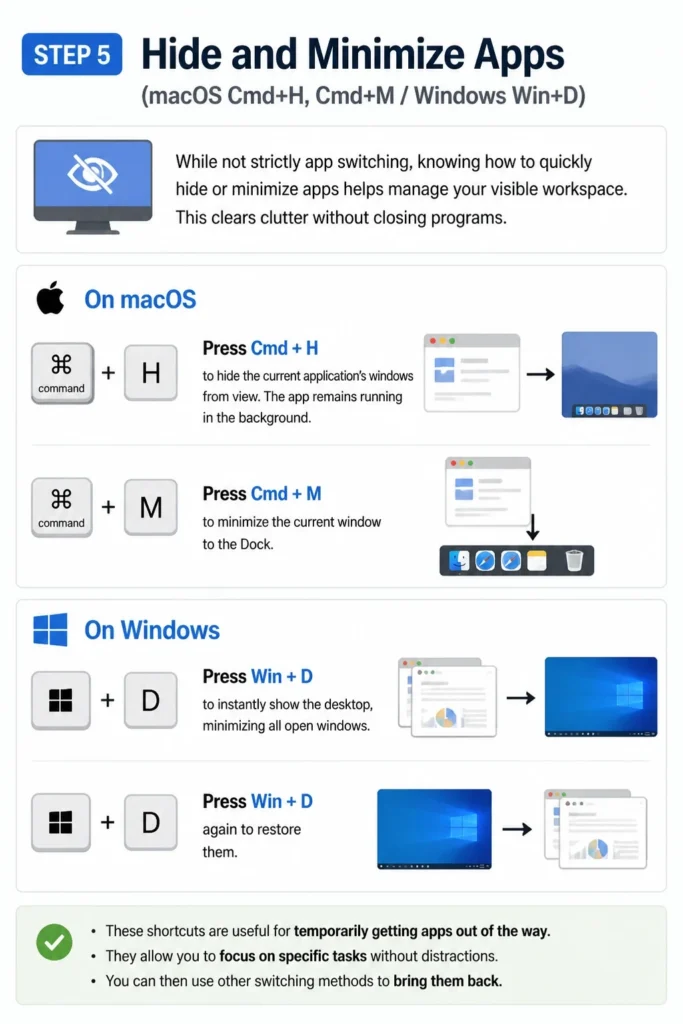
On macOS, press `Cmd + H` to hide the current application’s windows from view. The app remains running in the background. Press `Cmd + M` to minimize the current window to the Dock. On Windows, press `Win + D` to instantly show the desktop, minimizing all open windows. Press `Win + D` again to restore them.
These shortcuts are useful for temporarily getting apps out of the way. They allow you to focus on specific tasks without distractions. You can then use other switching methods to bring them back.
Step 6: Cycle Through Windows of the Same App (macOS: Cmd+` / Windows: Alt+`)
Often, you have multiple windows open for the same application (e.g., several browser tabs, multiple document windows). There is a specific shortcut to navigate these.
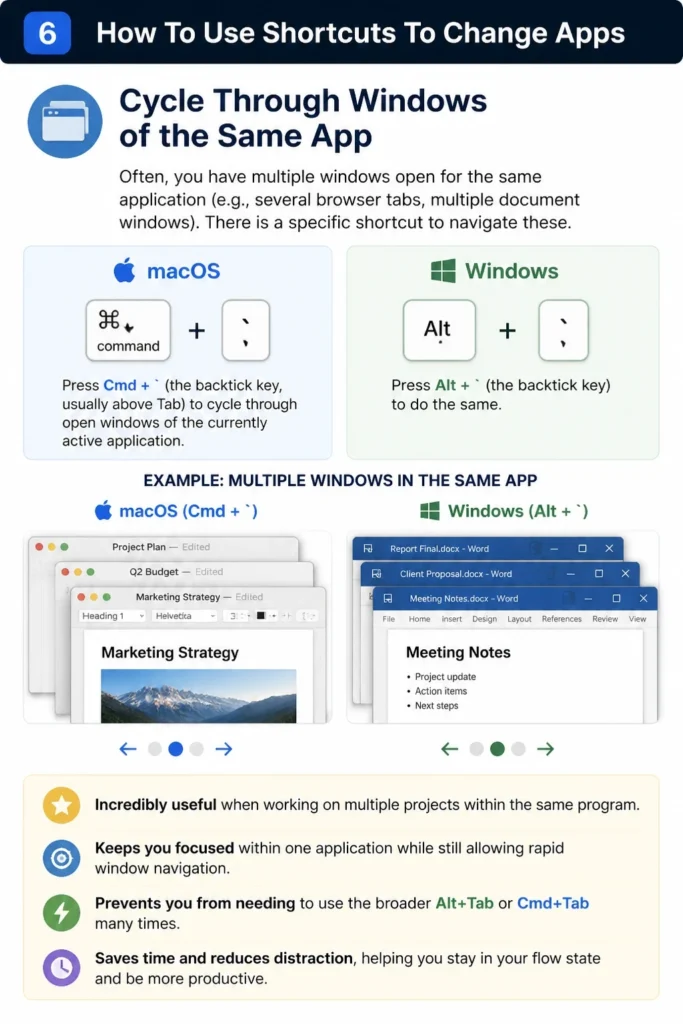
On macOS, press `Cmd + ` (the backtick key, usually above Tab) to cycle through open windows of the currently active application. On Windows, press `Alt + ` (the backtick key) to do the same. This is incredibly useful when working on multiple projects within the same program.
This shortcut keeps you focused within one application while still allowing rapid window navigation. It prevents you from needing to use the broader `Alt+Tab` or `Cmd+Tab` many times.
Step 7: Leverage Multiple Desktops / Spaces
Both Windows and macOS offer virtual desktops (called “Spaces” on macOS) to organize your workspace. This is powerful for grouping related apps and switching between entire contexts.
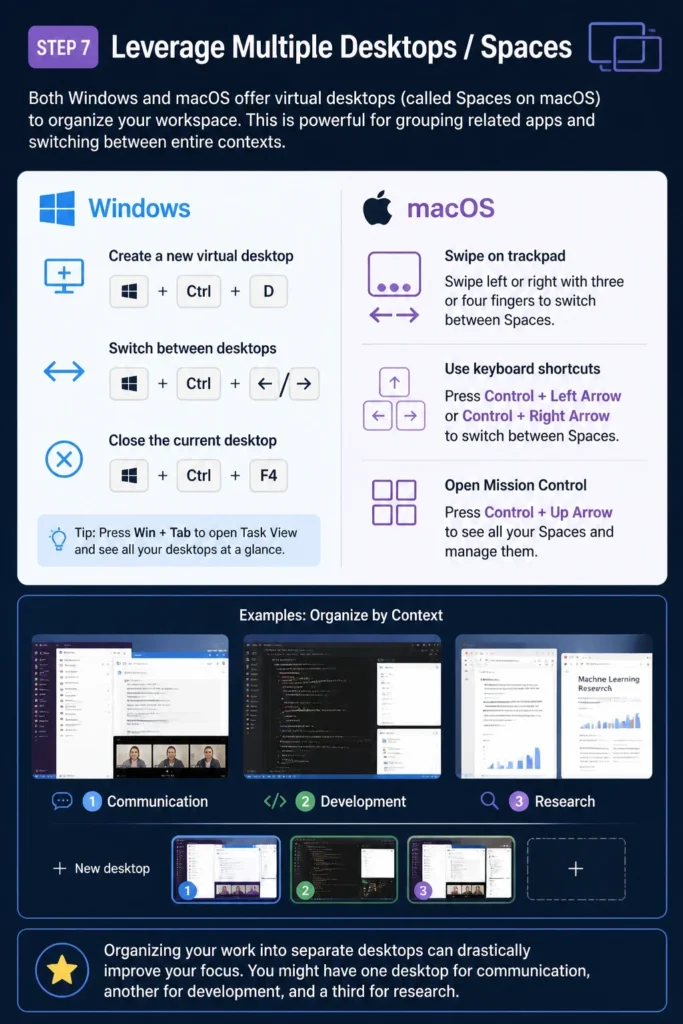
On Windows, press `Win + Ctrl + D` to create a new virtual desktop. Press `Win + Ctrl + Left/Right Arrow` to switch between desktops. Press `Win + Ctrl + F4` to close the current desktop. On macOS, swipe with three or four fingers left/right on your trackpad to switch between Spaces. You can also press `Control + Left/Right Arrow` or use Mission Control (`Control + Up Arrow`) to see and manage them.
Organizing your work into separate desktops can drastically improve your focus. You might have one desktop for communication, another for development, and a third for research.
Common Mistakes to Avoid
Forgetting to Practice Consistently
Many users learn a new shortcut but then revert to their old habits. Keyboard shortcuts build muscle memory. If you do not use them regularly, you will forget them.
Make a conscious effort to use these shortcuts for a full day. Try to avoid your mouse for app switching entirely. The more you practice, the more natural and automatic these actions will become.
Not Understanding the Difference Between App and Window Switching
Some users confuse switching between applications with switching between windows of the same application. While `Alt+Tab` / `Cmd+Tab` typically switches between applications, it can show individual windows as well.
Remember that `Cmd+` (backtick) on macOS and `Alt+` (backtick) on Windows are specifically for cycling through windows within the current application. Using the correct shortcut for the specific task will save you time and frustration.
Overlooking System Settings for Customization
Both Windows and macOS allow some customization of keyboard shortcuts. Many users stick with the defaults without exploring these options. You might find a combination that suits your workflow better.
Check your system settings (Keyboard preferences on macOS, Keyboard settings in Windows) for options to remap or modify app switching shortcuts. This can personalize your experience and make it even more intuitive.
Closing Apps Instead of Switching or Hiding
A common mistake, especially for beginners, is to close an application entirely when they are done with it temporarily. This wastes time when you need to reopen it later.
Instead of closing, utilize the app switching shortcuts to move to another program. If you need to clear your screen, use `Cmd+H` (macOS) or `Win+D` (Windows) to hide or minimize apps. This keeps them running and instantly accessible.
Troubleshooting
Shortcuts Not Working
If your `Alt+Tab` or `Cmd+Tab` shortcuts are not responding, several things could be happening. The most common cause is a sticky key or a background process interfering.
First, restart your computer. This often resolves temporary software glitches. If the problem persists, check your keyboard settings in your operating system preferences. Ensure no accessibility features are enabled that might be remapping these keys. Sometimes, third-party utilities can also interfere; try disabling recently installed background apps.
App Switching Jumps to the Wrong Window
Sometimes, when you release the modifier key (`Alt` or `Cmd`), the system switches to an unexpected application. This usually happens if you release the modifier key too quickly or if another window suddenly becomes active.
Try to be deliberate with your key presses: press and hold the modifier, tap the `Tab` key slowly to select, then release the modifier key cleanly. If it still happens, it might be due to a background process stealing focus. Check your system for any notifications or pop-ups that might be appearing and grabbing attention.
Cannot See All Open Windows in Task View / Mission Control
If you expect to see more windows in Task View or Mission Control but they are not appearing, ensure they are not minimized or hidden in a very specific way. Some applications might have multiple instances running or be spread across different virtual desktops.
On Windows, check your taskbar icons to see if any apps have multiple windows grouped together. On macOS, ensure you have not accidentally moved an app to a different Space. Use `Control + Up Arrow` (Mission Control) and look at all your Spaces. Dragging windows between Spaces is also an option if they are misplaced.
Key Takeaways
- Master `Alt+Tab` (Windows) or `Cmd+Tab` (macOS) for rapid application switching.
- Utilize Task View (`Win+Tab`) or Mission Control (`Control + Up Arrow`) for a visual overview of open windows.
- Use `Win + [number]` to quickly access pinned taskbar apps on Windows.
- Learn `Cmd+H` (macOS) or `Win+D` (Windows) to hide or minimize apps, maintaining a clean workspace.
- Switch between multiple windows of the same app using `Cmd+` (macOS) or `Alt+` (Windows).
- Employ virtual desktops/Spaces to organize your work into distinct contexts.
Frequently Asked Questions
Is it faster to use the mouse or keyboard shortcuts for switching apps?
For most users, keyboard shortcuts are significantly faster once you build muscle memory. They eliminate the need to move your hand from the keyboard to the mouse, locate the cursor, and click. This saves small increments of time that add up throughout your day.
Can I customize these app switching shortcuts?
Yes, to some extent. Both Windows and macOS offer options within their system settings to modify or create custom keyboard shortcuts. You can usually find these in the “Keyboard” section of your system preferences or control panel. Specific third-party utilities can also provide more advanced remapping capabilities.
What if I have many windows of the same application open?
If you have multiple windows of the same application, `Alt+Tab` or `Cmd+Tab` will typically cycle through them as separate entries. However, for a more focused approach, use `Cmd+` (backtick) on macOS or `Alt+` (backtick) on Windows to cycle only through the windows of the currently active application.
Do these shortcuts work for full-screen applications?
Yes, these shortcuts generally work for full-screen applications. On macOS, a full-screen app typically occupies its own Space, and you can switch to it using `Cmd+Tab` or by swiping between Spaces. On Windows, `Alt+Tab` works for full-screen games and applications, bringing up the switcher overlay.
Our Top Recommended Finds
- Ergonomic Keyboard: A comfortable, responsive keyboard makes using shortcuts a pleasure and reduces strain.
- Multi-Monitor Setup: While not a shortcut, multiple screens reduce the need for constant app switching by giving you more visual real estate.
- Programmable Mouse: A mouse with extra buttons can be programmed for custom shortcuts, complementing your keyboard workflow.
Elevate Your Everyday Workflow
Mastering app switching shortcuts is a small change with a huge impact on your productivity. It is about working smarter, not harder, and reclaiming those precious moments spent navigating your computer.
Start incorporating these shortcuts into your daily routine today. You will quickly notice a smoother, more efficient, and less frustrating computing experience. Embrace the power of your keyboard and transform how you interact with your digital world.