✨ How To Make Your Samsung Phone Aesthetic
Do you ever look at someone else’s phone and admire its cohesive, stylish look?
Samsung phones offer an incredible canvas for personalization, far beyond just changing your wallpaper.
I’ve spent countless hours diving into Samsung’s customization tools, and I’m excited to share how you can transform your device into a true reflection of your personal style.
Quick Overview
Transforming your Samsung phone’s aesthetic is a rewarding journey that allows you to express your unique style.
This guide will walk you through the essential steps to achieve a beautifully cohesive and personalized device.
- Time needed: 1-3 hours (depending on desired depth of customization)
- Difficulty: Beginner
- What you’ll need: Your Samsung phone, an internet connection, a dash of creativity, and optionally, some free or paid customization apps.
Step-by-Step Instructions
Step 1: Define Your Aesthetic Vision
Before you start downloading icons and wallpapers, take a moment to visualize your desired look.
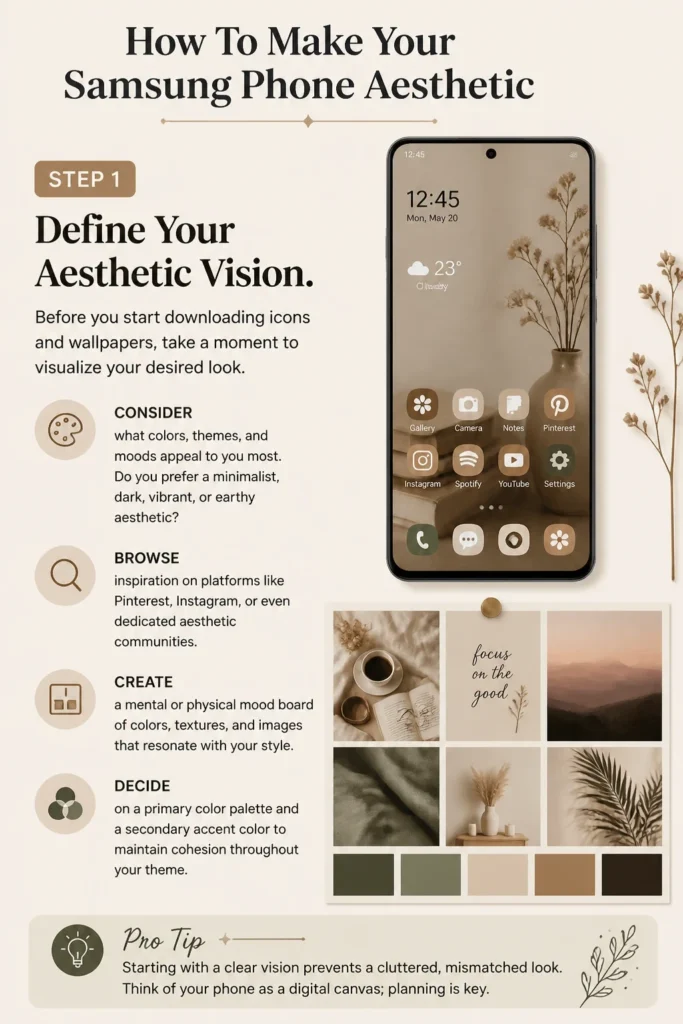
Consider what colors, themes, and moods appeal to you most. Do you prefer a minimalist, dark, vibrant, or earthy aesthetic?
- Browse inspiration on platforms like Pinterest, Instagram, or even dedicated aesthetic communities.
- Create a mental or physical mood board of colors, textures, and images that resonate with your style.
- Decide on a primary color palette and a secondary accent color to maintain cohesion throughout your theme.
Pro Tip: Starting with a clear vision prevents a cluttered, mismatched look. Think of your phone as a digital canvas; planning is key.
Step 2: Curate Your Wallpaper and Lock Screen
Your wallpaper and lock screen are the foundation of your phone’s aesthetic. They set the tone for everything else.
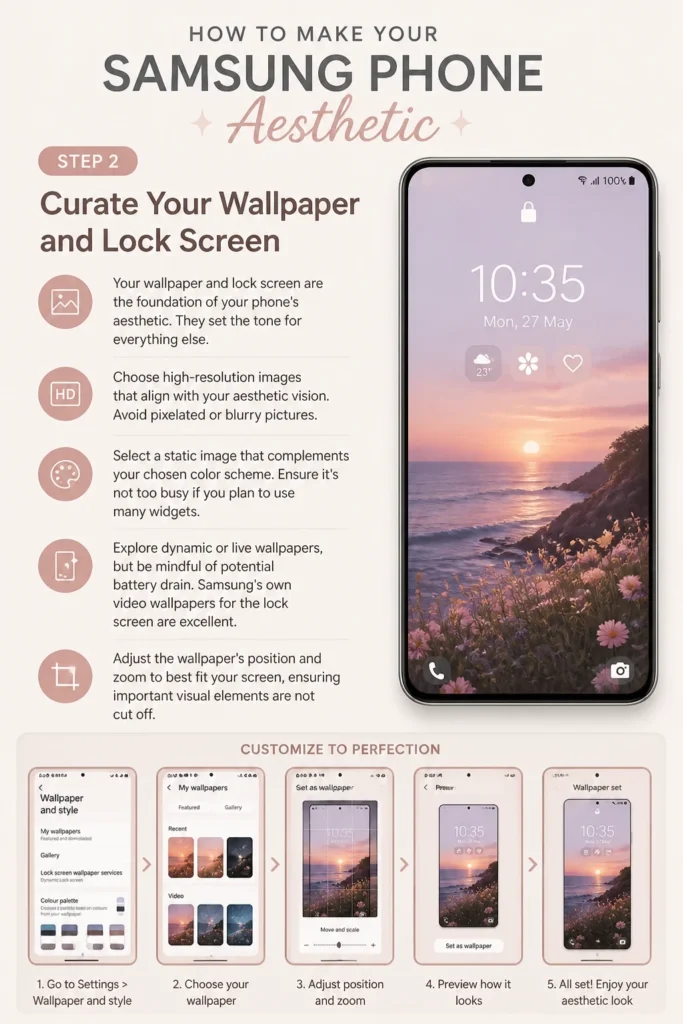
Choose high-resolution images that align with your aesthetic vision. Avoid pixelated or blurry pictures.
- Select a static image that complements your chosen color scheme. Ensure it’s not too busy if you plan to use many widgets.
- Explore dynamic or live wallpapers, but be mindful of potential battery drain. Samsung’s own video wallpapers for the lock screen are excellent.
- Adjust the wallpaper’s position and zoom to best fit your screen, ensuring important visual elements are not cut off.
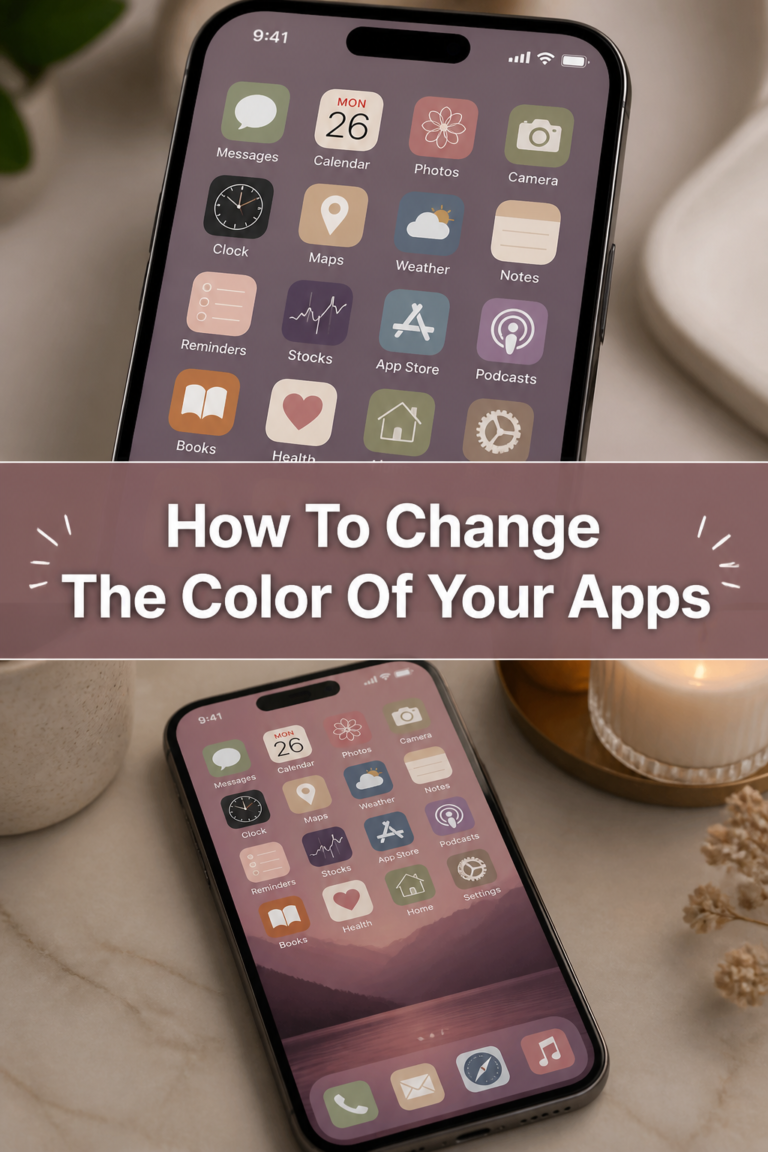
Step 3: Master Icon Customization
Default app icons can often clash with a carefully chosen aesthetic. Customizing them is a powerful way to unify your theme.
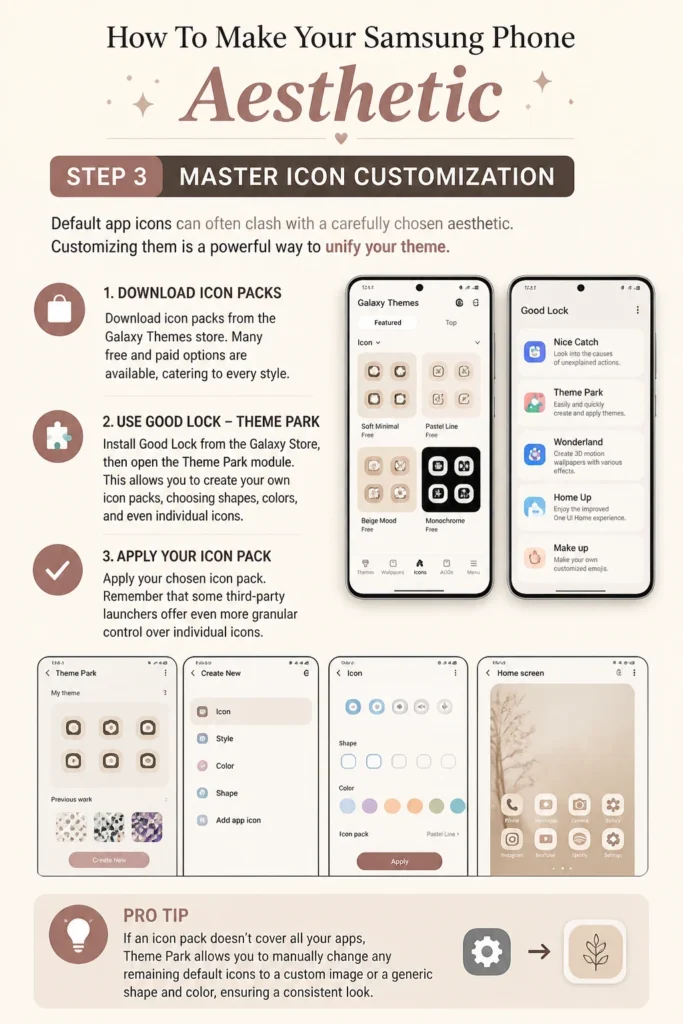
Samsung offers several ways to change icons, primarily through Galaxy Themes and the Good Lock module.
- Download icon packs from the Galaxy Themes store. Many free and paid options are available, catering to every style.
- Install Good Lock from the Galaxy Store, then open the “Theme Park” module. This allows you to create your own icon packs, choosing shapes, colors, and even individual icons.
- Apply your chosen icon pack. Remember that some third-party launchers offer even more granular control over individual icons.
Pro Tip: If an icon pack doesn’t cover all your apps, Theme Park allows you to manually change any remaining default icons to a custom image or a generic icon from the pack.
Step 4: Organize with Widgets
Widgets add functionality and visual flair to your home screen. They are crucial for creating a dynamic and informative aesthetic.
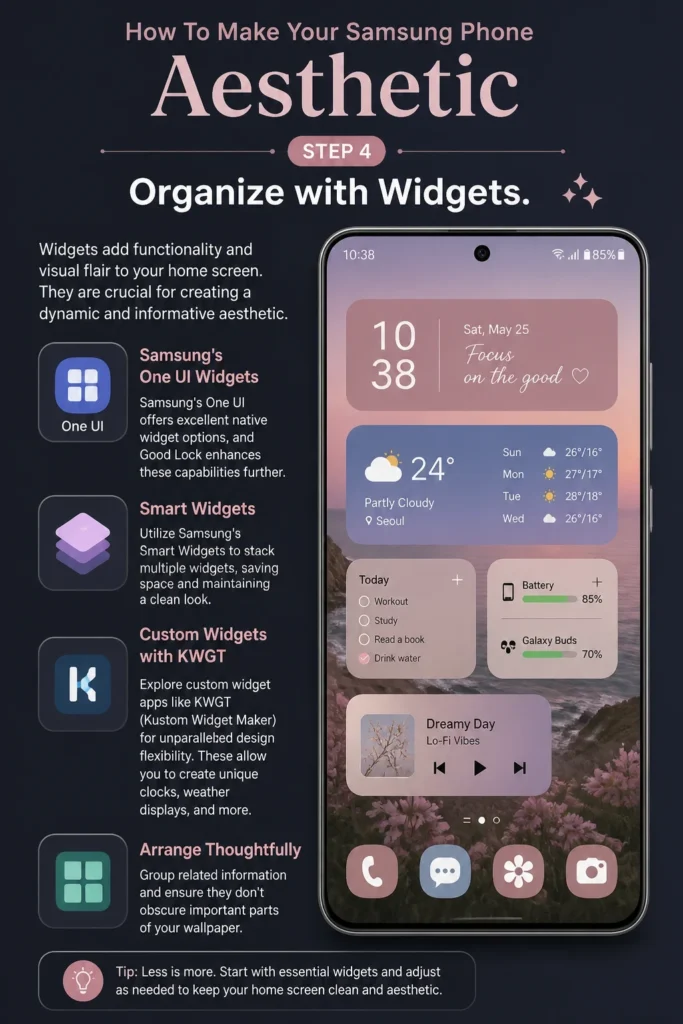
Samsung’s One UI offers excellent native widget options, and Good Lock enhances these capabilities further.
- Utilize Samsung’s Smart Widgets to stack multiple widgets, saving space and maintaining a clean look.
- Explore custom widget apps like KWGT (Kustom Widget Maker) for unparalleled design flexibility. These allow you to create unique clocks, weather displays, and more.
- Arrange your widgets thoughtfully. Group related information and ensure they don’t obscure important parts of your wallpaper.
Step 5: Personalize Your Theme
Beyond wallpapers and icons, a full theme can transform the entire interface of your Samsung phone.
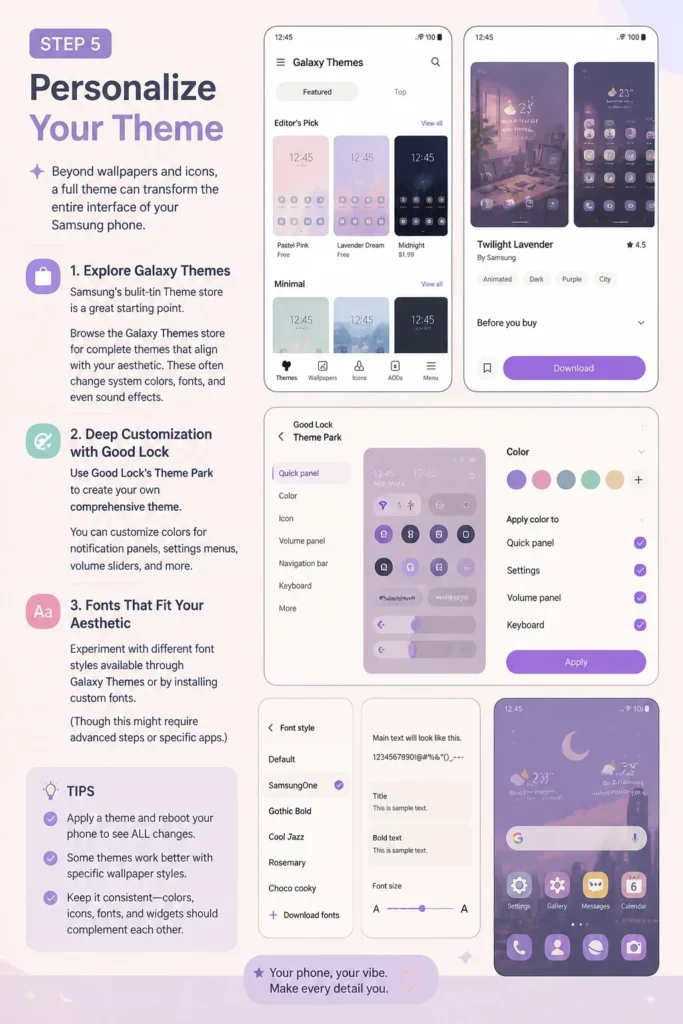
Samsung’s built-in Theme store is a great starting point, but Good Lock’s Theme Park offers deeper customization.
- Browse the Galaxy Themes store for complete themes that align with your aesthetic. These often change system colors, fonts, and even sound effects.
- Use Good Lock’s Theme Park to create your own comprehensive theme. You can customize colors for notification panels, settings menus, volume sliders, and more.
- Experiment with different font styles available through Galaxy Themes or by installing custom fonts (though this might require advanced steps or specific apps).
Step 6: Optimize Always On Display (AOD)
The Always On Display is often the first thing you see. Making it aesthetic adds a sophisticated touch to your phone.
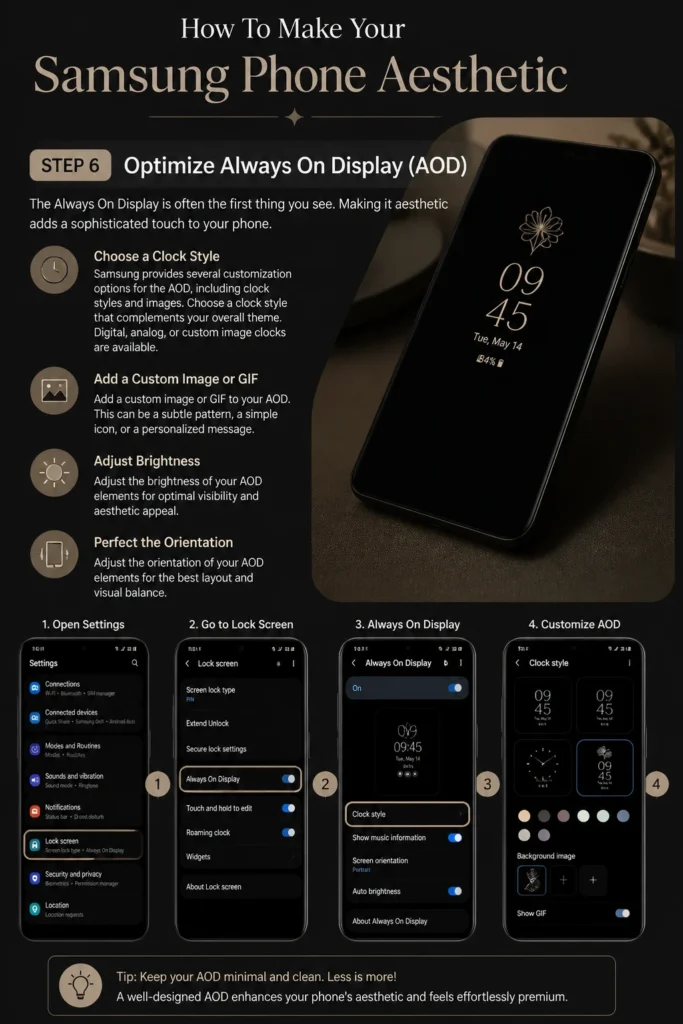
Samsung provides several customization options for the AOD, including clock styles and images.
- Choose a clock style that complements your overall theme. Digital, analog, or custom image clocks are available.
- Add a custom image or GIF to your AOD. This can be a subtle pattern, a simple icon, or a personalized message.
- Adjust the brightness and orientation of your AOD elements for optimal visibility and aesthetic appeal.
Step 7: Refine Your Notification Panel & Quick Settings
The notification panel and quick settings are frequently accessed areas. Customizing their appearance contributes significantly to a cohesive look.
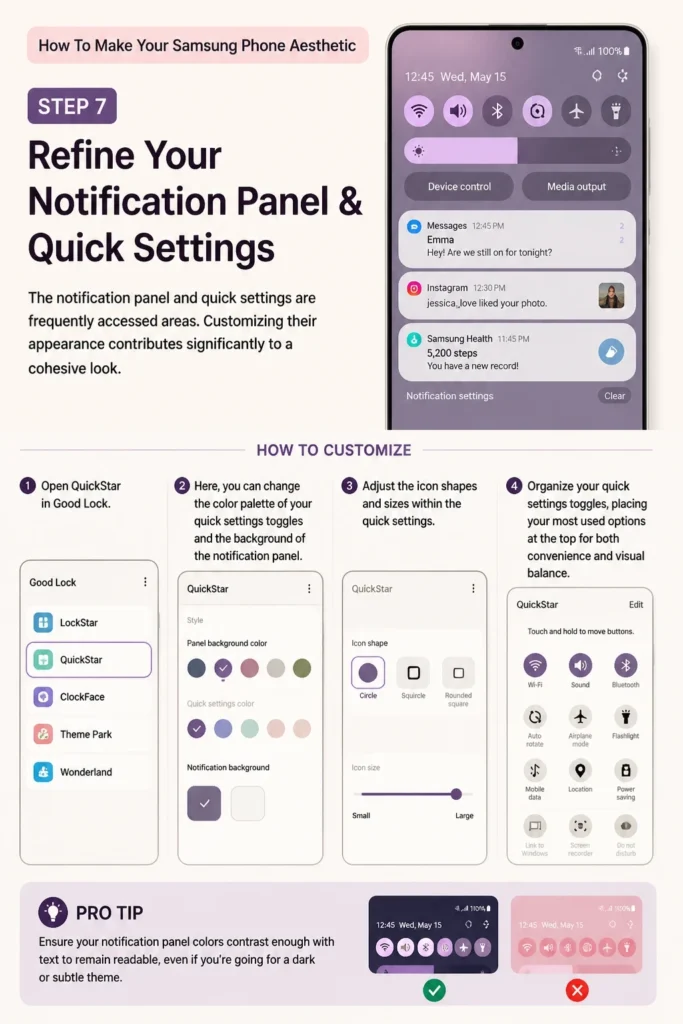
Good Lock’s QuickStar module is invaluable for this specific customization.
- Open QuickStar in Good Lock. Here, you can change the color palette of your quick settings toggles and the background of the notification panel.
- Adjust the icon shapes and sizes within the quick settings. Choose between circles, squarcles, or custom shapes.
- Organize your quick settings toggles, placing your most used options at the top for both convenience and visual balance.
Pro Tip: Ensure your notification panel colors contrast enough with text to remain readable, even if you’re going for a dark or subtle theme.
Step 8: Tidy Up Your Home Screen Layout
A beautiful aesthetic is often accompanied by an organized and functional home screen.
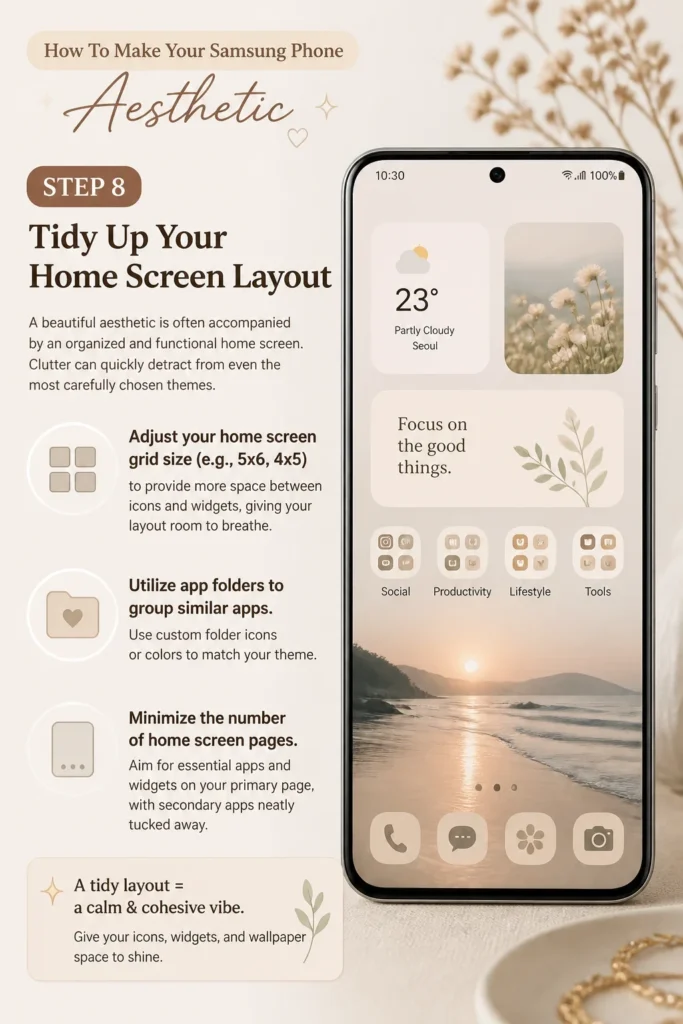
Clutter can quickly detract from even the most carefully chosen themes.
- Adjust your home screen grid size (e.g., 5×6, 4×5) to provide more space between icons and widgets, giving your layout room to breathe.
- Utilize app folders to group similar apps. Use custom folder icons or colors to match your theme.
- Minimize the number of home screen pages. Aim for essential apps and widgets on your primary page, with secondary apps neatly tucked away.
Step 9: Enhance with Sounds and Haptics
A truly immersive aesthetic extends beyond just visuals. Sound and haptic feedback play a role too.
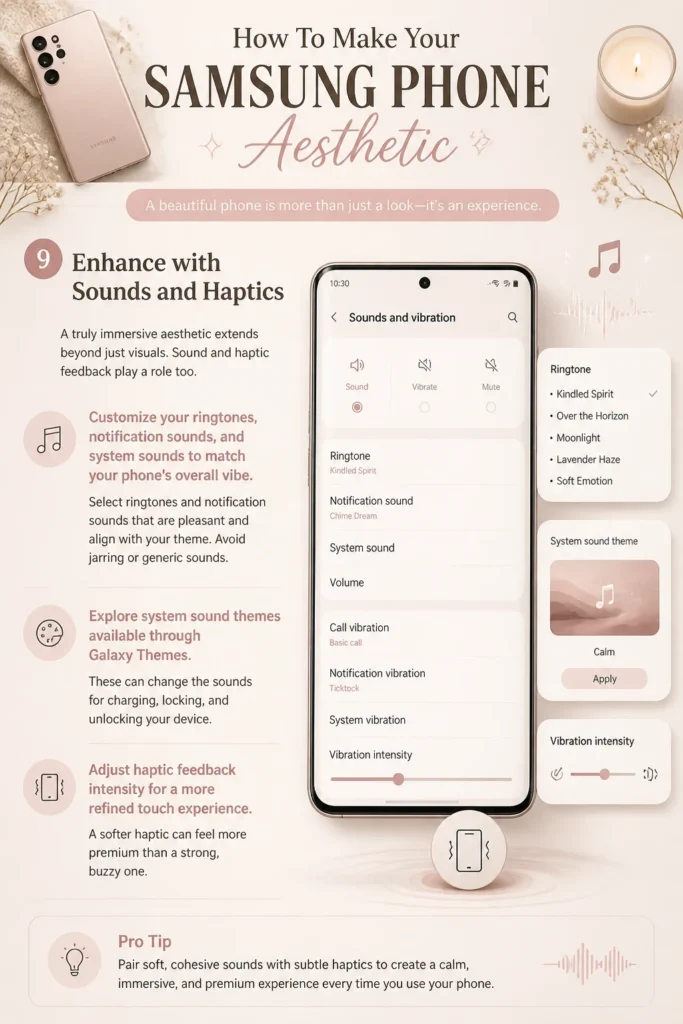
Customize your ringtones, notification sounds, and system sounds to match your phone’s overall vibe.
- Select ringtones and notification sounds that are pleasant and align with your theme. Avoid jarring or generic sounds.
- Explore system sound themes available through Galaxy Themes. These can change the sounds for charging, locking, and unlocking your device.
- Adjust haptic feedback intensity for a more refined touch experience. A softer haptic can feel more premium than a strong, buzzy one.
Step 10: Explore Advanced Good Lock Modules
Good Lock is a powerful suite of customization tools from Samsung. Dive deeper into its modules for even more unique touches.
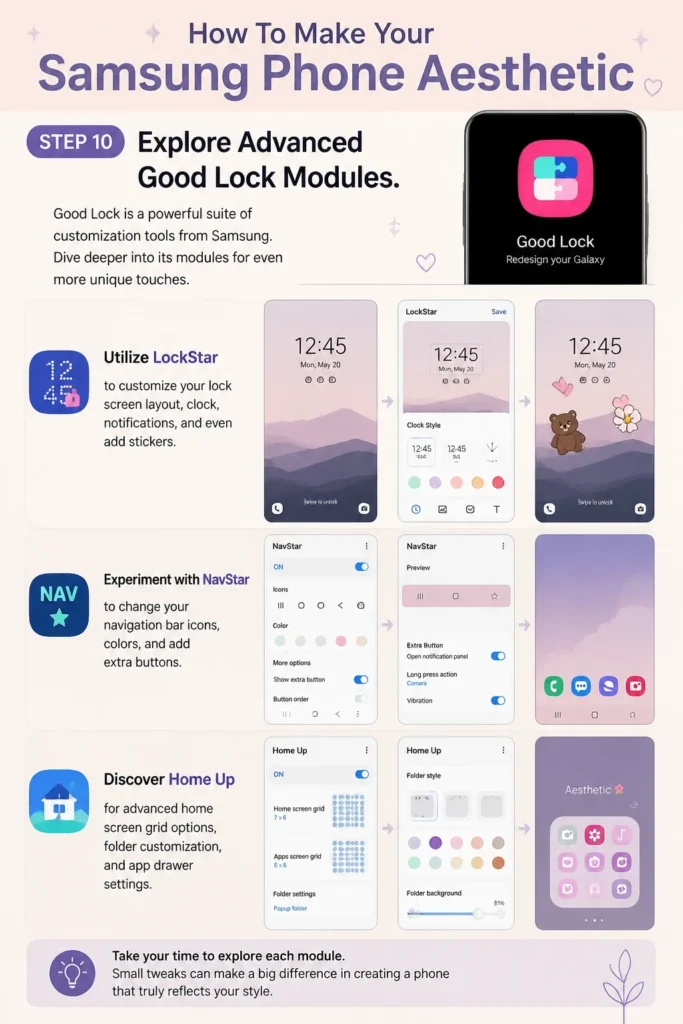
Each module offers specific enhancements for different parts of your phone.
- Utilize LockStar to customize your lock screen layout, clock, notifications, and even add stickers.
- Experiment with NavStar to change your navigation bar icons, colors, and add extra buttons.
- Discover Home Up for advanced home screen grid options, folder customization, and app drawer settings.
Common Mistakes to Avoid
Overdoing It
One common pitfall is trying to incorporate too many elements or conflicting styles into a single aesthetic. This often leads to a cluttered and visually overwhelming phone.
Instead, focus on a consistent theme with a limited color palette and a clear design direction. Less is often more when it comes to visual harmony.
Ignoring Functionality
Sometimes, in the pursuit of beauty, users compromise their phone’s usability. Tiny, hard-to-read fonts or widgets that block essential app shortcuts can be frustrating.
Always prioritize readability and ease of access. Your phone should be both beautiful and practical for daily use.
Using Low-Quality Assets
A stunning aesthetic can be ruined by pixelated wallpapers, blurry icons, or grainy widget images. Low-resolution assets immediately cheapen the look of your device.
Always opt for high-resolution images and professionally designed icon packs. Many free options offer excellent quality, and paid assets are often worth the small investment.
Not Backing Up Your Setup
After spending hours perfecting your phone’s look, imagine losing it all due to a factory reset or a new phone. This can be incredibly disheartening.
Regularly back up your phone’s settings, app data, and especially your Good Lock configurations. Samsung Smart Switch or cloud backups are your friends here.
Troubleshooting
App Icons Not Changing
Sometimes, after applying an icon pack, a few app icons might stubbornly remain unchanged. This can be frustrating for a cohesive look.
First, clear the cache for your launcher (usually One UI Home). Go to Settings > Apps > One UI Home > Storage > Clear Cache. If that doesn’t work, use Good Lock’s Theme Park to manually override individual icons by selecting a custom image or one from your installed icon pack.
Widgets Not Updating/Loading
Widgets occasionally fail to load content, display correctly, or update in real-time. This can break the dynamic feel of your home screen.
Check the app permissions for the widget app (e.g., KWGT) to ensure it has access to storage and can run in the background. Also, disable battery optimization for the specific widget app in your phone’s settings to prevent the system from putting it to sleep.
Performance Lag After Customization
A heavily customized phone, especially with live wallpapers, many complex widgets, or demanding icon packs, might experience slight performance slowdowns or increased battery drain.
Consider simplifying some elements. Reduce the number of live wallpapers, use static images instead of animated ones, and choose lighter icon packs. Regularly restart your phone to clear background processes and improve responsiveness.
Key Takeaways
- A well-defined aesthetic vision is the first step to a cohesive and beautiful Samsung phone.
- Leverage Samsung’s native customization tools like Galaxy Themes and the powerful Good Lock suite.
- Prioritize high-quality assets for wallpapers, icons, and widgets to achieve a polished look.
- Balance aesthetics with functionality to ensure your phone remains practical and enjoyable to use.
- Regularly back up your custom configurations to protect your hard work.
- Don’t be afraid to experiment and iterate; your aesthetic is a journey, not a destination.
Frequently Asked Questions
Is customizing my phone safe?
Yes, customizing your Samsung phone using official tools like Galaxy Themes and Good Lock is completely safe. These are developed by Samsung itself. When using third-party apps for widgets or icon packs, ensure they are from reputable developers and downloaded from the Google Play Store to avoid security risks.
Will custom themes drain my battery?
Some customization elements can slightly increase battery consumption. Live wallpapers, complex animated widgets, and certain third-party launchers might use more resources. However, if you stick to static wallpapers, well-optimized icon packs, and Samsung’s native tools, the impact on battery life is usually minimal.
Can I revert to the default look easily?
Absolutely. Samsung makes it very easy to revert to the default One UI theme. Simply go to Settings > Themes > My Stuff, and select the default theme. For Good Lock modules, you can disable or uninstall them, and their changes will be undone. You can also reset individual settings within each module.
Are paid apps necessary for a great aesthetic?
No, many fantastic customization options are available for free. The Galaxy Themes store offers numerous free icon packs and wallpapers. Good Lock is entirely free and incredibly powerful. While some paid apps or premium icon packs offer unique designs, you can achieve a stunning aesthetic without spending a dime.
Our Top Recommended Finds
- High-Quality Screen Protector: Protect your beautiful new aesthetic with a clear, durable screen protector. It keeps your canvas pristine.
- Stylish Phone Case: A case that complements your phone’s digital aesthetic extends your style to the physical device itself. Choose one that fits your color scheme.
- Wireless Charger: A sleek wireless charger declutters your desk and integrates seamlessly into a minimalist or modern aesthetic setup.
Embrace Your Unique Samsung Style
You now have all the tools and knowledge to transform your Samsung phone into a personalized masterpiece.
The journey to creating your ideal phone aesthetic is an ongoing one, full of experimentation and discovery.
Start small, iterate on your ideas, and don’t be afraid to change things up as your style evolves. Your phone is an extension of you – make it truly yours today!