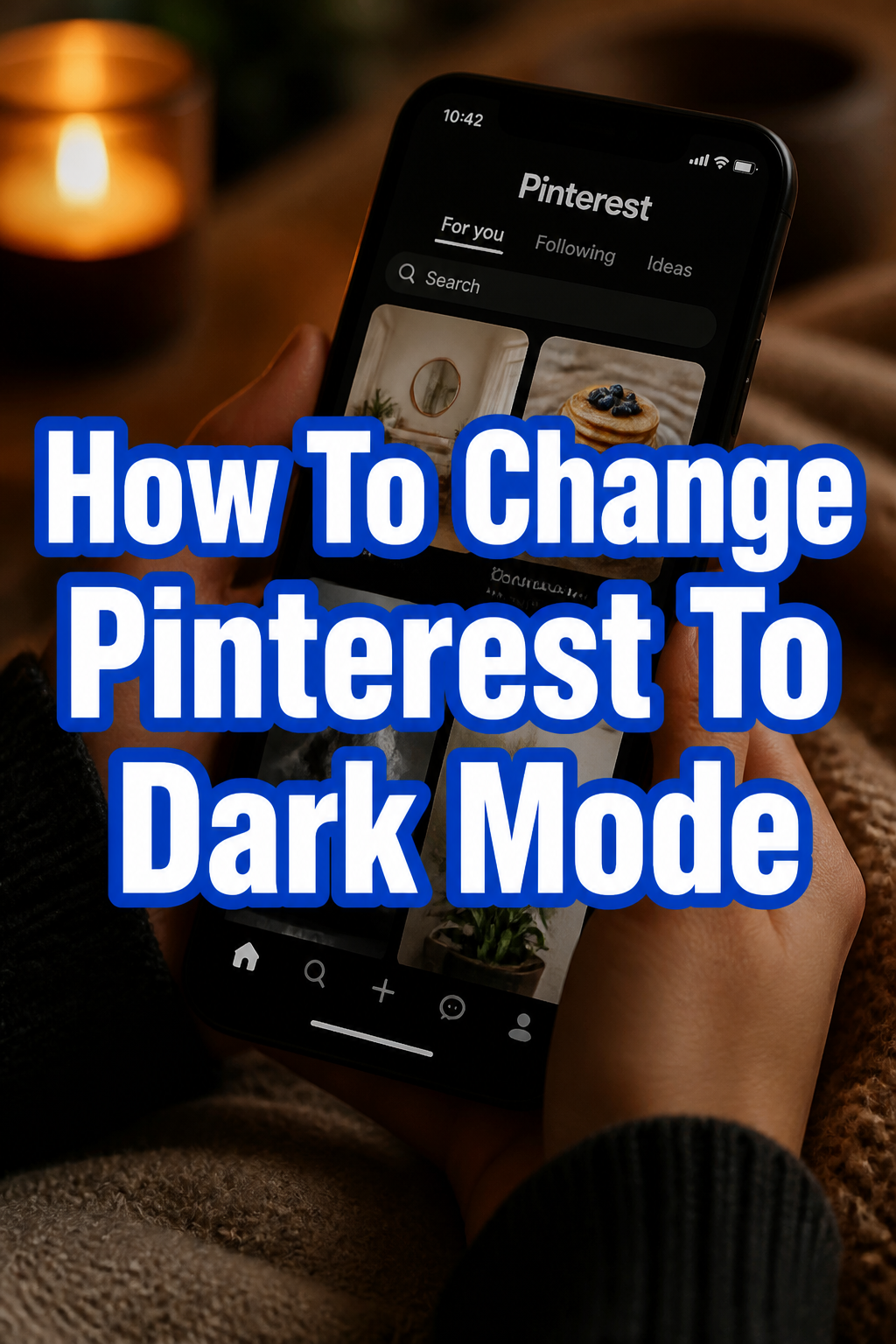
🌙 How To Change Pinterest To Dark Mode
Switching to dark mode on your favorite apps can make a huge difference to your daily browsing. I remember the first time I enabled dark mode across all my devices; it was a game-changer for my eye comfort, especially during late-night pinning sessions. This guide comes from my own experience navigating these settings, ensuring you get it right the first time.
You’re about to transform your Pinterest experience.
No more bright screens straining your eyes.
Quick Overview
This guide will walk you through the simple steps to enable dark mode for your Pinterest experience, primarily focusing on how it integrates with your device’s system settings. You’ll discover how to achieve a more comfortable viewing environment.
- Time needed: 5-10 minutes
- Difficulty: Beginner
- What you’ll need: A Pinterest account, a smartphone (iOS or Android) or computer, an internet connection
Step-by-Step Instructions
Step 1: Understand Pinterest’s Dark Mode Approach
Pinterest doesn’t always have an in-app toggle for dark mode. Instead, it often follows your device’s system-wide dark mode settings. This means changing your phone or computer’s theme will usually change Pinterest’s appearance too.

This integration provides a consistent look across many applications. It also simplifies the process for you.
Step 2: Enable Dark Mode on iOS (iPhone/iPad)
If you’re using Pinterest on an Apple device, the app respects your system preferences. You’ll need to adjust your iOS settings to switch to dark mode.
Open your device’s “Settings” app.
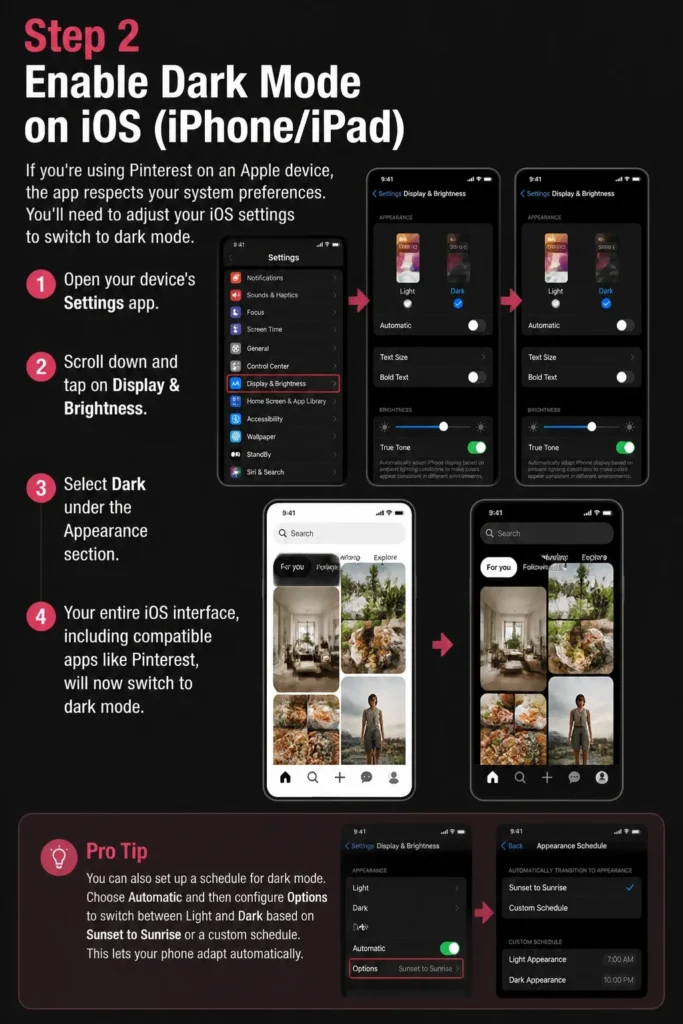
Scroll down and tap on “Display & Brightness.”
Select “Dark” under the “Appearance” section.
Your entire iOS interface, including compatible apps like Pinterest, will now switch to dark mode.
Pro Tip: You can also set up a schedule for dark mode. Choose “Automatic” and then configure “Options” to switch between Light and Dark based on “Sunset to Sunrise” or a custom schedule. This lets your phone adapt automatically.
Step 3: Enable Dark Mode on Android
Android users also find that Pinterest aligns with the system’s dark theme. Activating dark mode on your Android phone will typically apply it to the Pinterest app.
Go to your phone’s “Settings” menu.
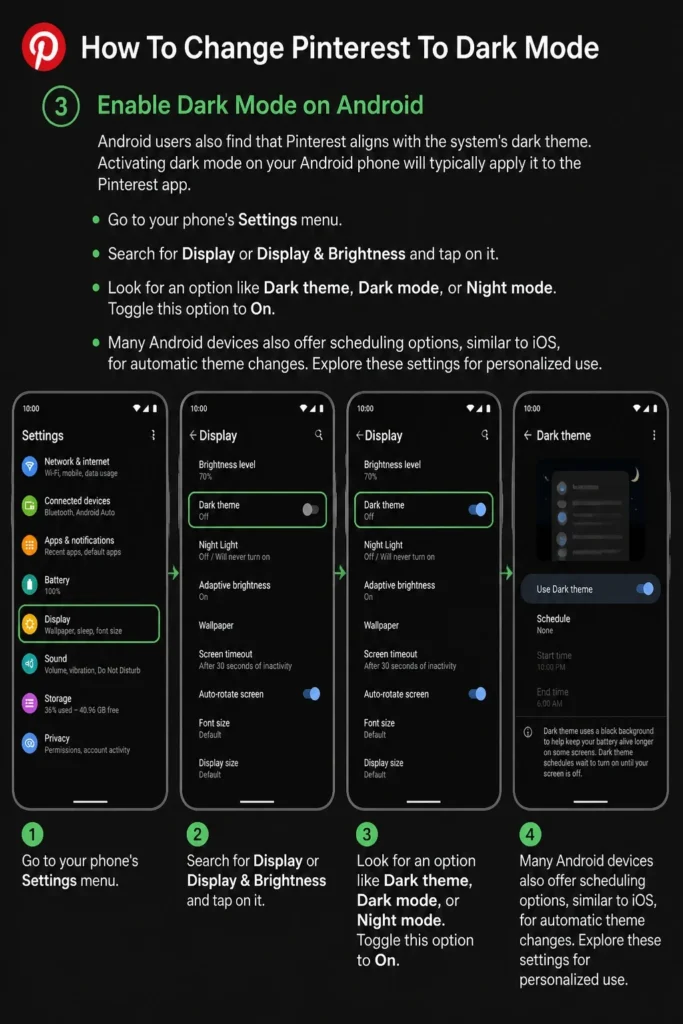
Search for “Display” or “Display & Brightness” and tap on it.
Look for an option like “Dark theme,” “Dark mode,” or “Night mode.”
Toggle this option to “On.”
Many Android devices also offer scheduling options, similar to iOS, for automatic theme changes. Explore these settings for personalized use.
Step 4: Address Dark Mode for Pinterest on Web (Desktop/Browser)
This is where things differ significantly. Pinterest’s website does not currently offer a native dark mode setting within its interface. If you’re browsing on a desktop or laptop, you’ll need a different approach.
Your options here involve browser extensions or operating system-level settings that force dark mode. These tools can transform the appearance of websites.
Install a browser extension specifically designed for dark mode. Popular options include “Dark Reader” for Chrome, Firefox, and Edge.
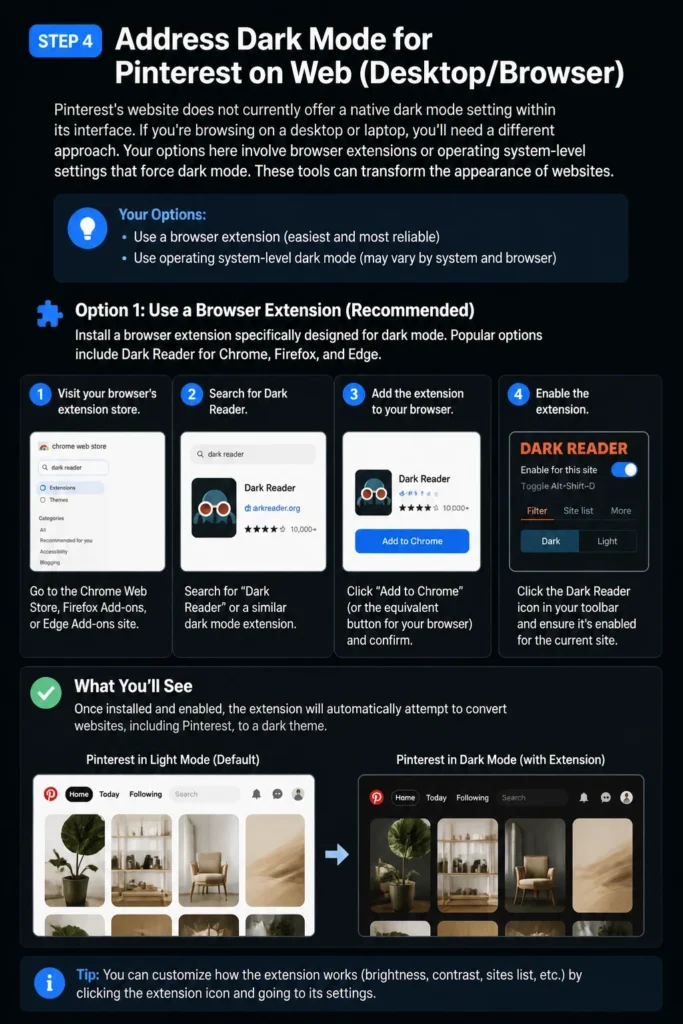
Visit your browser’s extension store (e.g., Chrome Web Store, Firefox Add-ons).
Search for “Dark Reader” or a similar dark mode extension.
Add the extension to your browser and enable it.
Once installed, the extension will automatically attempt to convert websites, including Pinterest, to a dark theme. You might need to refresh the Pinterest page after activation.
Pro Tip: While browser extensions are effective, some might invert colors unexpectedly on certain images or elements. Most extensions allow you to fine-tune settings or disable dark mode for specific sites if you encounter issues. Experiment to find what works best for you.
Step 5: Verify Your Pinterest Dark Mode
After making the changes on your device or browser, open the Pinterest app or website. You should immediately notice the interface has transformed. The background will be dark, and text will appear in lighter colors for readability.
Launch the Pinterest app on your mobile device.
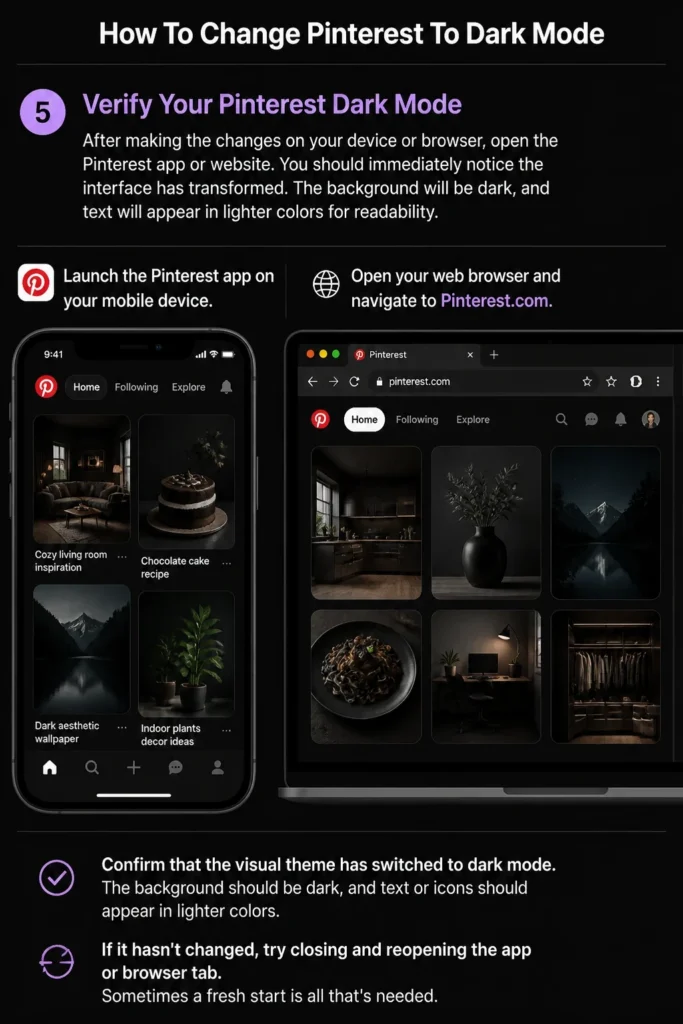
Open your web browser and navigate to Pinterest.com.
Confirm that the visual theme has switched to dark mode.
If it hasn’t changed, try closing and reopening the app or browser tab. Sometimes a fresh start is all that’s needed.
Step 6: Revert to Light Mode (If Needed)
Should you decide dark mode isn’t for you, or if you need to switch back for any reason, the process is straightforward. Simply reverse the steps you took.
Go back to your device’s “Display & Brightness” settings (iOS) or “Display” settings (Android).
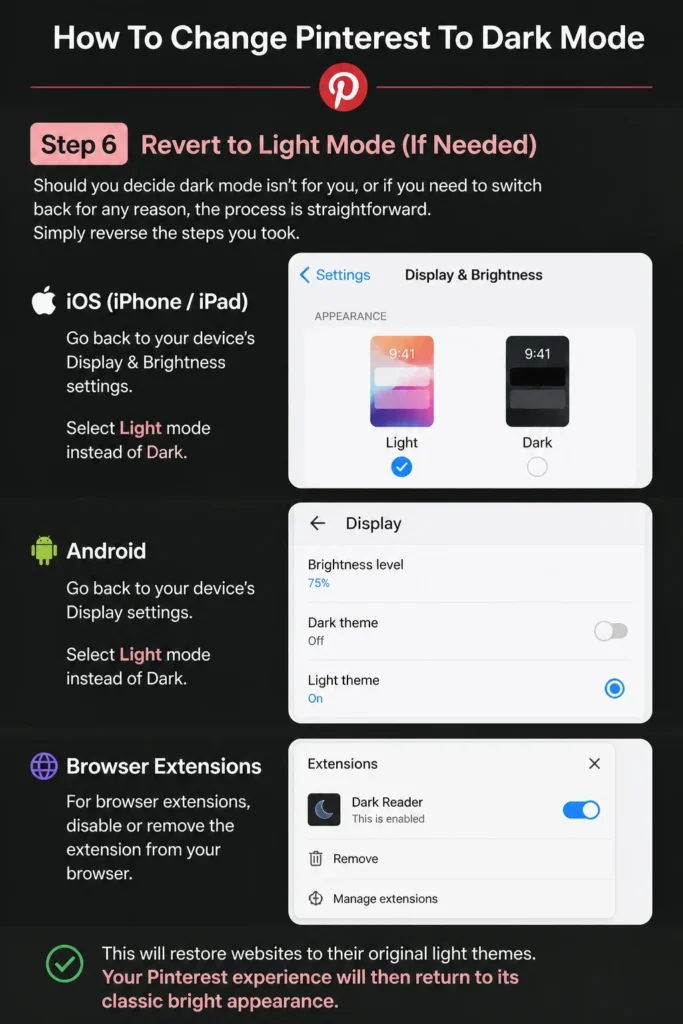
Select “Light” mode instead of “Dark.”
For browser extensions, disable or remove the extension from your browser. This will restore websites to their original light themes.
Your Pinterest experience will then return to its classic bright appearance.
Common Mistakes to Avoid
Expecting an In-App Pinterest Dark Mode Toggle
Many users search within the Pinterest app’s settings for a dark mode switch. This is a common misconception, especially on mobile. Pinterest primarily relies on your device’s system-wide settings.
Looking for an internal app setting will often lead to frustration. Always check your phone’s main display settings first.
Forgetting to Refresh After Enabling Browser Extensions
When you install a dark mode browser extension, it doesn’t always apply immediately to already open tabs. You might enable the extension and still see a light-themed Pinterest.
Always refresh the Pinterest page (F5 or Command+R) after activating a browser extension. This ensures the extension has a chance to apply its changes to the current page.
Not Understanding Browser Extension Limitations
Browser extensions are powerful but not always perfect. They work by inverting colors or applying dark overlays, which can sometimes lead to odd visual glitches. Images might look strange, or certain text might be hard to read.
Be aware that these are third-party tools. If an extension causes more problems than it solves, try a different one or adjust its specific site settings.
Troubleshooting
Pinterest App Not Switching to Dark Mode on Mobile
If you’ve enabled system-wide dark mode on your phone but Pinterest remains light, there are a few things to check. The app might not have registered the change instantly.
Force close the Pinterest app: Swipe up from the bottom of your screen (or use your device’s method to view recent apps) and swipe the Pinterest app away to close it completely. Then, reopen it.
Check for app updates: Ensure your Pinterest app is updated to the latest version. Older versions might not fully support system-wide dark mode. Visit your device’s app store (App Store for iOS, Google Play Store for Android) and check for updates.
Browser Extension Dark Mode Looks Strange on Pinterest
Sometimes, a dark mode extension might make Pinterest look worse than better, with inverted images or unreadable text. This happens because extensions use algorithms to guess how to darken a site.
Adjust extension settings: Most dark mode extensions have options to fine-tune their behavior. Look for settings to adjust contrast, brightness, or specific site overrides within the extension’s menu.
Disable for Pinterest only: If adjustments don’t work, you can usually disable the extension for Pinterest.com specifically. This allows you to use dark mode on other sites while Pinterest remains in its original light theme.
Dark Mode Is On, But Only Parts of Pinterest Are Dark
Occasionally, you might find that the main feed is dark, but some specific pages or pop-ups within Pinterest remain light. This can be a minor inconsistency.
This usually means the app or extension didn’t fully apply the dark theme to every single element. It’s often a small bug or an area that wasn’t designed with dark mode in mind. Usually, these small inconsistencies don’t severely impact the overall experience.
Key Takeaways
- Pinterest’s dark mode on mobile primarily mirrors your device’s system settings.
- Enable dark mode through your phone’s “Display & Brightness” settings for a consistent experience.
- Desktop Pinterest does not have a native dark mode; browser extensions are necessary.
- Always refresh your browser tab after installing or enabling a dark mode extension.
- Troubleshoot by force-closing apps or checking for updates if dark mode doesn’t activate.
- Browser extensions offer customization but can sometimes cause visual glitches.
Frequently Asked Questions
Does Pinterest have a built-in dark mode setting?
For mobile apps, Pinterest generally follows your device’s system-wide dark mode settings. There isn’t typically a separate toggle inside the Pinterest app itself. On the web, Pinterest does not have a native dark mode feature, requiring browser extensions.
Will dark mode save my phone’s battery life?
Yes, on devices with OLED screens (common in many modern smartphones), dark mode can significantly reduce battery consumption. Black pixels on an OLED screen are simply turned off, using no power.
Can I schedule dark mode to turn on automatically?
Absolutely. Both iOS and Android operating systems offer options to schedule dark mode. You can set it to activate from sunset to sunrise, or during custom time intervals, ensuring a smooth transition.
Are dark mode browser extensions safe to use?
Reputable dark mode extensions from official browser stores (like “Dark Reader”) are generally safe. Always download extensions from trusted sources and read reviews. Be cautious of extensions that request excessive permissions.
Our Top Recommended Finds
- Ergonomic Monitor Light Bar: Perfect for desktop users, this bar illuminates your desk without shining glare on your screen, making dark mode even more comfortable.
- Blue Light Blocking Glasses: Even with dark mode, some blue light might still emit. These glasses further reduce eye strain, especially during long screen times.
- Portable Phone Stand: Elevate your phone to an ergonomic viewing angle, reducing neck strain while you enjoy your dark mode Pinterest.
Embrace the Comfort of Dark Mode Today
Shifting your Pinterest experience to dark mode is a small change that yields big benefits for your eyes and device battery. No more squinting at bright screens late at night. You now have all the tools and knowledge to make this simple yet impactful switch.
Take a moment to adjust your settings and rediscover Pinterest in a whole new light (or lack thereof!). Enjoy a more comfortable, visually pleasing browsing experience starting right now.