📱 How To Add Widgets To Lock Screen
My phone’s lock screen used to be just a static background and the time. It was functional, but hardly inspiring or useful.
Then I discovered the power of lock screen widgets, transforming that blank canvas into an information hub. This guide comes from countless hours customizing my own devices.
It’s about making your phone truly work for you, right from the first glance.

Quick Overview
Adding widgets to your lock screen personalizes your device, offering glanceable information without unlocking it. This guide will walk you through the process, making your phone more efficient. You’ll learn how to select, arrange, and optimize your widgets for daily use.
- Time needed: 5-10 minutes
- Difficulty: Beginner
- What you’ll need: A smartphone (iPhone running iOS 16+ or Android device), updated apps supporting widgets
Step-by-Step Instructions
Step 1: Prepare Your Device
Ensure your smartphone is running the latest operating system. For iPhones, this means iOS 16 or newer to access lock screen widgets. Android devices have had widget support for a while, but the exact steps can vary by manufacturer and OS version.
Check for any pending software updates in your phone’s settings. A quick update can resolve compatibility issues and offer new widget options. This ensures you have access to the full range of features.
Step 2: Access the Lock Screen Customization Menu (iOS)
Wake your iPhone screen, but do not unlock it. Press and hold down anywhere on the lock screen background. This action will bring up the customization view.
You’ll see your current lock screen options, often with a “Customize” button at the bottom. Tap this button to begin editing your chosen lock screen.
Pro Tip: You can create multiple lock screens with different widget sets. Swipe left or right in this customization view to manage your existing lock screens or add new ones. This allows for theme-specific or context-specific setups.
Step 3: Select the Widget Area
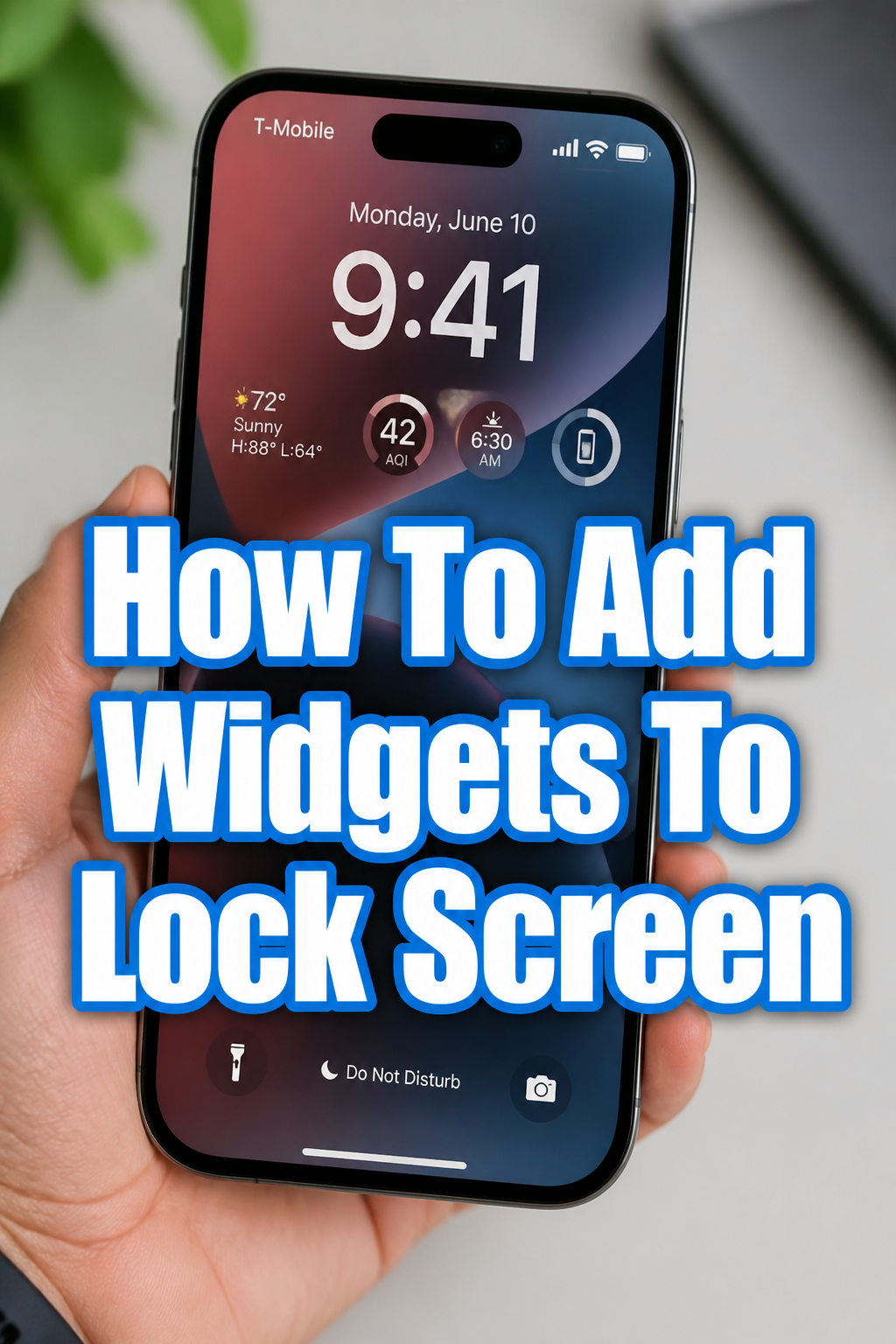
Once in the customization view, you’ll notice different areas on your lock screen available for widgets. There’s typically a larger rectangular area below the clock and a smaller, horizontal bar above it.
Tap on the widget area directly below the clock. This will open the widget gallery, displaying all available widgets from your installed apps.
Step 4: Choose Your Widgets
The widget gallery categorizes widgets by app. Scroll through the list to find apps that offer widgets you want to use. Apps like Weather, Calendar, Reminders, and Stocks are common choices.
Tap on an app to see its available widget sizes and types. You might find small square widgets, rectangular ones, or even circular options depending on the app. Drag and drop your desired widget into the open slots on your lock screen.
You can add multiple widgets until the space is full. Mix and match different app widgets to create your ideal information panel.
Step 5: Add Widgets Above the Clock (iOS)
The smaller horizontal bar above the clock is also a widget area. This spot is perfect for quick, single-data-point widgets. Think about displaying the date, an upcoming alarm, or a specific stock price.
Tap on this area to open a similar, but often more limited, widget selection. Choose a widget that fits this narrow space.
This top slot usually supports only one small widget. It’s ideal for a quick glance at essential information without clutter.
Step 6: Configure Widget Settings (If Available)
Some widgets offer further customization once placed. For instance, a Weather widget might let you choose the city it displays. A Calendar widget might allow you to select which calendar to show events from.
After placing a widget, tap on it again while still in customization mode. This action may reveal specific settings for that particular widget. Adjust any available options to suit your preferences.
Step 7: Arrange and Reorder Widgets
You’re not stuck with the initial placement of your widgets. While in the customization view, you can tap and drag widgets to rearrange their order within the available slots. This helps you prioritize information.
To remove a widget, tap the minus (-) icon that appears on it in customization mode. This clears the slot, allowing you to add a different widget.
Step 8: Save Your Lock Screen
Once you are satisfied with your widget selection and arrangement, tap “Done” in the top right corner of the screen. This saves your changes.
You will then be prompted to “Set as Wallpaper Pair” or “Customize Home Screen.” Choose “Set as Wallpaper Pair” to apply your new lock screen and its widgets.
Your lock screen is now personalized and ready to provide instant information. Enjoy your newly optimized device experience.
Common Mistakes to Avoid
Not Updating Your OS
A common oversight is trying to add widgets without updating your phone’s operating system. Lock screen widgets, especially on iOS, were introduced with specific OS versions. Attempting to customize on an outdated system will lead to frustration, as the options simply won’t appear. Always check for and install the latest software updates before diving into new features.
Overcrowding Your Lock Screen
It’s tempting to fill every available slot with widgets, but this can make your lock screen cluttered and less effective. Too much information at once can be overwhelming and defeat the purpose of glanceable data. Aim for a balanced selection of essential information that genuinely enhances your quick checks. Prioritize what you truly need to see at a glance.
Forgetting App Permissions
Some widgets require specific app permissions to function correctly. A weather widget, for example, needs location access to display local forecasts. If a widget isn’t showing data, check the app’s permissions in your phone’s settings. Ensure it has access to necessary features like location, calendar, or contacts for optimal performance.
Ignoring Widget Customization Options
Many widgets offer deeper customization once placed, but users often overlook these settings. Tapping on a widget in customization mode might reveal options to change its data source, display format, or specific content. Taking a moment to explore these options can significantly improve the widget’s utility and relevance to your needs.
Troubleshooting
Widgets Not Appearing in Gallery
If you’re looking for a specific app’s widget but can’t find it in the customization gallery, there are a few reasons why. First, ensure the app itself is fully updated to its latest version. Developers frequently add widget support in app updates.
If the app is updated, check its settings within your phone’s main settings menu. Some apps require you to enable widget functionality or grant specific permissions before their widgets become available. Restarting your phone can also refresh the widget gallery.
Widgets Showing “No Data” or Blank
A “No Data” message usually indicates a problem with the widget fetching information. This often relates to app permissions or an internet connection. Verify that the app associated with the widget has the necessary permissions, such as location services for weather or network access for news.
Ensure your phone has a stable internet connection, either Wi-Fi or cellular data. Sometimes, simply opening the parent app for the widget can refresh its data. If the issue persists, try removing the widget and re-adding it.
Difficulty Dragging and Dropping Widgets
Sometimes, users find it tricky to precisely place widgets during customization. This can be due to a slight delay in touch recognition or hitting the wrong spot. Ensure you are pressing and holding firmly on the widget you want to move.
Drag it slowly and deliberately into the desired slot. If you’re struggling, try tapping the slot first to open the widget selector, then choose the widget from the list instead of dragging. Practice makes perfect with this touch interface.
Key Takeaways
- Lock screen widgets offer quick, glanceable information without unlocking your phone.
- Ensure your device’s operating system (iOS 16+ for iPhones) and apps are updated for full widget functionality.
- Access customization by pressing and holding your lock screen, then tapping “Customize.”
- Choose from various widget sizes and types provided by your installed apps.
- Don’t overcrowd your lock screen; prioritize essential information for clarity.
- Many widgets have customizable settings; tap them in customization mode to adjust.
- Regularly review and update your widgets to keep your lock screen relevant and useful.
Frequently Asked Questions
Can I add widgets to my Android lock screen?
Yes, Android devices have supported widgets for a long time, though the exact method varies. Typically, you can long-press on an empty area of your home screen, select “Widgets,” and then drag them to your home screen. Some Android versions also allow direct lock screen widget placement, often through the lock screen settings or by long-pressing on the lock screen itself. Consult your phone’s manual for specific instructions for your Android version and manufacturer.
Are lock screen widgets available on all iPhones?
Lock screen widgets in the style described (below and above the clock) were introduced with iOS 16. Therefore, only iPhones capable of running iOS 16 or newer can utilize this specific feature. Older iPhone models or those not updated to iOS 16 will not have this functionality.
Do widgets drain battery life?
Widgets do consume some battery life, but typically very minimally. They refresh their data periodically, which uses a small amount of power and data. Widgets that update very frequently or require constant location tracking might have a slightly higher impact. For most users, the battery drain from a few standard widgets is negligible and won’t significantly affect daily usage.
Can third-party apps provide lock screen widgets?
Absolutely. Many third-party apps have updated to include lock screen widget support. When you’re in the widget gallery during customization, you’ll see options from apps beyond Apple’s native offerings. If your favorite app doesn’t have a widget yet, check for updates or contact the developer to request the feature.
Our Top Recommended Finds
- Portable Power Bank: Keeps your phone charged when out and about, ensuring your widgets are always active.
- Stylus Pen: Offers precision for tapping and dragging widgets, especially useful for smaller screens or those with dexterity challenges.
- Screen Protector: Protects your screen from scratches and smudges, keeping your widgets clear and easy to read.
Transform Your Device Today
Your phone’s lock screen is more than just a gateway; it’s a powerful information panel waiting to be customized. By adding widgets, you reclaim valuable seconds throughout your day, getting the data you need at a glance. This simple change can significantly enhance your daily digital interactions.
Don’t let your lock screen remain a blank slate. Take a few minutes to personalize it, choosing the widgets that truly matter to you. Experiment with different layouts and apps to discover the perfect combination. Start optimizing your device for a smarter, more efficient experience right now.