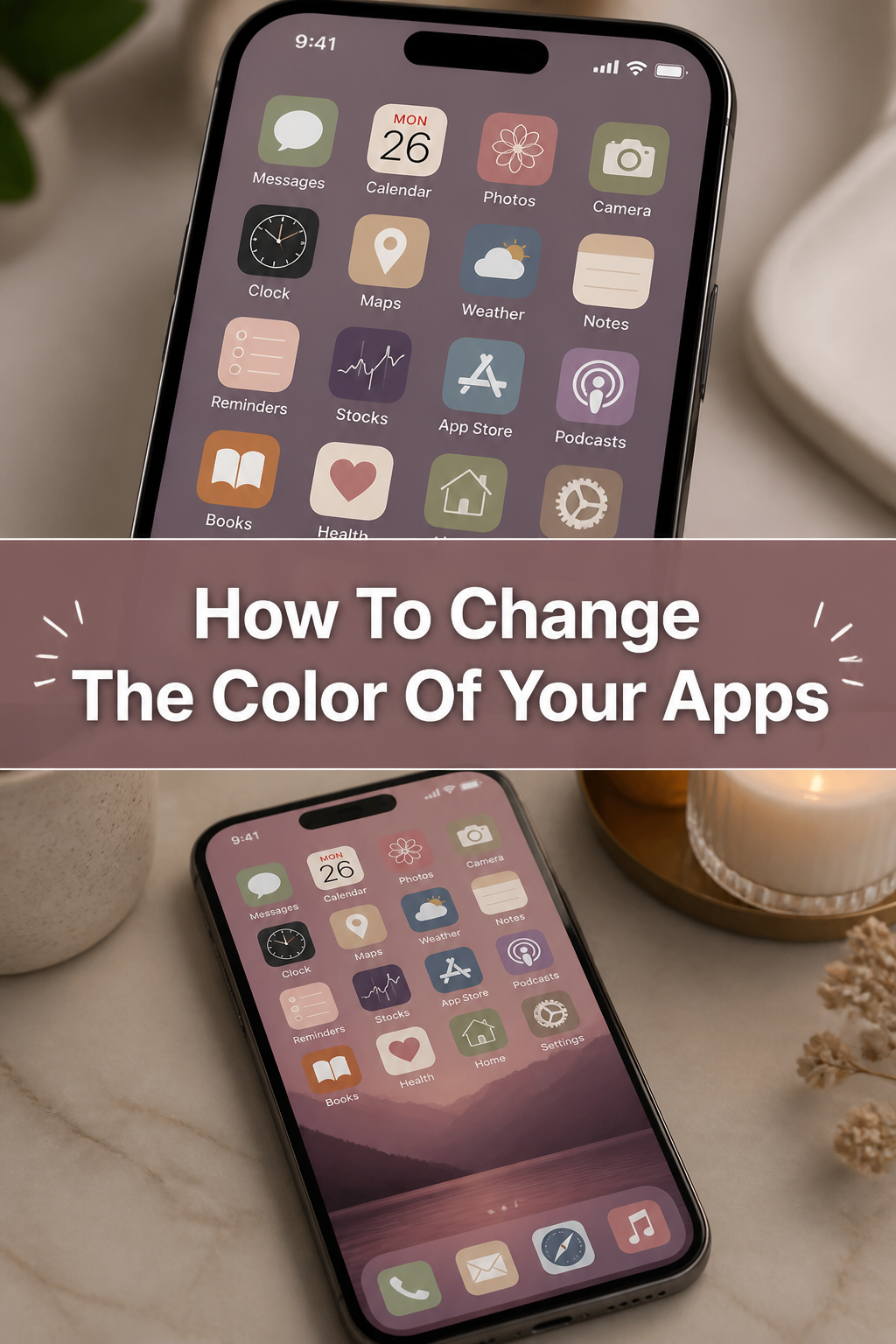
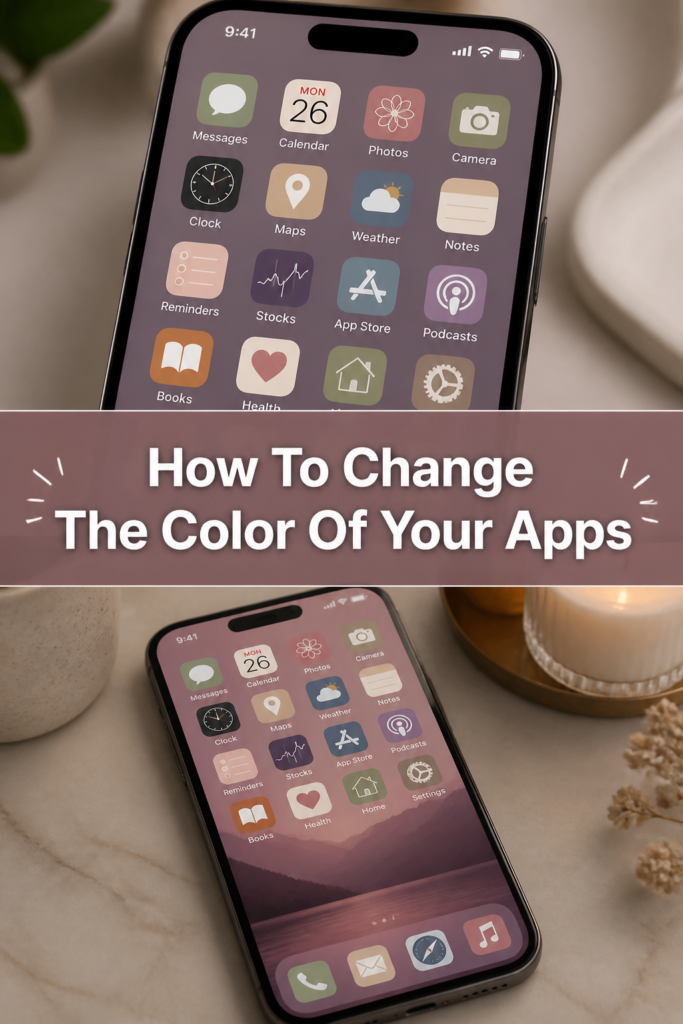
📱 How To Change The Color Of Your Apps
I have spent countless hours staring at the same boring blue and green icons on my home screen.
After testing dozens of launchers and shortcut hacks, I finally found the best ways to make my phone look exactly how I want.
This guide comes from my personal experience of trial and error while trying to build the perfect aesthetic workspace.
Quick Overview
Customizing your app colors is one of the easiest ways to refresh your digital life without buying a new device.
- Time needed: 15 to 30 minutes
- Difficulty: Beginner
- What you’ll need: A smartphone or computer, a set of icons or a customization app, and a bit of patience.
Step-by-Step Instructions
Step 1: Choose Your Color Palette
Pick a theme that reflects your personal style or matches your current wallpaper.
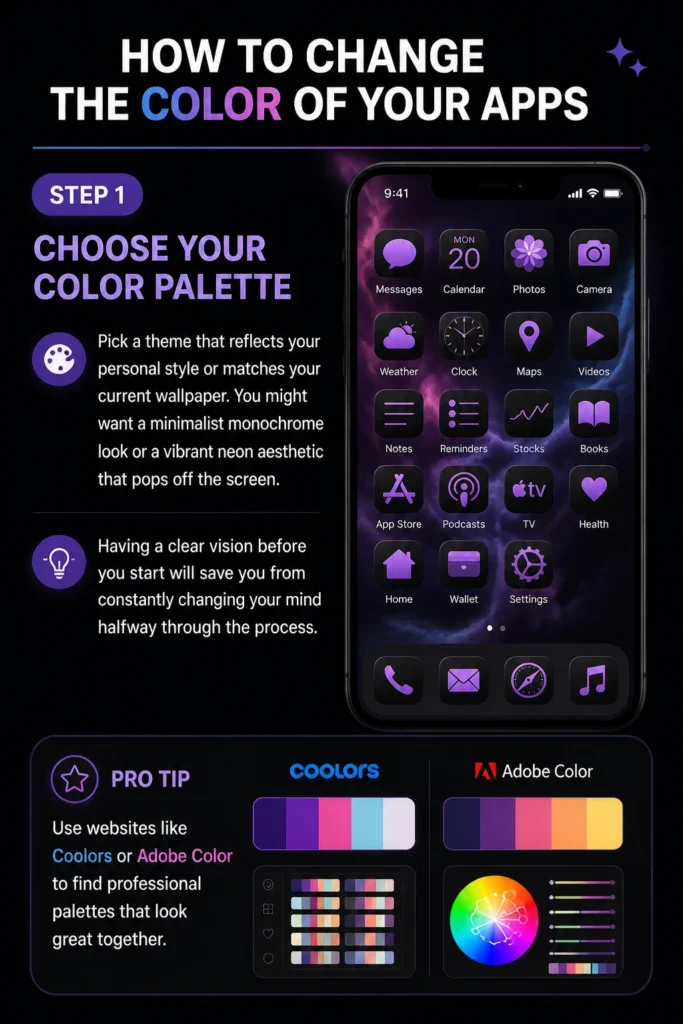
You might want a minimalist monochrome look or a vibrant neon aesthetic that pops off the screen.
Having a clear vision before you start will save you from constantly changing your mind halfway through the process.
Pro Tip: Use websites like Coolors or Adobe Color to find professional palettes that look great together.
Step 2: Download High-Quality Icon Packs
Search for icon packs on platforms like Pinterest, Etsy, or the Google Play Store.
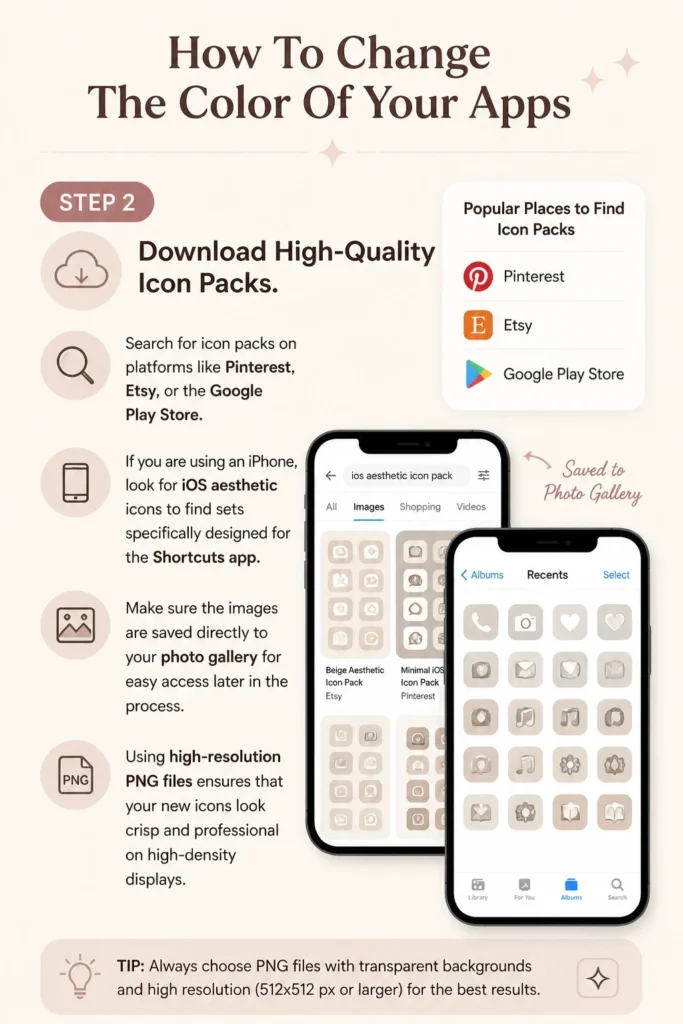
If you are using an iPhone, look for “iOS aesthetic icons” to find sets specifically designed for the Shortcuts app.
Make sure the images are saved directly to your photo gallery for easy access later in the process.
Using high-resolution PNG files ensures that your new icons look crisp and professional on high-density displays.
Step 3: Use the Shortcuts App on iOS
Open the Shortcuts app, which is a built-in tool on every modern iPhone and iPad.

Tap the plus icon in the top right corner and select the “Add Action” button to start a new workflow.
Search for “Open App” in the search bar and choose the specific application you want to customize.
Tap the name of the shortcut at the top, select “Add to Home Screen,” and then tap the small icon next to the name.
Choose “Choose Photo” to pick the new colored icon you downloaded earlier from your gallery.
Pro Tip: Rename the shortcut to a single space if you want a clean look without any text labels under your apps.
Step 4: Install a Custom Launcher on Android
Download a third-party launcher like Nova Launcher or Niagara Launcher from the Play Store.
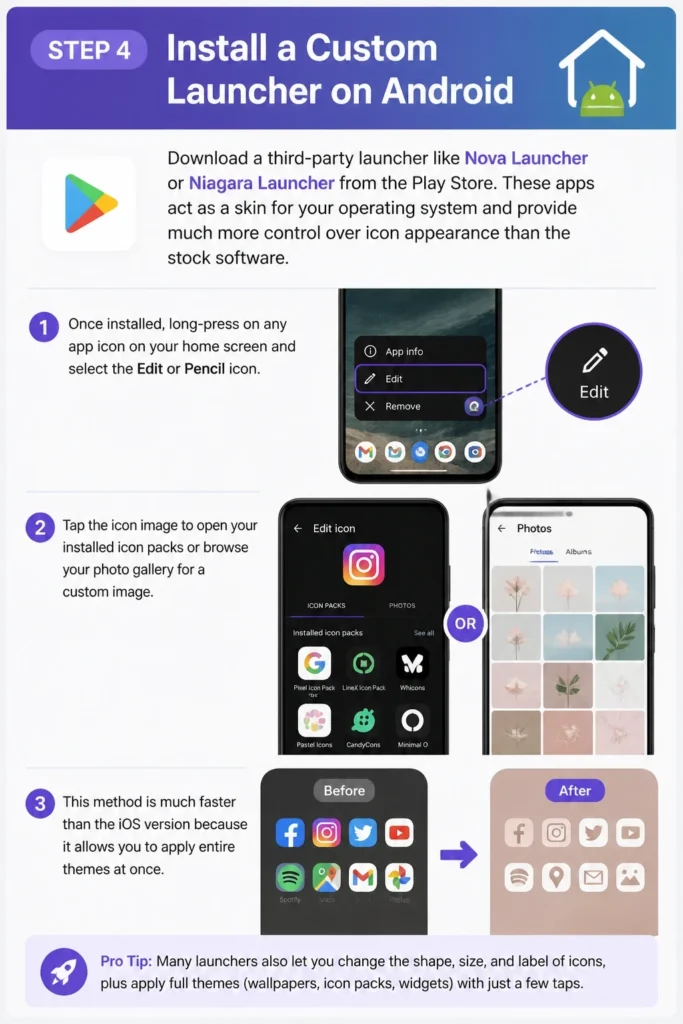
These apps act as a skin for your operating system and provide much more control over icon appearance than the stock software.
Once installed, long-press on any app icon on your home screen and select the “Edit” or “Pencil” icon.
Tap the icon image to open your installed icon packs or browse your photo gallery for a custom image.
This method is much faster than the iOS version because it allows you to apply entire themes at once.
Step 5: Utilize Android Material You Features
Navigate to your phone settings and look for the “Wallpaper and Style” section.
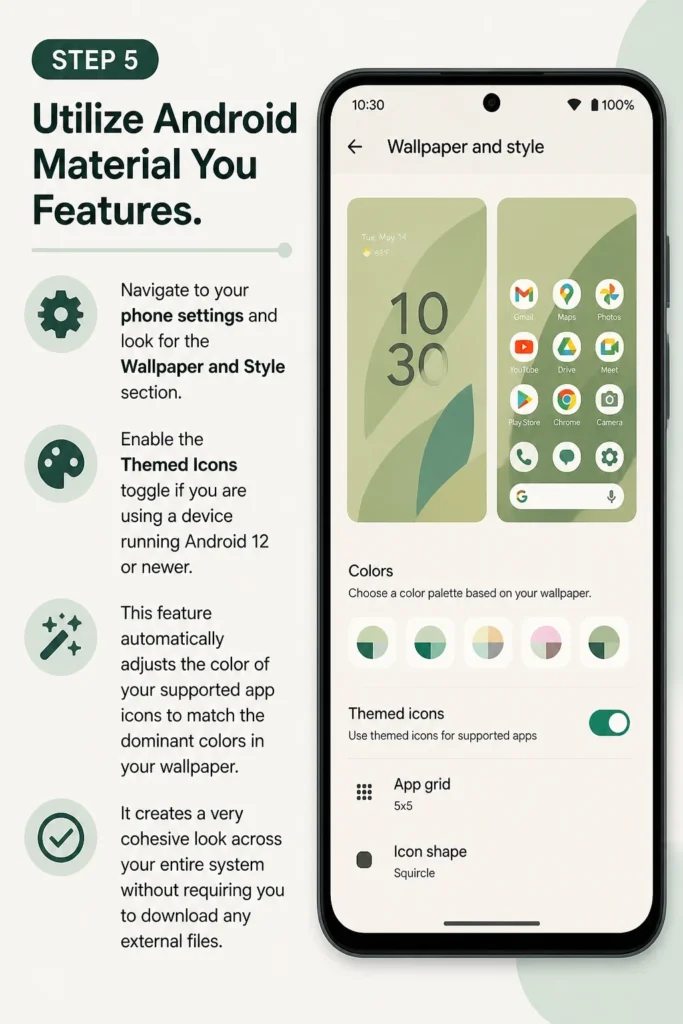
Enable the “Themed Icons” toggle if you are using a device running Android 12 or newer.
This feature automatically adjusts the color of your supported app icons to match the dominant colors in your wallpaper.
It creates a very cohesive look across your entire system without requiring you to download any external files.
Step 6: Change App Colors on Windows
Right-click on the desktop shortcut of the app you wish to change and select “Properties.”
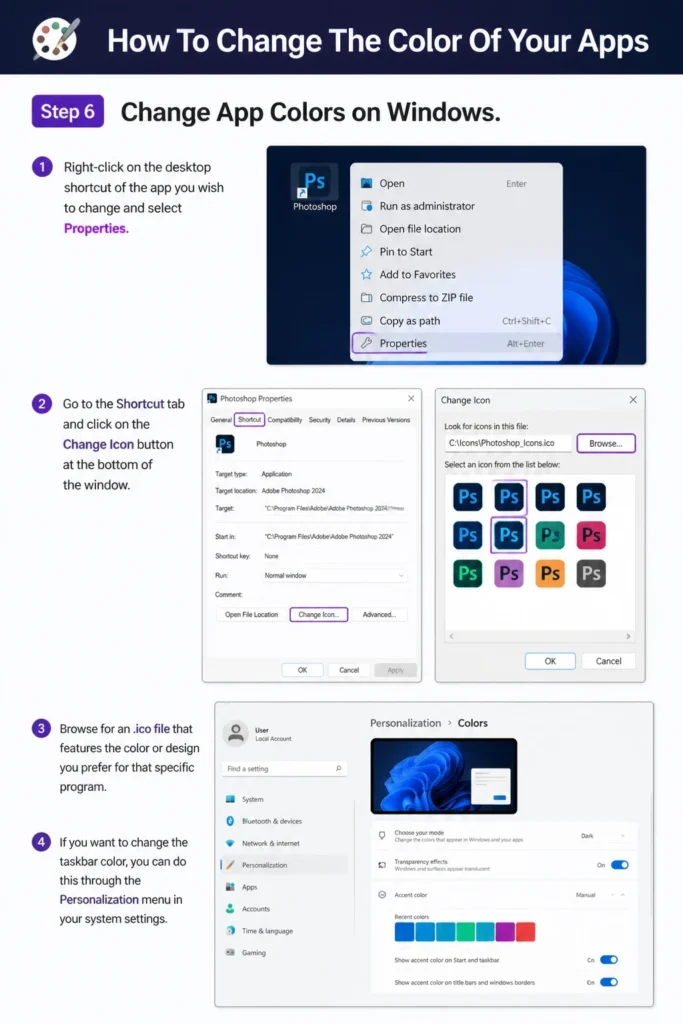
Go to the “Shortcut” tab and click on the “Change Icon” button at the bottom of the window.
Browse for an .ico file that features the color or design you prefer for that specific program.
If you want to change the taskbar color, you can do this through the “Personalization” menu in your system settings.
Step 7: Customize Mac App Icons
Find the application in your “Applications” folder within the Finder window.

Right-click the app and select “Get Info” to open a small details panel on your screen.
Open the image file you want to use as the new icon in the Preview app and press Command+C to copy it.
Click on the small icon at the very top left of the “Get Info” window and press Command+V to paste your new color.
Pro Tip: If you ever want to go back, just click the icon in the Get Info window and hit the Backspace key.
Step 8: Organize Your New Screen Layout
Group your newly colored apps into folders based on their shade or their function.
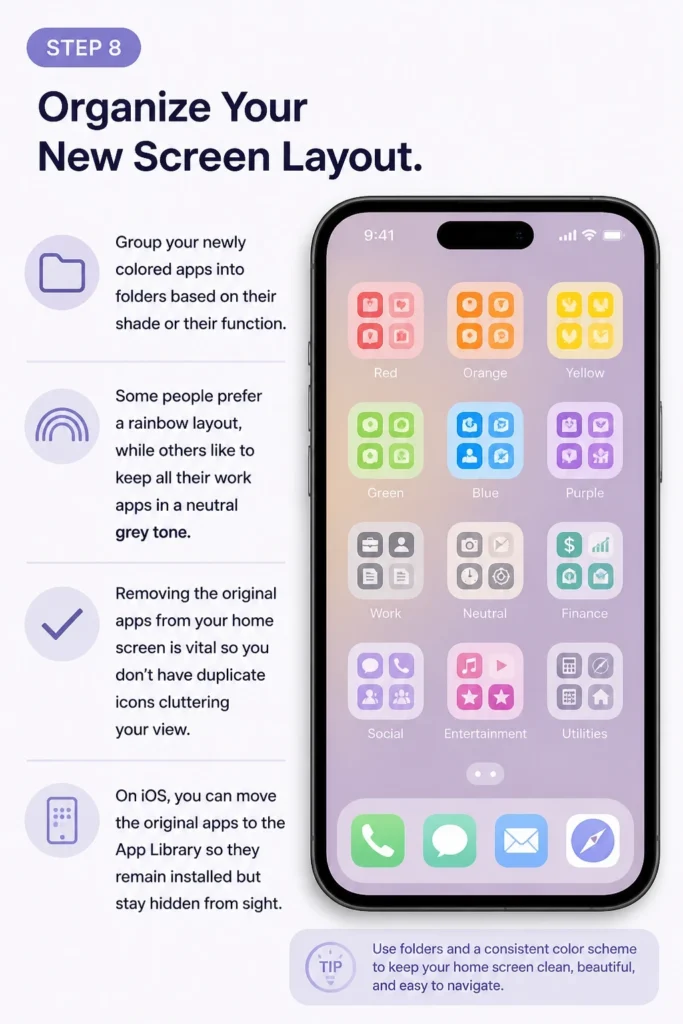
Some people prefer a rainbow layout, while others like to keep all their “work” apps in a neutral grey tone.
Removing the original apps from your home screen is vital so you don’t have duplicate icons cluttering your view.
On iOS, you can move the original apps to the App Library so they remain installed but stay hidden from sight.
Common Mistakes to Avoid
Ignoring Notification Badges
When you use the Shortcuts app on iPhone, you lose the little red notification circles on your icons.
This can be a major problem if you rely on those badges to see how many unread emails or messages you have.
Keep your most important communication apps in their original form or check your notification center frequently.
Using Low Resolution Images
Grabbing a tiny thumbnail from a Google search will result in a blurry, pixelated icon on your high-resolution screen.
Always look for files that are at least 512×512 pixels to ensure they look sharp and professional.
Blurry icons can make your phone look cheap and negate all the hard work you put into the customization.
Forgetting to Backup Original Settings
It is easy to get carried away and delete your original layout before you are sure you like the new one.
Take a screenshot of your current home screen before you start moving things around or hiding apps.
This gives you a reference point if you decide the new color scheme isn’t working for your daily workflow.
Troubleshooting
The Shortcut Lag on iOS
In older versions of iOS, using a shortcut would open the Shortcuts app for a split second before launching your target app.
Most modern updates have fixed this, but if you still see it, ensure your software is fully updated to the latest version.
You can also try turning on “Reduce Motion” in your accessibility settings to make the transition feel smoother.
Icons Not Updating on Android
Sometimes a custom launcher might fail to refresh the cache, causing old icons to persist even after you change them.
Restarting the launcher app through your phone settings or simply restarting your device usually fixes this issue.
If the problem continues, check if the app you are trying to change has specific security restrictions that prevent customization.
Missing Apps After Customization
If you “Hide” an app on Android or move it to the Library on iPhone, it might feel like the app has been deleted.
Use the search bar on your device to find the app by name if you can’t locate the new icon you created.
Double-check that you haven’t accidentally uninstalled the original application while trying to clean up your home screen.
Key Takeaways
- Customizing app colors requires using the Shortcuts app on iOS or custom launchers on Android.
- High-resolution PNG or ICO files are essential for a clean and professional look.
- System-wide features like “Material You” offer an automated way to match icons with your wallpaper.
- Organization is just as important as color; group your apps to maintain productivity.
- Always keep a backup or screenshot of your original layout in case you want to revert your changes.
Frequently Asked Questions
Will changing app colors slow down my phone?
Using custom icons through the Shortcuts app or a reputable launcher like Nova does not significantly impact performance.
However, using very heavy themes with live widgets might consume a small amount of extra battery life over time.
For most modern smartphones, the difference in speed is virtually unnoticeable during daily use.
Is it free to change my app icons?
The tools required, such as the iOS Shortcuts app and many Android launchers, are completely free to use.
While many icon packs are free on sites like Pinterest, some premium designers charge a small fee for high-end sets.
You can also create your own icons for free using graphic design tools like Canva or simple photo editors.
Can I change the color of the actual app interface?
Most of the methods in this guide change the external icon, not the inside of the app itself.
To change the internal colors, you must check the individual app settings for “Dark Mode” or “Themes.”
Some apps allow for custom accent colors, but this is determined by the app developer rather than your phone settings.
Our Top Recommended Finds
- Aesthetic Icon Pack Bundles: Buying a professionally designed set ensures all your icons have a consistent artistic style.
- Phone Stand for Desk: A sturdy stand helps you admire your new custom layout while you work at your computer.
- Microfiber Cleaning Cloths: Keeping your screen smudge-free makes your new color palette look much more vibrant and clear.
Take Control Of Your Digital Aesthetic
Now that you know how to swap those standard icons for something more personal, you can start experimenting with different themes.
Try switching your colors based on the season or even your current project to keep your environment feeling new.
If you enjoyed this customization project, you might also want to look into custom widgets to add even more functionality to your screen.
Start with just one or two icons today to see how much a small splash of color can change your daily routine.