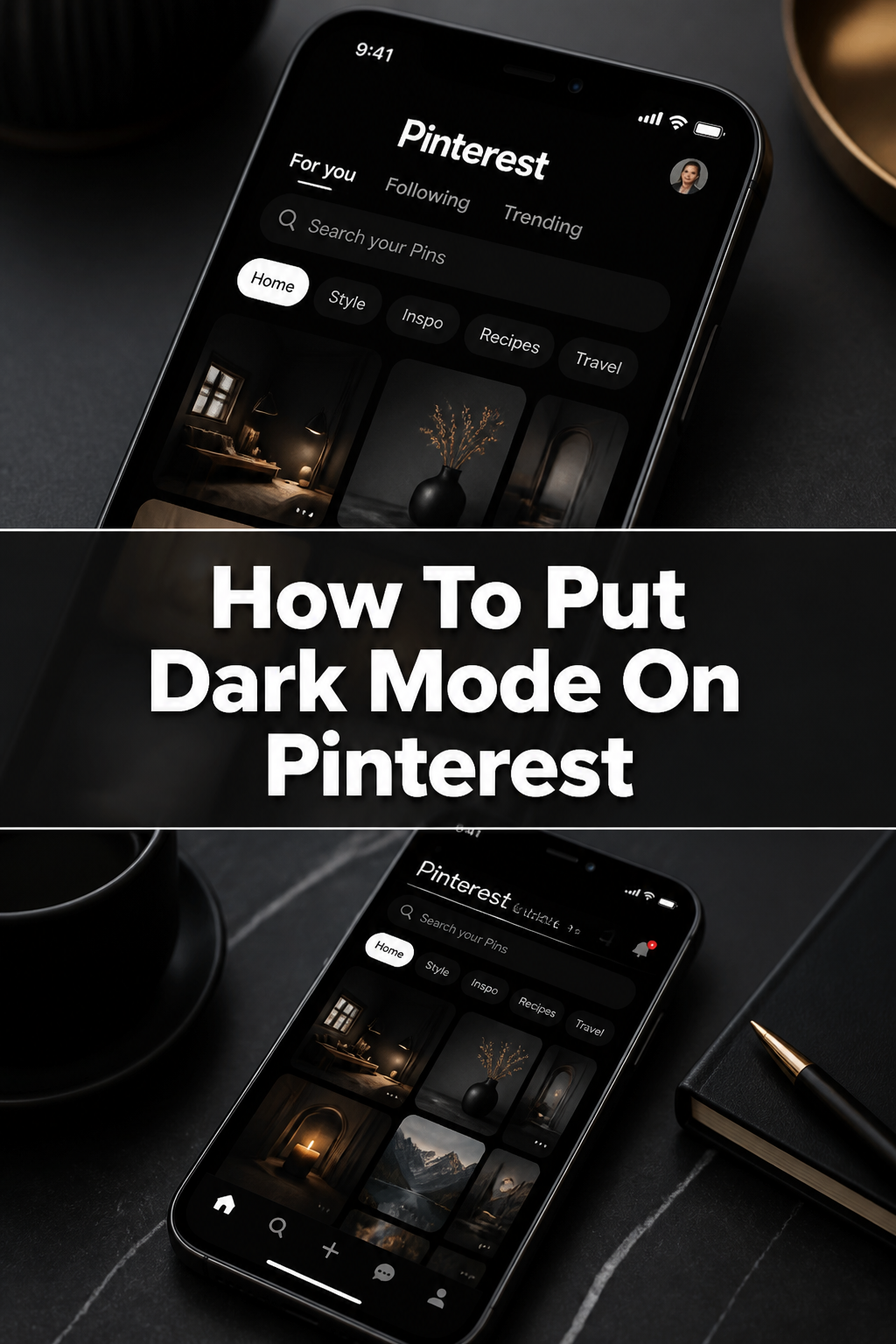
🌙 How To Put Dark Mode On Pinterest
Do you spend hours scrolling through Pinterest, only to find your eyes feeling strained by the bright white interface?
Switching to dark mode can make a huge difference, offering a more comfortable viewing experience, especially in low-light conditions.
I’ve personally configured dark mode across all my devices, and this guide will walk you through the exact steps to bring that soothing dark aesthetic to your Pinterest browsing.

Quick Overview
This guide will show you how to enable dark mode for Pinterest by adjusting your device’s system settings, ensuring a more comfortable visual experience.
- Time needed: 2-5 minutes per device
- Difficulty: Beginner
- What you’ll need: Your Pinterest-enabled device (smartphone, tablet, or computer)
Step-by-Step Instructions
Pinterest doesn’t have an in-app dark mode switch. Instead, it adapts to your device’s system-wide dark mode settings. This means you’ll activate dark mode for your entire device, and Pinterest will follow suit.
Step 1: Understand Pinterest’s Dark Mode Behavior
Before diving into settings, it’s important to know how Pinterest handles dark mode. The platform is designed to respect your operating system’s visual preferences.
This integration means that once you enable dark mode on your phone, tablet, or computer, the Pinterest app or website will automatically switch to a darker theme.
Pro Tip: This system-wide approach means other apps and websites that support dark mode will also switch, providing a consistent visual experience across your device.
Step 2: Enable Dark Mode on iOS (iPhone/iPad)
If you’re using an Apple device, enabling dark mode is straightforward and will immediately affect your Pinterest app.
Open the “Settings” app on your iPhone or iPad. This is usually represented by a gray gear icon on your home screen.
Scroll down and tap on “Display & Brightness.” This section controls how your screen looks, including its light and dark appearance.
Select “Dark” under the “Appearance” section. You’ll see options for “Light” and “Dark”; choose “Dark” to apply the theme system-wide.
Once selected, your device’s interface will instantly change, and your Pinterest app will now display in dark mode.
Step 3: Enable Dark Mode on Android Devices
Android devices also offer a system-wide dark theme that Pinterest will recognize. Steps might vary slightly based on your Android version and device manufacturer.
Navigate to your device’s “Settings” app. This is typically found in your app drawer or by swiping down from the top of your screen and tapping the gear icon.
Tap on “Display” or “Display & Brightness.” The exact wording can differ, but look for options related to your screen’s appearance.
Toggle on “Dark theme” or “Dark mode.” On some devices, you might find this under an “Advanced” or “More display settings” menu.
Your Android device will now be in dark mode, and the Pinterest app will reflect this change automatically.
Step 4: Enable Dark Mode on macOS (Apple Computers)
For those browsing Pinterest on a MacBook or iMac, adjusting your macOS appearance settings will bring dark mode to your web browser and any compatible applications.
Click the Apple menu in the top-left corner of your screen. From the dropdown, select “System Settings” (or “System Preferences” on older macOS versions).
Choose “Appearance” from the sidebar in System Settings. In older versions, you’d click “General” from the preference pane.
Select “Dark” for your appearance. You’ll typically see options for Light, Dark, or Auto. Choosing “Dark” applies the theme to your entire desktop environment.
When you open Pinterest in your web browser (like Safari, Chrome, or Firefox), it will now display with a dark theme, assuming your browser also respects system preferences.
Step 5: Enable Dark Mode on Windows (PCs)
Windows users can also enjoy Pinterest in dark mode by adjusting their operating system’s color settings. This applies to both the Pinterest website and any Universal Windows Platform app.
Right-click on an empty area of your desktop. From the context menu, select “Personalize.” Alternatively, go to “Settings” > “Personalization.”
Click on “Colors” in the left-hand navigation pane. This section allows you to customize various color aspects of your Windows interface.
Choose “Dark” from the “Choose your mode” dropdown menu. You’ll find options for Light, Dark, or Custom. Selecting “Dark” will change your system’s overall theme.
Open your web browser and navigate to Pinterest.com. The website will now appear in a dark theme, making your browsing experience much easier on the eyes.
Step 6: Verify Dark Mode on Pinterest
After adjusting your device’s settings, it’s time to confirm that Pinterest has successfully adopted the dark theme.
Open the Pinterest app or website on the device where you enabled dark mode. You should immediately notice the change from a bright white background to a darker, more muted palette.
Browse through your home feed, explore different boards, and check your profile. Everything should now be displayed with the new dark aesthetic.
If Pinterest doesn’t immediately switch, try closing and reopening the app or refreshing your browser page. Sometimes, a quick restart is needed for the changes to take full effect.
Common Mistakes to Avoid
Forgetting System-Wide Activation
A frequent error is expecting an in-app switch for Pinterest. Many users search through Pinterest settings looking for a dark mode toggle that doesn’t exist.
Remember, Pinterest relies on your device’s operating system settings. The solution is always to enable dark mode at the system level, not within the Pinterest app itself.
Ignoring Browser Settings (for Web Users)
When using Pinterest in a web browser, some browsers might have their own theme settings that override or interfere with the system-wide dark mode. If Pinterest isn’t dark on your computer, check your browser’s specific theme or extension settings.
Ensure your browser is also set to follow system preferences or has a dark theme enabled, especially if you’re using a custom browser theme.
Not Restarting the App or Browser
Sometimes, simply enabling dark mode on your device isn’t enough for an open app to immediately reflect the change. Users might enable dark mode then wonder why Pinterest is still bright.
Always close and reopen the Pinterest app, or refresh the Pinterest webpage in your browser, after changing your system’s appearance settings. This allows the application to reload with the new theme.
Troubleshooting
Pinterest App Remains Light After System Dark Mode
If you’ve enabled dark mode on your phone or tablet, but the Pinterest app still appears bright, there are a few things to check.
First, ensure you’ve completely closed the Pinterest app and reopened it. If that doesn’t work, try restarting your device. Occasionally, an app update might also resolve compatibility issues, so check for pending Pinterest updates in your app store.
Pinterest Website Not Dark on Desktop
When browsing Pinterest on your computer and it’s not showing dark mode despite your system settings, the issue might lie with your browser.
Verify that your web browser (Chrome, Firefox, Safari, Edge) is also set to respect system dark mode or has its own dark theme enabled. Some browser extensions can also interfere with website styling, so try disabling them temporarily to see if that resolves the problem.
Inconsistent Dark Mode Across Devices
You might find dark mode works on one device but not another, even if both are set to dark mode. This usually indicates a specific setting or update issue on the problematic device.
Double-check the dark mode settings on the device where it’s not working, following the steps outlined above. Make sure both your device’s operating system and the Pinterest app are fully updated to their latest versions.
Key Takeaways
- Pinterest’s dark mode is controlled by your device’s system-wide display settings.
- Enable dark mode on iOS via “Settings > Display & Brightness.”
- Activate dark mode on Android through “Settings > Display > Dark theme.”
- For macOS, set “System Settings > Appearance” to Dark.
- On Windows, choose “Settings > Personalization > Colors” and select Dark mode.
- Always restart the Pinterest app or refresh your browser after changing system display settings.
- Troubleshoot by checking app updates, browser settings, and ensuring full device restarts.
Frequently Asked Questions
Can I set Pinterest to dark mode without changing my entire phone’s theme?
Unfortunately, no. Pinterest currently does not offer an in-app setting to enable dark mode independently. It’s designed to automatically follow your device’s system-wide light or dark theme setting, meaning your entire phone or computer will switch.
Will enabling dark mode on my device affect other apps?
Yes, enabling dark mode system-wide will affect most other applications and websites that support dark mode. Many modern apps are designed to adapt to your operating system’s visual theme, providing a consistent experience across your device.
Why does Pinterest look different in dark mode on my Android compared to my iPhone?
While the core concept is the same, the visual implementation of dark mode can vary slightly between operating systems and even device manufacturers. Android’s dark theme might have different color shades or contrasts compared to iOS, leading to subtle design differences in the Pinterest app.
Are there any benefits to using dark mode on Pinterest?
Absolutely. Dark mode can reduce eye strain, especially when browsing in low-light environments, by lowering the amount of blue light emitted from your screen. It can also help conserve battery life on devices with OLED or AMOLED screens, as black pixels require less power.
Enhancing Your Pinterest Experience
Now that your Pinterest feed is beautifully dark, consider how else you can make your browsing more enjoyable.
A comfortable setup can make a big difference, especially during those long pinning sessions.
- Blue Light Blocking Glasses: Even with dark mode, these glasses can further reduce eye strain, making late-night browsing more comfortable. They filter out harmful blue light, promoting better sleep patterns.
- Ergonomic Monitor/Phone Stand: Elevating your screen to eye level can prevent neck and back pain. A good stand ensures you maintain proper posture while admiring your dark-themed boards.
- High-Quality Headphones: Immerse yourself in your creative flow. Good headphones can block out distractions, allowing you to focus completely on discovering inspiration on Pinterest.
Embrace the Dark Side of Inspiration
Switching to dark mode on Pinterest is a simple yet impactful change that significantly improves your viewing comfort. It’s a small adjustment that yields big benefits for your eyes and overall browsing experience.
Take a moment today to adjust your device’s settings and transform your Pinterest feed. You’ll likely wonder how you ever managed without it.