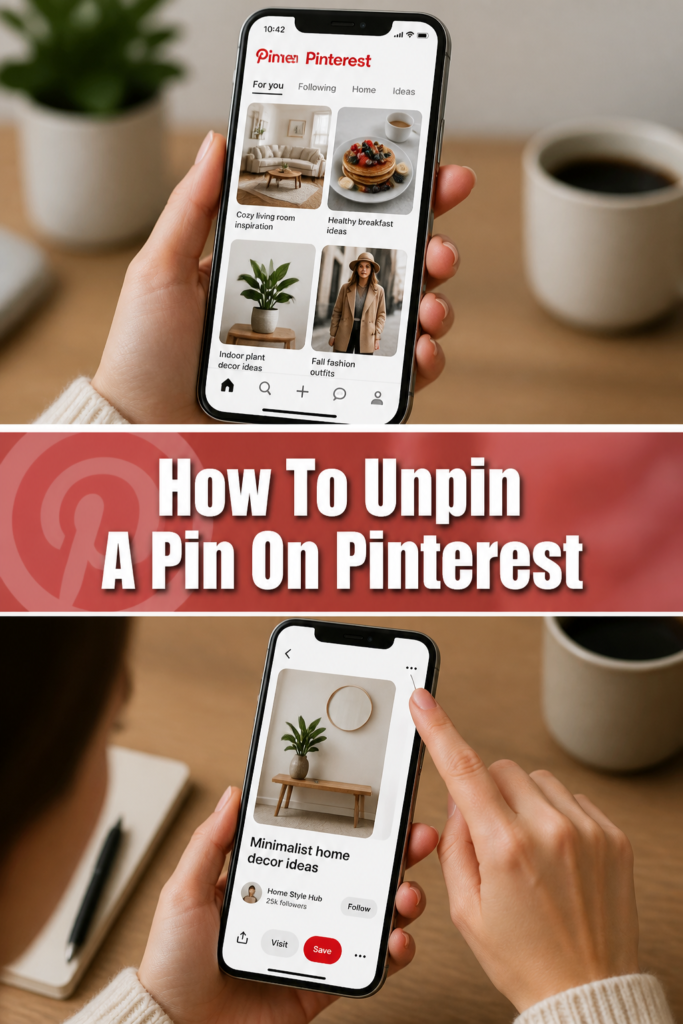
📌 How To Unpin A Pin On Pinterest
I remember the first time I looked at my “Home Decor” board and realized it was a total mess of styles I no longer liked.
Cleaning out those old ideas felt like a weight being lifted off my shoulders, allowing me to focus on my current aesthetic.
You can trust this guide because I have spent hundreds of hours managing high-traffic Pinterest accounts and organizing thousands of digital inspirations.
Quick Overview
Cleaning up your Pinterest boards helps the algorithm understand your current interests better.
It also makes your profile look more professional and curated for anyone who follows your boards.
- Time needed: 2-5 minutes
- Difficulty: Beginner
- What you’ll need: A Pinterest account and a mobile device or computer
Step-by-Step Instructions
Step 1: Open Your Pinterest Profile
Log in to your Pinterest account using your preferred web browser or the mobile app.
Navigate to your profile by clicking on your profile picture or the person icon located at the bottom or top right of the screen.
Scroll through your list of boards to find the specific one containing the pin you want to remove.
Pro Tip: If you have dozens of boards, use the search bar at the top of your profile page to find the board name quickly.
Step 2: Select the Target Board
Click or tap on the board that houses the pin you are looking to delete.
Browse through the saved images until you locate the specific item that no longer fits your vision.
Ensure you are looking at your own board and not a “For You” feed, as you can only unpin items from boards you own or collaborate on.
Step 3: Access the Pin Edit Menu
Hover your mouse over the pin if you are using a desktop computer.
Click on the small pencil icon that appears in the corner of the image to open the edit settings.
Long-press on the image if you are using the mobile app to bring up a menu of icons, then slide your finger to the pencil icon.
Pro Tip: On mobile, you can also tap the pin to open it fully and then tap the three dots in the corner to find the “Edit Pin” option.
Step 4: Execute the Delete Action
Look for the “Delete” button, which is usually located in the bottom left corner of the edit window.
Click the button once you are certain you want the pin gone forever.
Confirm your choice when the pop-up window asks if you are sure, as this action cannot be undone easily.
Step 5: Use Bulk Delete for Multiple Pins
Select the “Organize” button at the top of your board if you have many pins to remove at once.
Tap on every pin you want to unpin to highlight them with a checkmark or a colored border.
Choose the trash can icon or the “Delete” option at the bottom of the screen to remove all selected items simultaneously.
Pro Tip: Bulk deleting is the most efficient way to refresh an entire board without spending an hour clicking individual images.
Step 6: Refresh Your View
Pull down on your screen or refresh your browser page to ensure the changes have been saved.
Verify that the pins are no longer visible on your board or in your overall profile view.
Check your other boards if you had the same pin saved in multiple locations, as deleting it from one board does not automatically remove it from others.
Common Mistakes to Avoid
Deleting Instead of Moving
Many people delete a pin because they think it is in the wrong place, but they actually still like the content. If you still want the idea but want it elsewhere, use the “Move” function instead of “Delete.” This keeps the inspiration while keeping your boards organized.
Always double-check if the pin belongs on a different board before you hit the final delete button. Once it is gone, finding that specific link or image again can be very difficult.
Forgetting About Secret Boards
Sometimes users delete pins from public boards but forget they have the same items saved on secret boards. This can lead to a cluttered digital space even if your public profile looks clean. Make sure to audit your private boards just as often as your public ones.
Secret boards are great for planning, but they can become a graveyard for old ideas. Treat them with the same organizational standards as your main profile.
Ignoring the Source Link
It is common to delete a pin because the image is low quality, only to realize later that the link attached to it was very valuable. Before unpinning, click the image to see where it leads. If the website is a resource you need, save the URL elsewhere first.
You might want to replace a low-quality pin with a better version of the same link. Doing this ensures you don’t lose the actual information behind the visual.
Troubleshooting
The Pin Won’t Disappear
If you delete a pin and it still shows up on your board, you are likely looking at a cached version of the page. Try logging out and logging back in to force the app to update your data. You can also clear your browser’s cache or the app’s data in your phone settings.
Sometimes Pinterest experiences server delays where changes take a few minutes to reflect globally. Give it a little time before trying to delete the same pin again.
The Edit Icon is Missing
If you cannot find the pencil icon or the edit menu, you might be trying to edit a pin on a board you don’t own. This often happens on group boards where you have “view only” permissions. Check the board settings to see if you are an owner or a contributor with editing rights.
If it is your own board and the icon is missing, ensure your app is updated to the latest version. Software bugs in older versions can sometimes hide essential UI elements.
Accidental Deletion of a Board
If you intended to unpin one item but accidentally deleted the entire board, you need to act fast. Pinterest sometimes sends a confirmation email with a link to restore a deleted board for a very limited time. Check your inbox immediately to see if this recovery option is available to you.
In most cases, board deletion is permanent. This is why using the “Organize” tool for individual pins is safer than making broad changes to board settings.
Key Takeaways
- Use the pencil icon to access the delete menu for individual pins on both desktop and mobile.
- Utilize the Organize tool to select multiple pins and delete them in one single action.
- Distinguish between deleting and moving to ensure you don’t lose valuable inspiration by mistake.
- Refresh your cache if pins continue to appear after you have already deleted them.
- Check your source links before unpinning to avoid losing access to helpful websites or products.
- Audit your secret boards regularly to keep your entire Pinterest account streamlined and relevant.
Frequently Asked Questions
Does unpinning a pin delete it for everyone else?
No, unpinning a pin only removes it from your own boards. If other people have repinned that same image to their own boards, it will remain there until they choose to delete it themselves. You only have control over the content saved to your personal profile.
Can I recover a pin after I have deleted it?
Pinterest does not currently have a “Trash” folder or an “Undo” button for deleted pins. Once you confirm the deletion, the pin is removed from your board permanently. You would need to find the original source or search for the pin again to save it back to your profile.
Why do some pins return after I delete them?
This usually happens due to a poor internet connection or a syncing error between the mobile app and the desktop version. Ensure you have a stable connection when making changes. If the issue persists, try deleting the pin from a different device to see if the change sticks.
Is there a limit to how many pins I can delete at once?
While Pinterest allows bulk deleting, doing thousands of pins in a very short window might trigger a temporary security flag. It is best to clean up boards in batches of 50 to 100 pins at a time. This keeps the process smooth and prevents the app from lagging.
Our Top Recommended Finds
- Ergonomic Wireless Mouse: Using a high-quality mouse makes the clicking and dragging involved in board organization much more comfortable for your wrist.
- Stylus Pen for Tablets: If you organize your pins on an iPad or tablet, a stylus provides much better precision for selecting small icons and bulk-editing pins.
- Blue Light Blocking Glasses: Digital decluttering can take time, and these glasses help reduce eye strain during long sessions of staring at your Pinterest feed.
Level Up Your Digital Curation
Now that you know how to remove the clutter, you can start building boards that truly reflect your current goals. A clean Pinterest profile is a powerful tool for manifesting your next project or aesthetic.
Consider looking into how to create custom board covers to give your profile a more cohesive look. You might also want to explore the “Sections” feature to further categorize the pins you decided to keep.
Take ten minutes today to go through your oldest board and remove at least five pins that no longer inspire you. Your future self will thank you for the extra mental space.