🗑️ How To Delete A Board On Pinterest
Have you ever looked at your Pinterest profile and felt a little overwhelmed? I know I have. Sometimes, boards created years ago no longer align with current interests or needs.
Decluttering your digital space can be incredibly freeing. This guide will walk you through the precise steps to delete a Pinterest board, ensuring a clean and organized profile. You can trust this guide because I’ve personally tidied up countless boards, refining my own online presence over the years.

Quick Overview
This guide will empower you to confidently remove any unwanted Pinterest board from your profile. You’ll learn the exact steps, understand common pitfalls, and discover solutions to potential issues.
- Time needed: 5-10 minutes
- Difficulty: Beginner
- What you’ll need: An active Pinterest account, a computer or mobile device
Step-by-Step Instructions
Step 1: Understand the Implications of Deletion
Before you begin, consider what happens when a board is deleted. This action is permanent and cannot be undone. All pins on that board will be removed from Pinterest.
Any collaborators on the board will lose access to it. If the board was secret, only you and invited collaborators could see it anyway. Public boards, however, will disappear from public view.
Pro Tip: If you’re unsure about permanent deletion, consider archiving the board instead. Archiving hides the board from your profile and search results but keeps all its pins safe, allowing you to unarchive it later if you change your mind. You’ll find the archive option in the same “Edit Board” menu.
Step 2: Access Your Pinterest Account
The first step is always to log into your account. Ensure you are on the correct profile if you manage multiple accounts. This ensures you’re working with the right set of boards.
If you are using a computer, open your preferred web browser and navigate to Pinterest.com. Enter your login credentials to access your account.
For mobile users, launch the Pinterest app on your smartphone or tablet. You will be prompted to log in if you aren’t already. Make sure your app is updated to the latest version for the best experience.
Step 3: Locate the Board You Wish to Delete
Once logged in, you need to find the specific board you want to remove. This process is similar for both desktop and mobile platforms.
Navigate to your profile by clicking your profile picture in the top right corner on a desktop. On mobile, tap your profile icon at the bottom right of the screen.
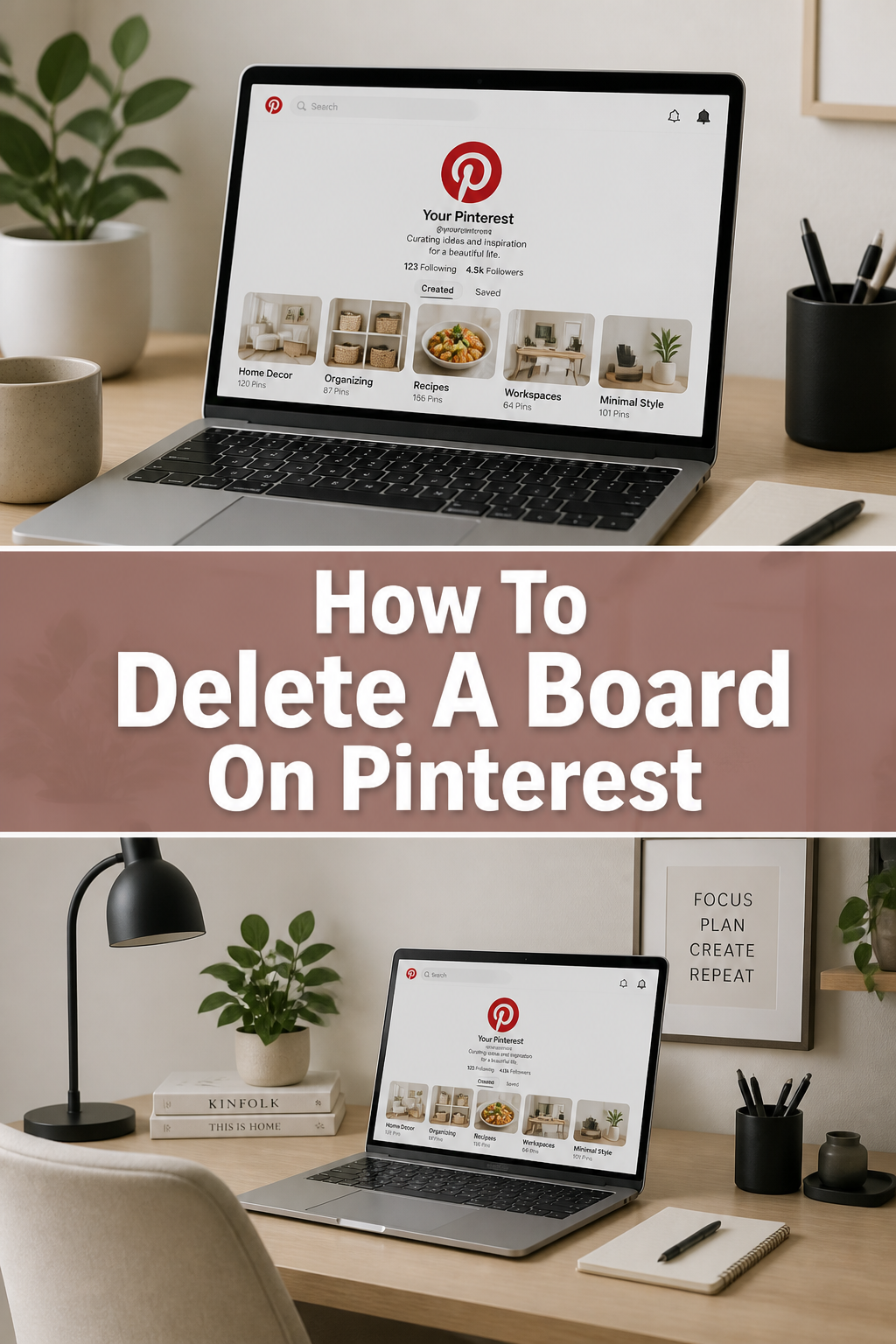
Scroll through your profile page to find the “Boards” section. Here, all your created and saved boards will be displayed. Visually identify the board you intend to delete.
Step 4: Open the Board’s Settings
After locating the board, you need to access its individual settings. This is where the delete option resides. The method varies slightly between desktop and mobile.
On Desktop:
Click directly on the board you wish to delete. This will open the board and display all its pins.
Look for the ellipsis icon (three horizontal dots) usually found next to the board title or at the top of the screen. Click on this icon to reveal a dropdown menu.
Select “Edit Board” from the options presented in the dropdown menu. This action will open a pop-up window containing all the board’s editable settings.
On Mobile:
Tap on the board you want to delete. Just like on desktop, this opens the board to show its pins.
Find the ellipsis icon (three horizontal dots) typically located at the top right corner of the board screen. Tap this icon to open a menu.
Choose “Edit Board” from the menu. This will take you to a dedicated screen where you can adjust the board’s details and settings.
Step 5: Find the Delete Option
Within the “Edit Board” settings, you will find various options for managing your board. The delete button is usually positioned prominently, often at the bottom.
On Desktop:
Scroll down to the very bottom of the “Edit Board” pop-up window. You should see a button labeled “Delete board.”
Click this “Delete board” button. It’s often highlighted in red to signify its permanent action.
On Mobile:
Scroll down the “Edit Board” screen until you reach the bottom. Here, you will find the “Delete board” option.
Tap the “Delete board” button. This action will prompt you for a final confirmation.
Step 6: Confirm Your Decision
Pinterest provides a safeguard before permanently deleting a board. You will encounter a confirmation prompt to ensure this is truly your intention.
A pop-up window or screen will appear, asking if you are sure you want to delete the board. It will often reiterate that this action is permanent.
Read the confirmation message carefully. If you are absolutely certain, click or tap “Delete permanently” to finalize the process. If you have any doubts, click “Cancel” to return to the board settings.
Step 7: Verify Deletion
Once you confirm, the board should instantly disappear from your profile. It’s a good practice to quickly check to ensure it’s gone.
Return to your Pinterest profile page. You might need to refresh your browser or app.
Look under the “Boards” section. The board you just deleted should no longer be visible there. Its absence confirms successful deletion.
Common Mistakes to Avoid
Deleting the Wrong Board
It’s easy to accidentally click on a similar-looking board, especially if you have many with similar themes. Always double-check the board name before confirming deletion. Take a moment to read the name on the confirmation prompt to prevent irreversible mistakes.
Not Understanding Permanence
Some users mistakenly believe they can recover a deleted board. Pinterest clearly states that deletion is permanent. Do not proceed with deletion if there’s any chance you might want the board or its pins back in the future. Archiving is a much safer alternative for temporary removal.
Forgetting About Collaborators
If you delete a board that had collaborators, they will lose access to all the pins. While this is often the intent, it’s good practice to inform collaborators beforehand if the board was actively used. This avoids any confusion or frustration on their part.
Ignoring the Archive Option
Many people jump straight to deletion without realizing archiving is an option. Archiving maintains all your pins and the board’s structure, simply hiding it from public view. This is ideal for seasonal boards or projects you might revisit later. Consider archiving first if you’re not 100% sure about deleting.
Troubleshooting
Board Not Disappearing After Deletion
Sometimes, a board might still appear on your profile even after you’ve confirmed its deletion. This is usually a caching issue.
Try refreshing your browser page or restarting the Pinterest app. If it still shows, clear your browser’s cache and cookies, or clear the app data on your mobile device. Then, log back into Pinterest. The board should now be gone.
“Delete Board” Option is Missing
If you’re in the “Edit Board” settings but can’t find the “Delete board” option, there are a few possibilities. Ensure you are the owner of the board and not just a collaborator. Only the original creator of a board can delete it.
Also, check if the board is a “secret board.” While secret boards can be deleted, the option might be labeled slightly differently or located in a less obvious spot, though this is rare. If it’s a group board you created, you might need to remove all collaborators first before the delete option becomes available, or simply leave the board if you are a collaborator.
Accidentally Deleted a Board
As mentioned, board deletion is permanent and irreversible by Pinterest. If you’ve accidentally deleted a board, there is no official way to recover it.
Your best course of action is to try and recreate the board and repin any pins you remember. If you have previously downloaded your Pinterest data, you might be able to find the URLs of the pins to help you repopulate the new board. This is a rare scenario but highlights the importance of the confirmation step.
Key Takeaways
- Deleting a Pinterest board is a permanent action, removing all associated pins and collaborator access.
- Always double-check the board name before confirming deletion to prevent mistakes.
- The “Edit Board” settings, accessible via the ellipsis icon, is where you’ll find the delete option.
- Pinterest provides a final confirmation prompt to ensure you truly intend to delete the board.
- Consider archiving boards instead of deleting them if you might want to access their content again in the future.
- If a board doesn’t disappear immediately, refreshing your browser or app, or clearing cache, usually resolves the issue.
Frequently Asked Questions
Can I delete a board from my phone?
Yes, you can absolutely delete a board using the Pinterest app on your smartphone or tablet. The steps are very similar to the desktop process, involving tapping on the board, accessing the ellipsis menu, selecting “Edit Board,” and then finding the “Delete board” option.
What happens to the pins when I delete a board?
When you delete a board, all the pins on that board are permanently removed from Pinterest. They will no longer appear on your profile, in search results, or anywhere else on the platform. This action cannot be undone.
Can collaborators delete a board I created?
No, only the original creator and owner of a Pinterest board can delete it. Collaborators can remove their own pins from the board or leave the board, but they do not have the permission to permanently delete the entire board.
Is there a way to recover a deleted Pinterest board?
Unfortunately, no. Once you confirm the deletion of a Pinterest board, it is permanently removed from the platform. Pinterest does not offer a recovery option for deleted boards, so it’s crucial to be certain before taking this step.
Our Top Recommended Finds
- Ergonomic Mouse: A comfortable mouse can make organizing your digital life, including Pinterest boards, a much more pleasant experience, reducing strain during extended sessions.
- Digital Planner App: Use a digital planner to map out your Pinterest organization strategy, deciding which boards to keep, archive, or delete, and planning new content.
- Large Monitor: A spacious monitor provides ample screen real estate, making it easier to view and manage multiple Pinterest boards and pins simultaneously for efficient decluttering.
Refine Your Digital Space Today
Taking control of your Pinterest boards is a simple yet effective way to declutter your digital life. You now have all the necessary steps to confidently delete any board that no longer serves your interests or organizational goals. A streamlined profile not only looks better but also makes it easier to find the content you truly value.
Don’t let outdated or irrelevant boards clutter your creative space. Take a few minutes right now to review your Pinterest profile. Identify those boards that are ready for deletion or archiving, and apply the steps you’ve learned. Enjoy the clarity and fresh start a well-organized Pinterest profile brings!