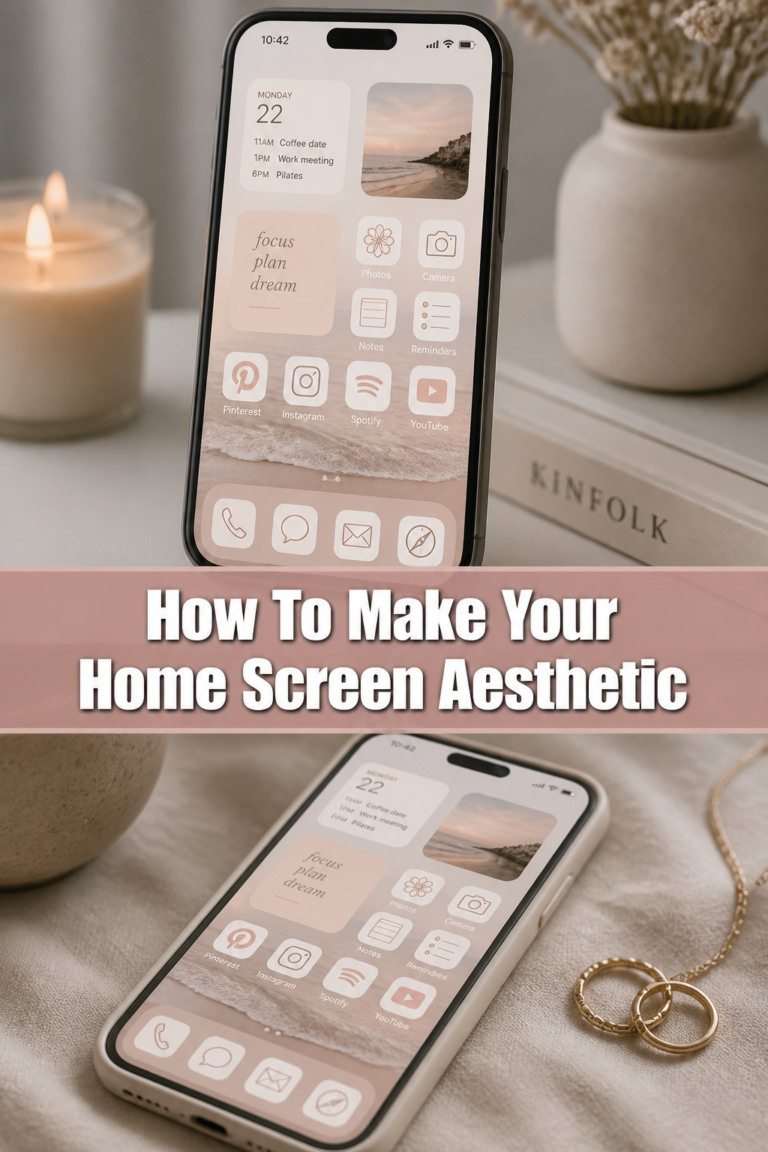
🎨 How To Change The Icon Of An App
I used to stare at my phone screen and feel a sense of digital clutter that I just couldn’t shake.
The bright, clashing colors of different app brands never seemed to match the aesthetic I wanted for my daily workspace.
After experimenting with every major operating system, I discovered that customizing your icons is the fastest way to make your technology feel truly personal.

Quick Overview
Changing your app icons is a straightforward process that works differently depending on your device.
Whether you are on a smartphone or a computer, you can replace standard logos with custom images or themed packs.
- Time needed: 5 to 15 minutes per device
- Difficulty: Beginner
- What you’ll need: A device (iOS, Android, PC, or Mac), custom icon images (PNG or ICO format), and occasionally a third-party app.
Step-by-Step Instructions
Step 1: Source Your New Icon Images
Find high-quality images to use as your new icons before you start the technical process.
You can search for “minimalist icon packs” or “aesthetic app icons” on sites like Pinterest, Behance, or dedicated icon repositories.
Save these images to your device’s gallery or a specific folder on your computer for easy access.
Pro Tip: Use PNG files with transparent backgrounds for a cleaner look, especially on desktop computers where icons sit directly on the wallpaper.
Step 2: Prepare Icons for iOS Devices
Open the Shortcuts app on your iPhone or iPad, which is a built-in tool provided by Apple.
Tap the plus (+) icon in the top right corner to create a new shortcut for your specific app.
Select the “Add Action” button and search for “Open App” in the search bar at the top.
Choose the specific app you want to customize from the list of installed applications on your phone.
Step 3: Customize the Shortcut Visuals
Tap the name of the shortcut at the top of the screen and select “Add to Home Screen.”
Press the small icon next to the shortcut name under the “Home Screen Name and Icon” section.
Select “Choose Photo” to browse your library and pick the custom image you saved earlier.
Rename the shortcut if you want a custom label, or leave it blank for a minimalist look without text.
Pro Tip: When you use Shortcuts to change icons, you will see a brief notification banner at the top of the screen when the app opens.
Step 4: Use a Third-Party Launcher on Android
Download a custom launcher like Nova Launcher or Niagara Launcher from the Google Play Store.
Set the new launcher as your default home screen app within your phone’s settings menu.
Long-press the app icon you wish to change on your home screen until a menu appears.
Select the “Edit” or pencil icon to open the customization options for that specific shortcut.
Step 5: Apply Icon Packs on Android
Tap the icon image in the edit window to view your available icon sources.
Browse through installed icon packs or choose “Gallery” to use a custom image you downloaded.
Adjust the cropping of the image to ensure it fits perfectly within the icon shape of your choice.
Hit “Done” or “Save” to apply the changes and see your new icon live on the home screen.
Step 6: Change Icons on Windows Desktop
Right-click on the desktop shortcut of the application you want to modify.
Select “Properties” from the bottom of the context menu that appears.
Navigate to the “Shortcut” tab and click the button labeled “Change Icon.”
Click “Browse” to find the .ico file you want to use for this specific program.
Pro Tip: If your image is a PNG, use an online converter to turn it into an .ico file so Windows can recognize it as a system icon.
Step 7: Update App Icons on macOS
Find the image you want to use and open it in the Preview app on your Mac.
Press Command + A to select the entire image, then Command + C to copy it to your clipboard.
Locate the app in your Applications folder within Finder and right-click it.
Select “Get Info” to open the information panel for that specific application.
Click the tiny icon in the very top-left corner of the Info window so it is highlighted with a blue border.
Press Command + V to paste your new image over the old default system icon.
Common Mistakes to Avoid
Using Low-Resolution Images
Using a small or blurry image will make your home screen look unprofessional and messy.
Always look for images that are at least 512×512 pixels to ensure they stay sharp on high-density displays.
High-resolution files prevent pixelation when you scale the icons up or down in your settings.
Ignoring File Format Requirements
Windows requires .ico files for shortcuts, while most mobile devices prefer PNG or JPG formats.
Trying to force a PNG into a Windows system slot without converting it usually results in an error message.
Take the extra minute to convert your files to the correct format to save time and frustration.
Deleting the Original App on iOS
Creating a shortcut icon on iPhone does not replace the original app; it creates a new way to access it.
If you delete the original app from your phone, the shortcut will stop working entirely.
Instead, move the original app to the App Library so it stays on your phone but remains hidden from view.
Troubleshooting
The Icon Reverts to Default
Sometimes a system update or an app update can reset the icon to its original branding.
If this happens on a computer, simply go back into the properties or “Get Info” panel and re-apply the image.
On mobile, you may need to delete the shortcut and recreate it if the link to the app was broken by the update.
Notification Badges Are Missing
Custom icons created through the iOS Shortcuts app do not display red notification badges.
This is a limitation of how Apple handles shortcuts compared to native application icons.
If you rely on those badges, consider only changing the icons for apps where notifications aren’t vital, like your camera or calculator.
The Image Looks Distorted
This usually happens when the aspect ratio of your custom image doesn’t match the square requirements of the icon slot.
Try cropping your image into a perfect square before you attempt to upload it as an icon.
Most launchers and shortcut tools work best with a 1:1 ratio to prevent stretching or squishing the visual.
Key Takeaways
- iOS users must use the Shortcuts app to create custom home screen links.
- Android users have the most flexibility by using third-party launchers and icon packs from the Play Store.
- Desktop icons require specific file types, such as .ico for Windows and high-res PNGs for macOS.
- Original apps should be hidden in folders or the App Library rather than deleted.
- Consistent themes work best when you find a complete icon set rather than mixing individual styles.
Frequently Asked Questions
Does changing icons slow down my phone?
Changing icons using native methods or lightweight launchers generally has no noticeable impact on your device’s performance.
On iOS, there is a very slight delay as the Shortcuts app triggers the main app, but this has improved significantly in recent updates.
Your battery life and processing speed will remain the same as they were with the default icons.
Is it possible to go back to the original icons?
Yes, you can revert to the original look at any time by deleting the shortcuts you created.
On Windows and Mac, you can go back to the “Change Icon” or “Get Info” screen and select the “Restore Defaults” option.
Your original app data and settings are never affected by changing the visual icon on your home screen.
Where can I find free icon packs?
Websites like Flaticon and Icons8 offer thousands of free icons for personal use in various styles.
You can also find community-made packs on platforms like Reddit in subreddits dedicated to phone customization.
Be sure to check the license for each pack if you plan to use them for anything other than your personal device.
Can I change the icons for system apps like Settings or Mail?
On mobile devices, you can create shortcuts for system apps just like any other application.
On desktop computers, changing system icons is possible but often requires administrative permissions or deeper system tweaks.
For most users, sticking to third-party app icons is the easiest way to start customizing.
Our Top Recommended Finds
- Digital Icon Packs: Purchasing a professionally designed icon set ensures all your apps have a uniform, high-quality look.
- Icon Converter Software: A dedicated tool for converting images to .ico or .icns files is helpful for Windows and Mac power users.
- High-Resolution Wallpaper: A clean background helps your new custom icons stand out and completes the overall aesthetic.
Give Your Digital Workspace A Fresh Start
Customizing your icons is more than just a visual upgrade; it helps reduce the mental noise of aggressive branding.
Once you have mastered the basics of your specific device, you can start experimenting with different themes for different seasons or moods.
Try starting with just your bottom dock apps today to see how much of a difference a small change can make.
If you enjoyed this process, you might want to look into custom widgets to further enhance your home screen layout.