📱 How To Organise Your Phone Home Screen
My phone used to be a digital junk drawer. Finding anything felt like a scavenger hunt through a sea of apps and notifications. It was frustrating and wasted precious time.
I transformed my own chaotic screen into a calm, efficient space. This guide shares the exact steps I used to achieve that clarity. You can do it too.
Quick Overview
This guide will walk you through transforming your phone’s home screen. You’ll create a system that enhances focus and makes your daily digital interactions smoother.
- Time needed: 30-60 minutes
- Difficulty: Beginner
- What you’ll need: Your phone, a few quiet moments, and an open mind.
Step-by-Step Instructions
Step 1: Digital Declutter – Uninstall Unused Apps
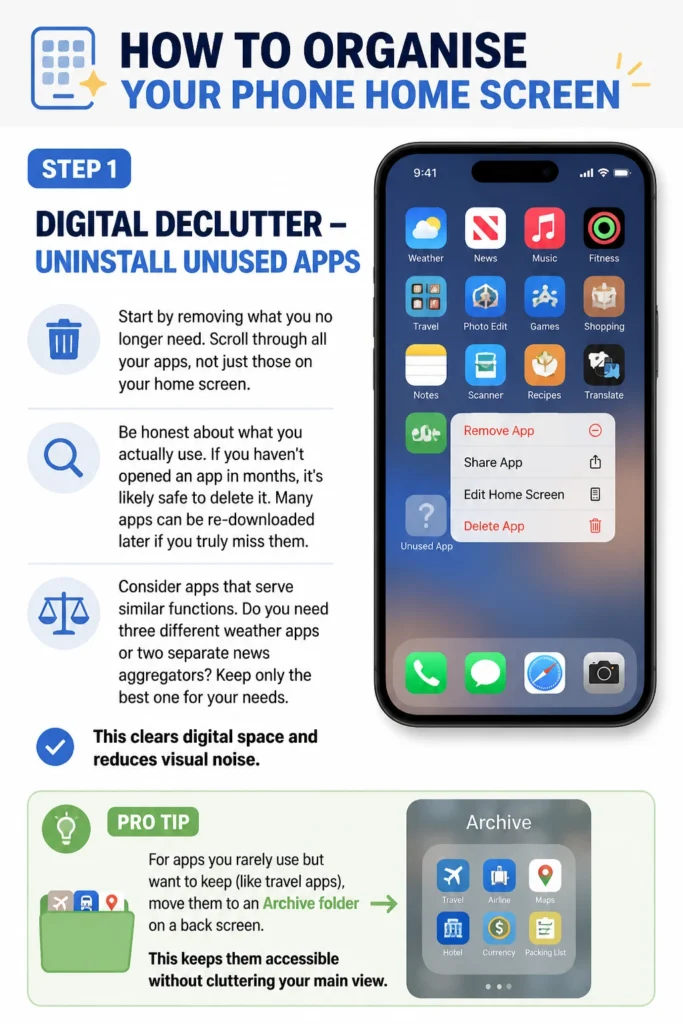
Start by removing what you no longer need. Scroll through all your apps, not just those on your home screen. Be honest about what you actually use.
If you haven’t opened an app in months, it’s likely safe to delete it. Many apps can be re-downloaded later if you truly miss them. This clears digital space and reduces visual noise.
Consider apps that serve similar functions. Do you need three different weather apps or two separate news aggregators? Keep only the best one for your needs.
Pro Tip: For apps you rarely use but want to keep (like travel apps), move them to an “Archive” folder on a back screen. This keeps them accessible without cluttering your main view.
Step 2: Understand Your Home Screen Layout
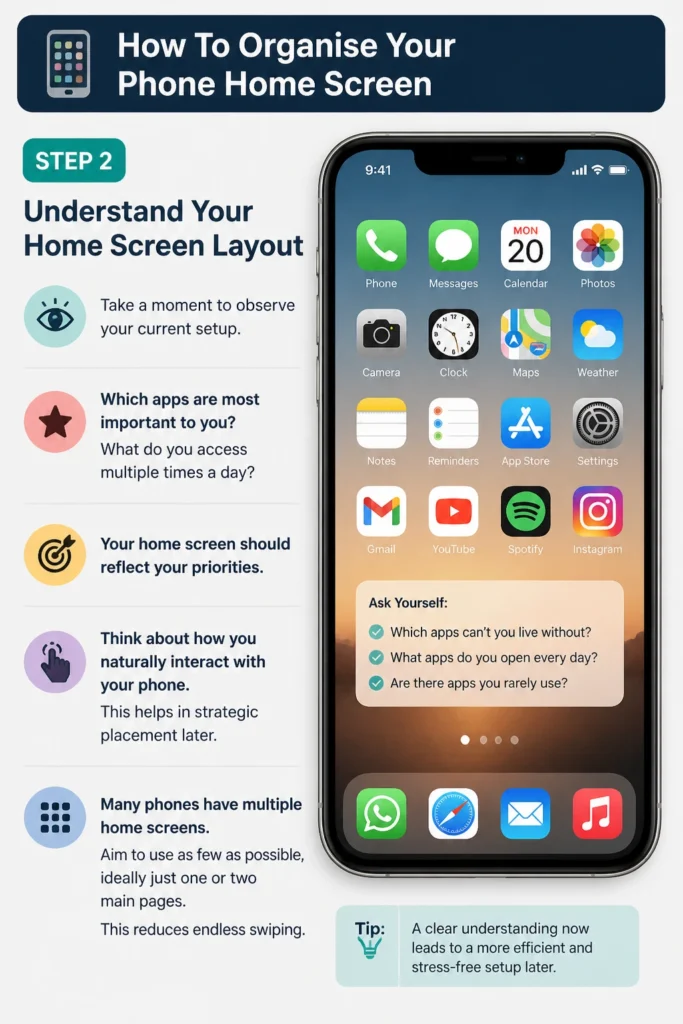
Take a moment to observe your current setup. Which apps are most important to you? What do you access multiple times a day?
Your home screen should reflect your priorities. Think about how you naturally interact with your phone. This helps in strategic placement later.
Many phones have multiple home screens. Aim to use as few as possible, ideally just one or two main pages. This reduces endless swiping.
Step 3: Prioritize Your Dock (Bottom Bar)
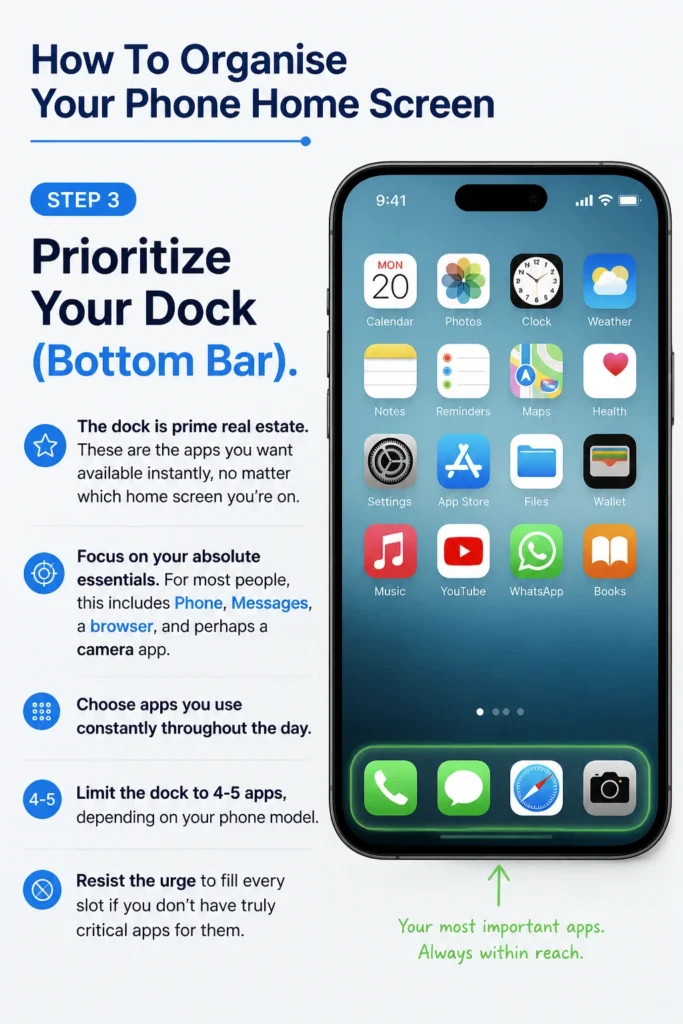
The dock is prime real estate. These are the apps you want available instantly, no matter which home screen you’re on. Focus on your absolute essentials.
For most people, this includes Phone, Messages, a browser, and perhaps a camera app. Choose apps you use constantly throughout the day.
Limit the dock to 4-5 apps, depending on your phone model. Resist the urge to fill every slot if you don’t have truly critical apps for them.
Step 4: Create Intentional Folders
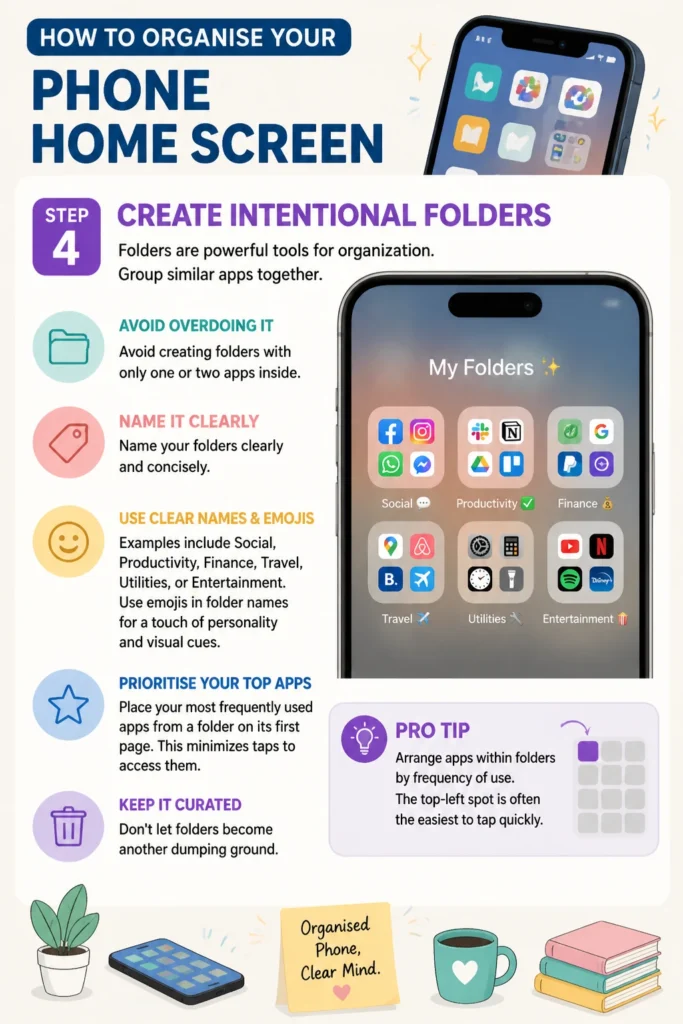
Folders are powerful tools for organization. Group similar apps together. Avoid creating folders with only one or two apps inside.
Name your folders clearly and concisely. Examples include “Social,” “Productivity,” “Finance,” “Travel,” “Utilities,” or “Entertainment.” Use emojis in folder names for a touch of personality and visual cues.
Place your most frequently used apps from a folder on its first page. This minimizes taps to access them. Don’t let folders become another dumping ground.
Pro Tip: Arrange apps within folders by frequency of use. The top-left spot is often the easiest to tap quickly.
Step 5: Strategically Place Your Core Apps
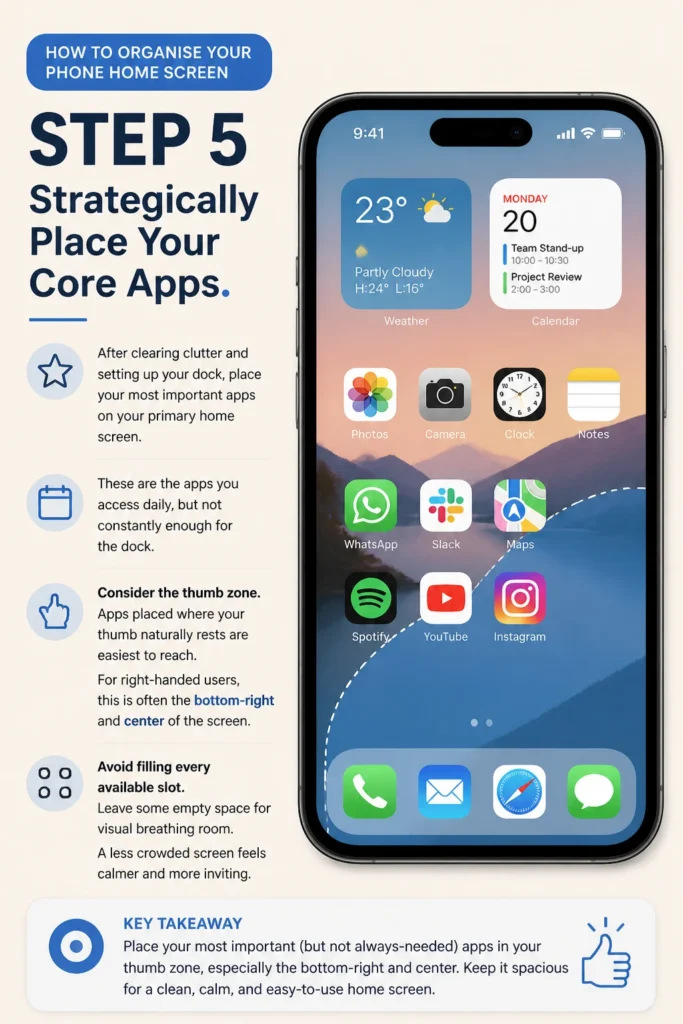
After clearing clutter and setting up your dock, place your most important apps on your primary home screen. These are the apps you access daily, but not constantly enough for the dock.
Consider the “thumb zone.” Apps placed where your thumb naturally rests are easiest to reach. For right-handed users, this is often the bottom-right and center of the screen.
Avoid filling every available slot. Leave some empty space for visual breathing room. A less crowded screen feels calmer and more inviting.
Step 6: Leverage Widgets Wisely
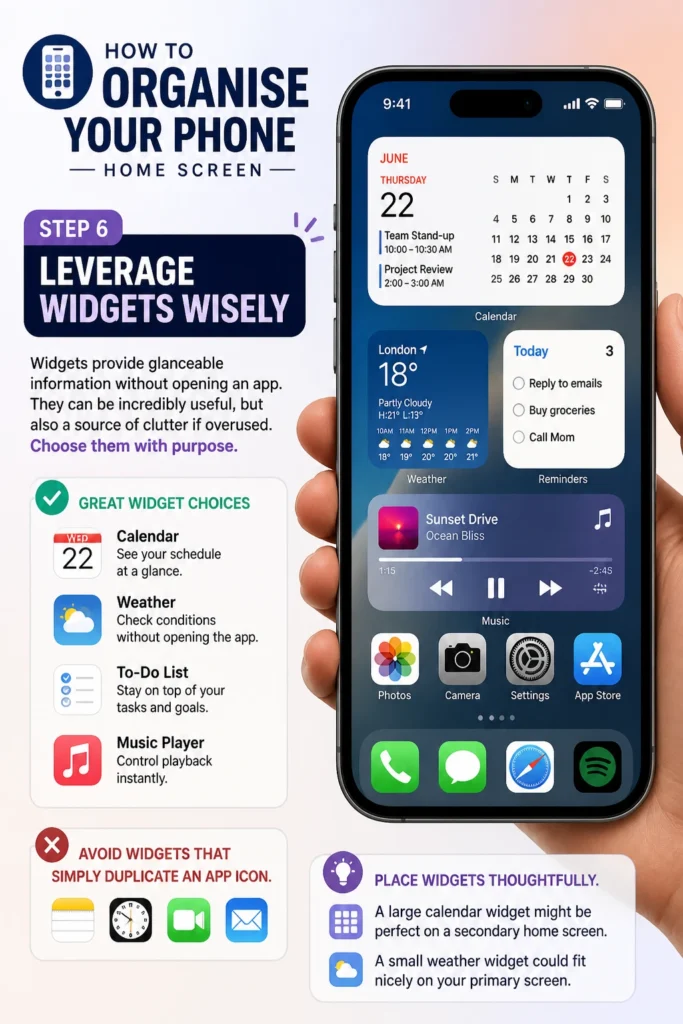
Widgets provide glanceable information without opening an app. They can be incredibly useful, but also a source of clutter if overused. Choose them with purpose.
Consider widgets for your calendar, weather, to-do list, or music player. These offer immediate value. Avoid widgets that simply duplicate an app icon.
Place widgets thoughtfully. A large calendar widget might be perfect on a secondary home screen. A small weather widget could fit nicely on your primary screen.
Step 7: Choose a Calming Wallpaper
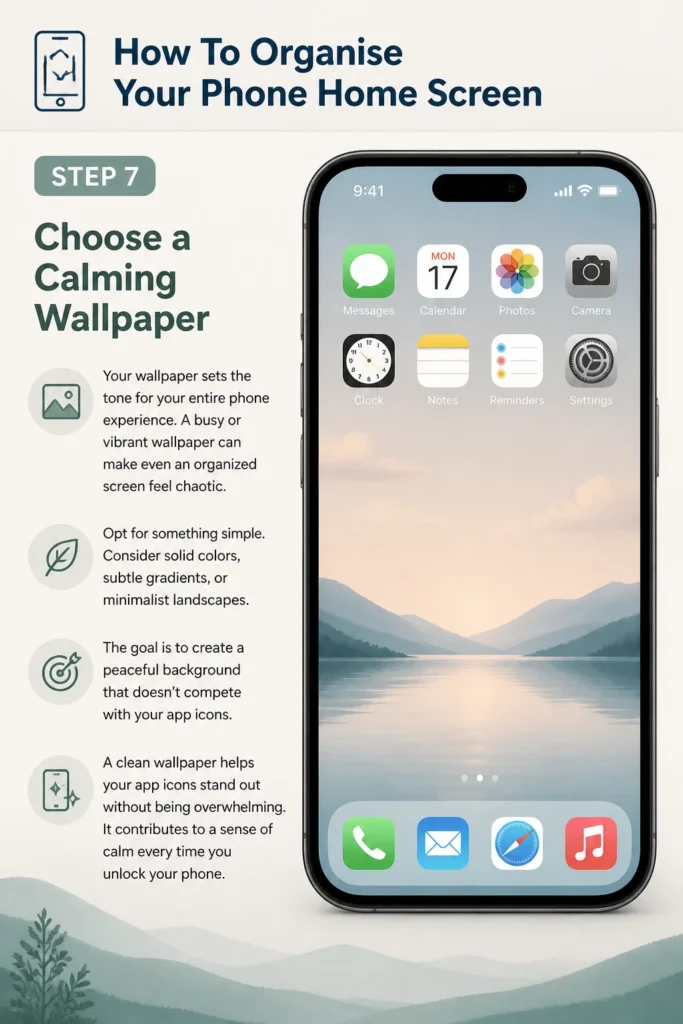
Your wallpaper sets the tone for your entire phone experience. A busy or vibrant wallpaper can make even an organized screen feel chaotic. Opt for something simple.
Consider solid colors, subtle gradients, or minimalist landscapes. The goal is to create a peaceful background that doesn’t compete with your app icons.
A clean wallpaper helps your app icons stand out without being overwhelming. It contributes to a sense of calm every time you unlock your phone.
Step 8: Manage Notifications Proactively
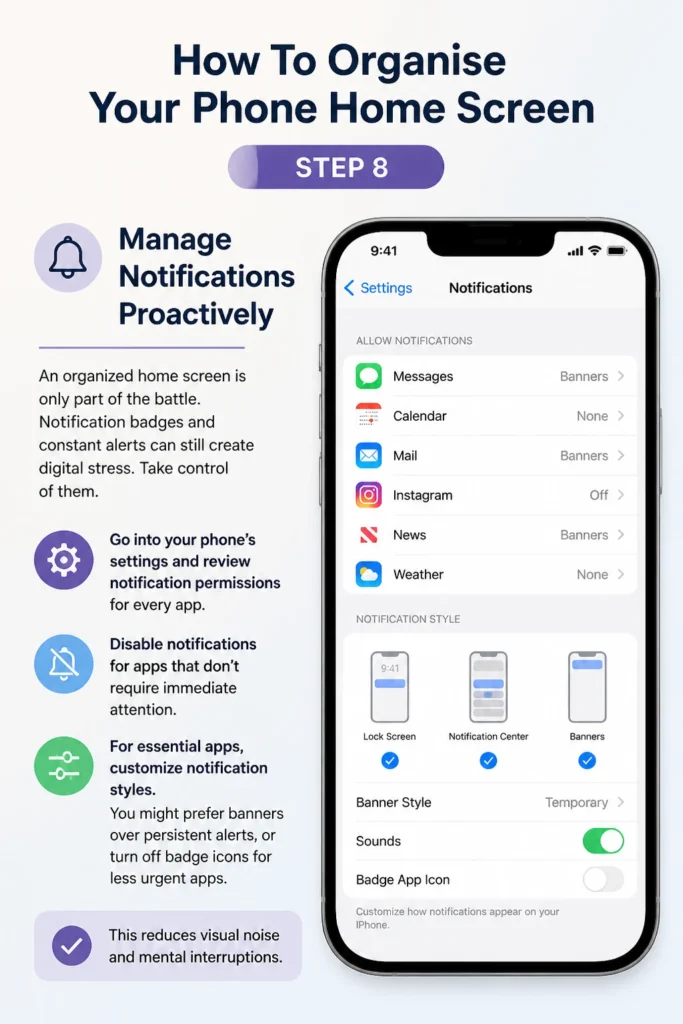
An organized home screen is only part of the battle. Notification badges and constant alerts can still create digital stress. Take control of them.
Go into your phone’s settings and review notification permissions for every app. Disable notifications for apps that don’t require immediate attention.
For essential apps, customize notification styles. You might prefer banners over persistent alerts, or turn off badge icons for less urgent apps. This reduces visual noise and mental interruptions.
Step 9: Implement Focus Modes or Do Not Disturb
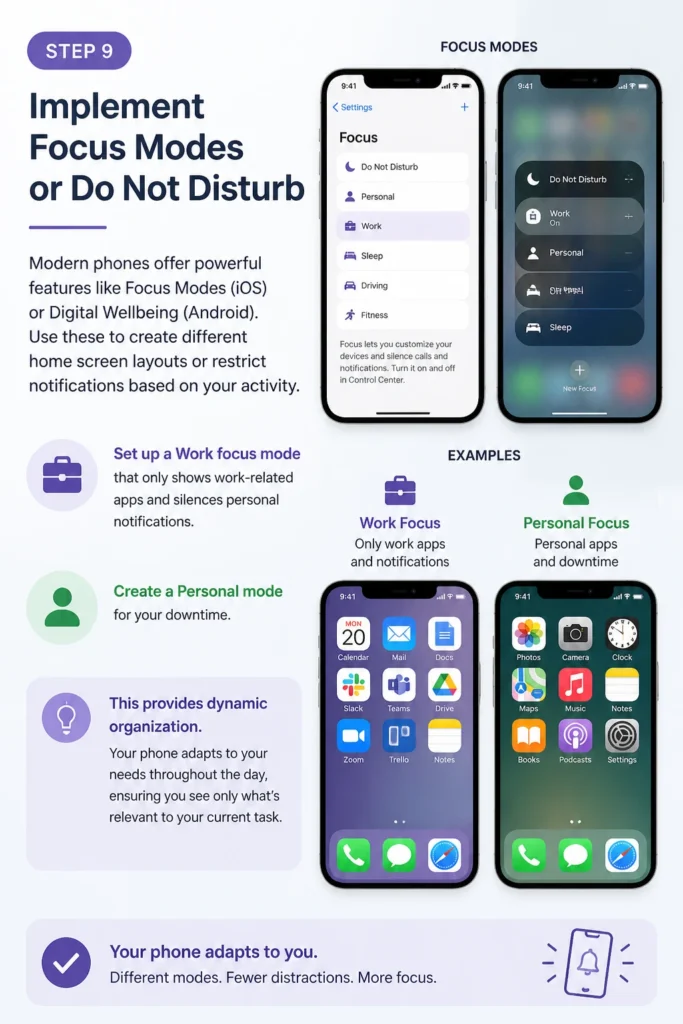
Modern phones offer powerful features like Focus Modes (iOS) or Digital Wellbeing (Android). Use these to create different home screen layouts or restrict notifications based on your activity.
Set up a “Work” focus mode that only shows work-related apps and silences personal notifications. Create a “Personal” mode for your downtime.
This provides dynamic organization. Your phone adapts to your needs throughout the day, ensuring you see only what’s relevant to your current task.
Step 10: Review and Refine Regularly
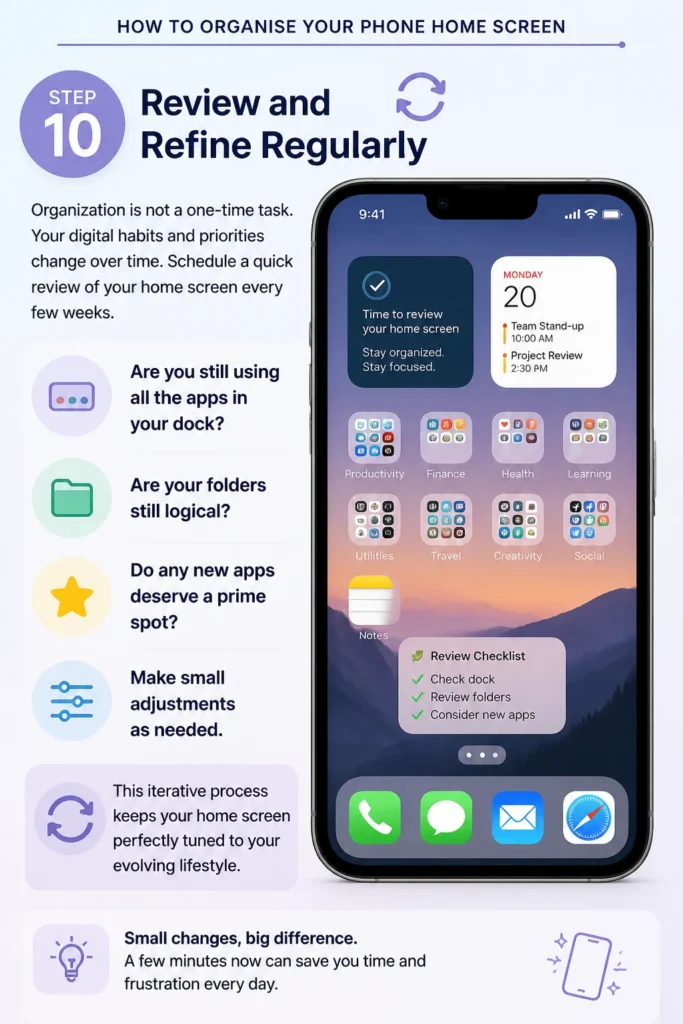
Organization is not a one-time task. Your digital habits and priorities change over time. Schedule a quick review of your home screen every few weeks.
Are you still using all the apps in your dock? Are your folders still logical? Do any new apps deserve a prime spot?
Make small adjustments as needed. This iterative process keeps your home screen perfectly tuned to your evolving lifestyle.
Common Mistakes to Avoid
Over-Reliance on Folders
Using too many folders can hide apps you frequently access. If you have a folder named “Miscellaneous” with 20 apps inside, it defeats the purpose of quick access. Limit folders to distinct categories. Make sure their contents are relevant and not just a dumping ground.
Ignoring Notification Settings
Even with a perfectly arranged home screen, constant notification badges or pop-ups create clutter. Many users organize their icons but leave notification settings untouched. This leads to visual noise and mental distractions. Take the time to customize alerts for each app.
Not Utilizing the Dock Effectively
Some users fill their dock with apps they rarely use, or leave it partially empty. The dock is for your absolute most essential apps. Failing to leverage this prime space means more swiping and less efficiency. Prioritize your dock with thought.
Too Many Widgets
Widgets can be helpful, but an abundance of them can make your home screen look busy and cluttered. Each widget consumes screen space and can distract the eye. Choose only the most impactful widgets that provide genuine, glanceable information.
Troubleshooting
I Can’t Find an App After Organizing
If you’ve moved an app into a folder or to a less prominent screen, you might momentarily lose track. Use your phone’s search function (swipe down on the home screen for iOS, or use the app drawer search for Android) to quickly locate it. Once found, consider if its new placement is truly optimal. You can always move it back to a more visible spot if you frequently need it.
My Phone Still Feels Cluttered Even After Organizing
Beyond app icons, consider your wallpaper and notification settings. A busy wallpaper can make even a minimalist screen feel chaotic. Also, review apps with persistent notification badges. Turn off badge icons for less critical apps. You might also have too many widgets, or need to consolidate more apps into well-named folders.
My Phone’s Performance Seems Slow After Adding Many Widgets
While modern phones handle widgets well, an excessive number, especially those that constantly update, can sometimes impact performance or battery life. If you notice slowdowns, try removing some of the more resource-intensive widgets. Start with animated or frequently refreshing widgets. Keep only the essentials.
Key Takeaways
- Declutter by uninstalling unused apps to reduce visual noise.
- Prioritize your dock for absolute essential, frequently used applications.
- Use folders intentionally to group similar apps, keeping names clear.
- Strategically place core apps within your “thumb zone” for easy access.
- Choose a simple, calming wallpaper to enhance visual clarity.
- Proactively manage notifications to minimize digital distractions.
Frequently Asked Questions
How often should I reorganize my phone’s home screen?
It’s a good practice to review and refine your home screen every few weeks or months. Our digital habits change, and new apps come into play. A quick 10-15 minute check-in can keep your setup optimized.
Are there major differences in home screen organization between iOS and Android?
While the core principles are the same, there are some differences. iOS allows more direct control over home screen pages and widgets. Android offers more flexibility with launchers, app drawers, and widget placement. Both benefit from decluttering and logical grouping.
Does organizing my home screen improve my phone’s performance?
Directly, no. Organizing app icons won’t speed up your phone’s processing. However, by uninstalling unused apps, you free up storage, which can contribute to better performance. Reducing excessive widgets might also help slightly with battery life and responsiveness.
Should I hide all my apps in the App Library (iOS) or App Drawer (Android)?
For a truly minimalist look, yes, you can hide most apps and rely on search or the App Library/Drawer. However, for frequently used apps, having them readily visible saves taps and time. It’s a balance between minimalism and quick access.
Our Top Recommended Finds
- Universal Phone Stand: Perfect for hands-free viewing of your newly organized screen.
- Microfiber Screen Cleaning Kit: Keep your screen spotless, enhancing the clean aesthetic.
- Portable Power Bank: Ensure your efficient device is always charged and ready.
Craft Your Calm Digital Canvas Today
Your phone is a powerful tool, and its home screen is your gateway to its functionality. Don’t let it be a source of stress or distraction. Take these steps to transform it into a calm, efficient, and personalized space.
Imagine the clarity you’ll gain, the time you’ll save, and the peace of mind you’ll experience. Start this simple journey now. Embrace a more intentional relationship with your digital world.