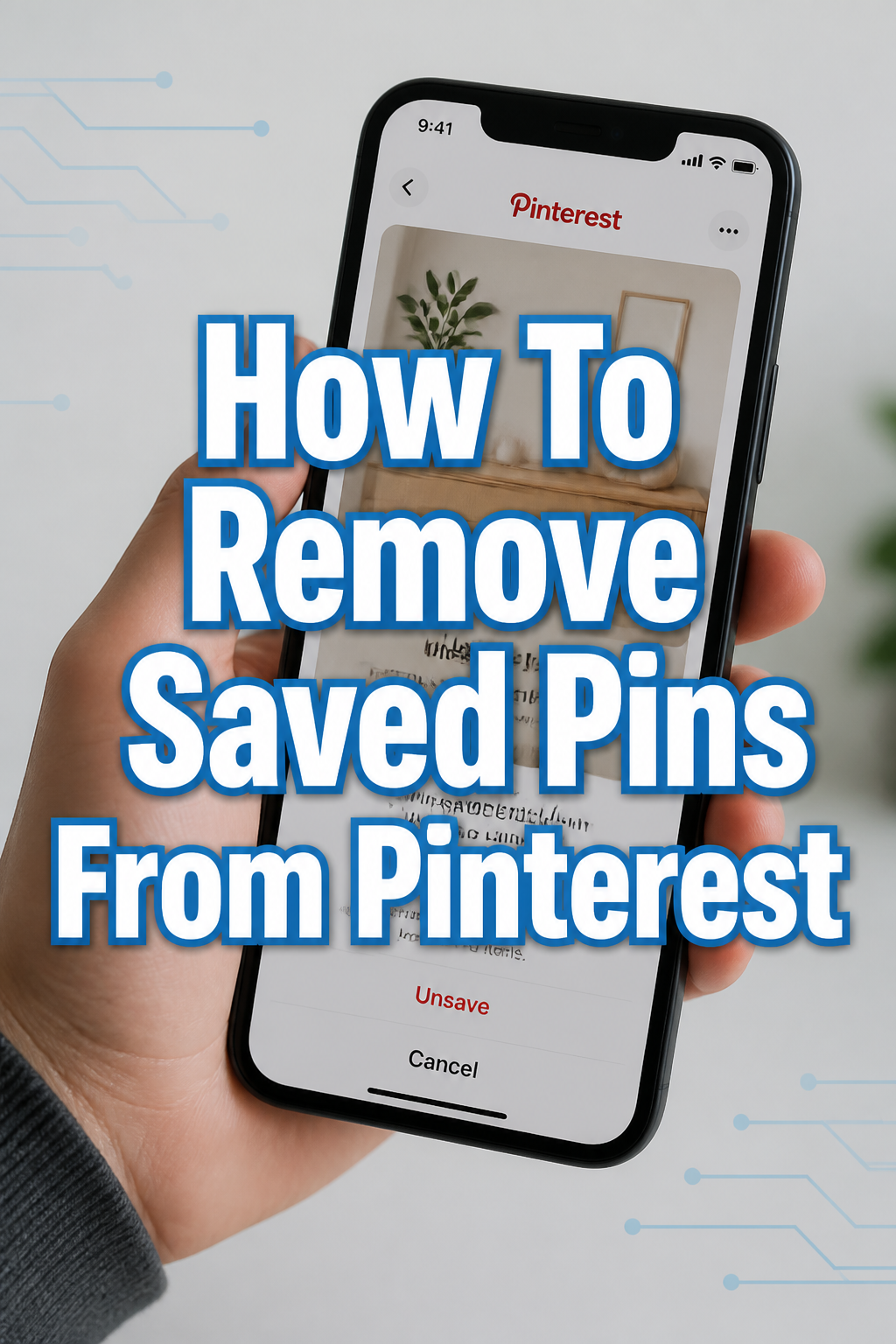
🗑️ How To Remove Saved Pins From Pinterest
Ever felt your Pinterest boards becoming a digital hoarder’s paradise?
I know the feeling; my “Dream Home” board once had pins from five different decades.
This guide comes from countless hours spent curating and, yes, decluttering my own Pinterest universe, ensuring your digital space stays fresh and relevant.
Quick Overview
This guide will walk you through the precise steps to remove individual pins, multiple pins, and entire boards from your Pinterest account.
You’ll learn how to tidy up your visual collections effectively, whether you’re using a desktop or a mobile device.
- Time needed: 5-20 minutes (depending on the number of pins)
- Difficulty: Beginner
- What you’ll need: A Pinterest account, internet access, and a desktop computer or mobile device
Step-by-Step Instructions
Step 1: Access Your Pinterest Profile
First, open your web browser and navigate to Pinterest.com.
Log in to your account using your credentials if you aren’t already signed in.
On the desktop, click on your profile picture located in the top right corner of the screen.
This action will take you directly to your personal profile page, displaying all your boards.
If you are on the mobile app, tap your profile icon in the bottom right corner.
This also leads you to your profile, where you can see your saved pins and boards.
Step 2: Navigate to the Relevant Board
Once on your profile, you will see a collection of all your created and saved boards.
Scroll through your boards to locate the specific board containing the pin or pins you wish to remove.
Click or tap on the board’s cover image to open it and view its contents.
This action will display all the individual pins saved within that particular board.
Step 3: Remove a Single Pin (Desktop)
When inside the board, find the specific pin you want to delete.
Hover your mouse cursor over the pin.
You will see a small pencil icon (Edit Pin) or three horizontal dots (More options) appear, usually in the top left or right corner of the pin.
Click the three horizontal dots.
A small menu will pop up with several options.
Select “Delete Pin” from this menu.
Pinterest will ask for confirmation to ensure you truly want to remove it.
Click “Delete Pin” again to confirm your choice.
Pro Tip: If you see “Unsave” instead of “Delete Pin,” it means this pin was originally created by someone else. Unsaving simply removes it from your board. If it’s your own pin, you’ll see “Delete Pin.”
Step 4: Remove a Single Pin (Mobile App)
Open the Pinterest app and navigate to the board containing the pin.
Tap on the pin you wish to remove to open it in full view.
Look for the three horizontal dots icon, usually located in the top right corner of the screen.
Tap these dots to reveal a menu of options.
From the menu that appears, select “Delete Pin” or “Unsave Pin.”
If it’s your own pin, you’ll be prompted to confirm the deletion.
Confirm your action to remove the pin from your board.
Step 5: Remove Multiple Pins from a Board (Desktop)
To remove several pins at once from a single board, open the board you want to edit.
Look for the “Organize” button, typically found near the top of the board, often next to the board title.
Click “Organize.”
This action will change the board view, allowing you to select multiple pins.
Individual pins will now have a checkbox or a selection indicator on them.
Click on each pin you wish to remove; a checkmark will appear to show it’s selected.
Once you have selected all the pins you want to delete, look for the “Delete” button at the bottom of the screen.
Click “Delete.”
Confirm your decision in the pop-up window to finalize the removal of these pins.
Pro Tip: The “Organize” feature is excellent for quick decluttering. You can also use it to move pins between boards, not just delete them.
Step 6: Remove Multiple Pins from a Board (Mobile App)
Open the Pinterest app and go to the board where you want to remove multiple pins.
Tap the “Organize” icon, which often looks like a pencil or three dots, usually near the top of the board.
This will enable selection mode for your pins.
Tap on each pin you intend to remove.
A checkmark will appear on each selected pin.
After selecting all the desired pins, look for the “Delete” option, usually at the bottom of the screen.
Tap “Delete.”
A confirmation prompt will appear; tap “Delete” again to complete the process.
Step 7: Delete an Entire Board (and All Its Pins)
Sometimes, an entire board is no longer relevant, and you want to remove all its contents.
First, navigate to your profile page where all your boards are displayed.
Locate the board you wish to delete.
On desktop, hover over the board and click the pencil icon (Edit Board) that appears.
On mobile, tap the board to open it, then tap the three dots or pencil icon (Edit Board) at the top.
This action opens the board’s settings or editing options.
Scroll down until you find the “Delete board” option.
Click or tap “Delete board.”
Pinterest will display a strong warning, reminding you that all pins within the board will be permanently deleted.
Confirm your decision by clicking or tapping “Delete permanently.”
Pro Tip: Consider archiving a board instead of deleting it if you think you might want to revisit its pins later. Archiving hides the board from your profile but keeps all its pins saved. You can unarchive it anytime.
Common Mistakes to Avoid
Confusing “Unsave” with “Delete Pin”
Many users mistakenly believe “Unsave” permanently removes a pin from Pinterest.
If you unsave a pin that someone else created, it only removes it from your board.
The original pin still exists on Pinterest and on the creator’s profile.
Only “Delete Pin” truly removes a pin from Pinterest if you were the original creator.
Accidentally Deleting the Wrong Pin
It’s easy to click quickly, especially when decluttering many items.
Always take a moment to double-check the pin you’re about to delete.
The confirmation prompt is your last chance to verify your action.
A brief pause can save you from mistakenly removing a cherished pin.
Forgetting About Archived Boards
Some users think archiving a board is the same as deleting it.
Archived boards are merely hidden from your public profile and your main board list.
They still exist and take up space, and you can access them by going to your profile and looking for the “Archived boards” section.
If you want to permanently remove a board and its pins, you must explicitly delete it.
Ignoring the Confirmation Prompts
Pinterest provides confirmation prompts for a reason: to prevent accidental deletions.
Do not dismiss these windows without reading them carefully.
They clearly state the consequences of your action, such as “Delete permanently.”
Acknowledging these prompts ensures you understand what you are doing.
Troubleshooting
Pin Won’t Delete
If you’re trying to delete a pin and it simply won’t go away, first check your internet connection.
A weak or unstable connection can sometimes prevent actions from completing.
Try refreshing the page or restarting the app and attempting the deletion again.
If the issue persists, clear your browser’s cache and cookies, or reinstall the Pinterest app.
Cannot Find the “Delete Pin” Option
The absence of a “Delete Pin” option usually means the pin was not originally created by you.
In this case, you will only see an “Unsave” option.
Unsaving the pin will remove it from your board, but it will remain on Pinterest if another user created it.
Ensure you are looking for the three dots or edit icon for more options.
Board Deletion Not Working
If you’re having trouble deleting an entire board, ensure you are the actual creator of the board.
You cannot delete boards that other users have invited you to collaborate on.
You can only leave such boards, but not delete them entirely.
Also, confirm you are selecting “Delete board” from the board’s edit settings, not just trying to drag it away.
Key Takeaways
- Always distinguish between “Delete Pin” (for your own pins) and “Unsave” (for others’ pins).
- Use the “Organize” feature for efficient bulk removal of pins from a board.
- Understand the difference between deleting a board (permanent removal) and archiving it (hiding it).
- Confirm all deletion prompts to prevent accidental loss of content.
- Regularly review your boards to keep your Pinterest profile tidy and relevant.
- Accessing your profile and board settings is the first step for all removal actions.
Frequently Asked Questions
Can I recover a pin after I’ve deleted it?
No, once you delete a pin, it is permanently removed from Pinterest and cannot be recovered.
Pinterest does not have a “recycle bin” or an undo feature for deleted pins.
This is why the confirmation prompts are so important.
What happens to comments or likes on a deleted pin?
When you delete your own pin, any comments, likes, or saves it received are also permanently removed along with the pin itself.
The pin’s entire history on Pinterest is erased.
Can I delete a pin someone else saved from my board?
No, you can only delete pins that you originally created and saved to your boards.
If someone else saved your pin to their board, they would have to unsave it themselves.
You control your content, but not how others interact with their saved versions.
Is there a way to delete all pins from my account at once?
Pinterest does not offer a single “delete all pins” button.
You would need to delete boards individually, which in turn deletes all pins within those boards.
If you want to remove all pins, deleting each board is the most efficient method.
Our Top Recommended Finds
- Ergonomic Mouse: A comfortable mouse can make repetitive clicking, like organizing many pins, much easier on your wrist.
- Second Monitor: Boost your productivity by having your Pinterest board open on one screen and other tasks on another for seamless organization.
- Digital Decluttering Guidebook: A book on digital minimalism or organization can inspire and guide you in maintaining a tidy online presence.
Embrace a Streamlined Pinterest Experience
You now have all the tools and knowledge to take control of your Pinterest boards.
No more cluttered collections or outdated inspirations.
Start today by reviewing one of your oldest boards.
A clean Pinterest profile reflects a clear mind, ready for new ideas and discoveries.