📱 How To Organize Your Phone Home Screen
My phone’s home screen used to be a chaotic mess. Apps were scattered everywhere, buried under layers of forgotten downloads. Finding anything felt like a scavenger hunt.
This digital clutter often mirrored the disorganization in my mind. It was frustrating and inefficient.
Over time, I developed a system that transformed my phone into a calm, productive tool. This guide shares that exact process, helping you achieve a similar sense of digital peace.
Quick Overview
Transforming your phone’s home screen doesn’t have to be complicated. This guide provides a clear path to a more organized, efficient digital space. You’ll learn to declutter, categorize, and personalize your device for optimal use.
- Time needed: 1-2 hours (initial setup), 15 minutes (monthly maintenance)
- Difficulty: Beginner
- What you’ll need: Your smartphone (iOS or Android), a few moments of focused attention
Step-by-Step Instructions
Step 1: Define Your Digital Purpose
Before moving a single app, take a moment to consider what you want your phone to do for you. Is it a productivity hub, a creative tool, or a communication device? Your primary goal will shape your organization strategy.
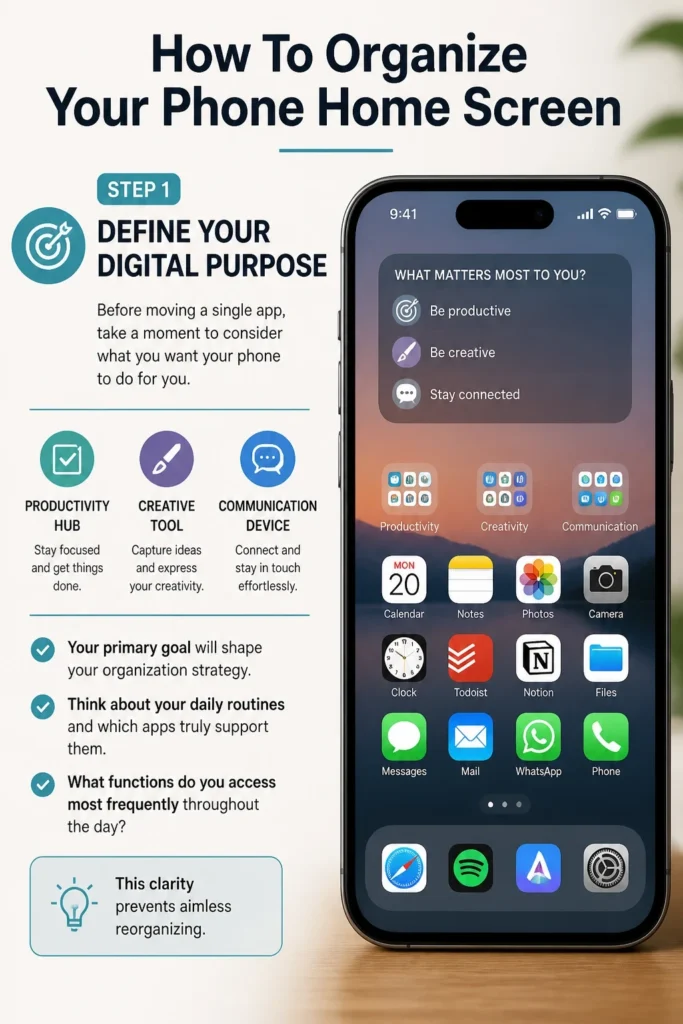
Think about your daily routines and which apps truly support them. What functions do you access most frequently throughout the day? This clarity prevents aimless reorganizing.
Step 2: Clear the Digital Dust Bunnies
The first and most impactful step is to remove apps you no longer use. Swipe through every screen and folder. If you haven’t opened an app in a month or more, it’s a strong candidate for deletion.
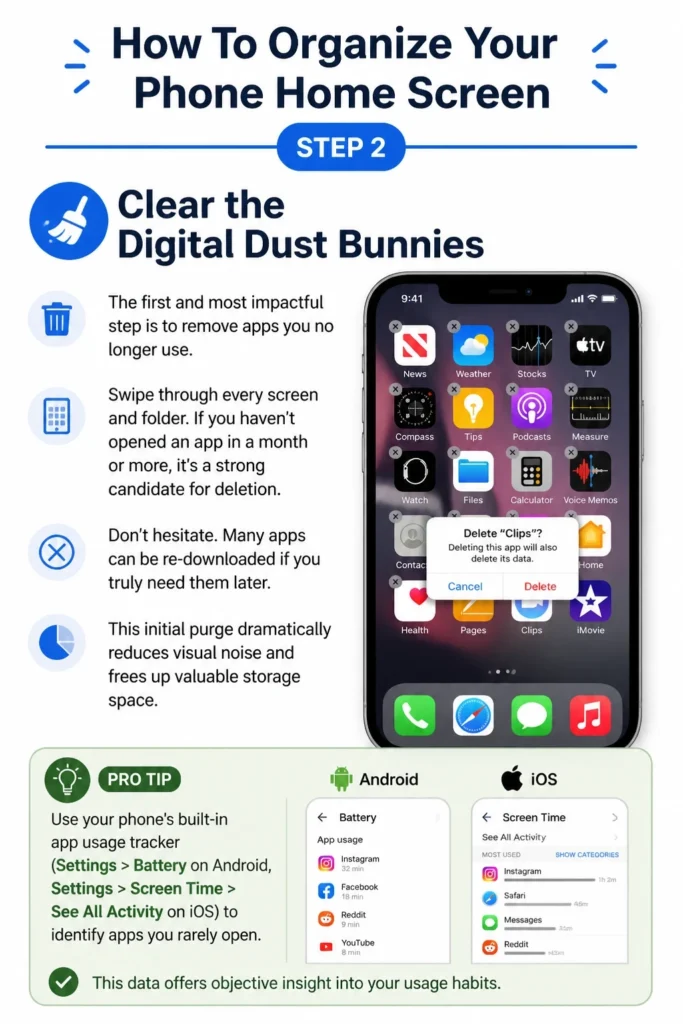
Don’t hesitate. Many apps can be re-downloaded if you truly need them later. This initial purge dramatically reduces visual noise and frees up valuable storage space.
Pro Tip: Use your phone’s built-in app usage tracker (Settings > Battery on Android, Settings > Screen Time > See All Activity on iOS) to identify apps you rarely open. This data offers objective insight into your usage habits.
Step 3: Relocate the Non-Essentials
Not every app needs to be on your home screen. Move less frequently used apps into your App Library (iOS) or App Drawer (Android). These areas keep apps accessible without cluttering your main view.
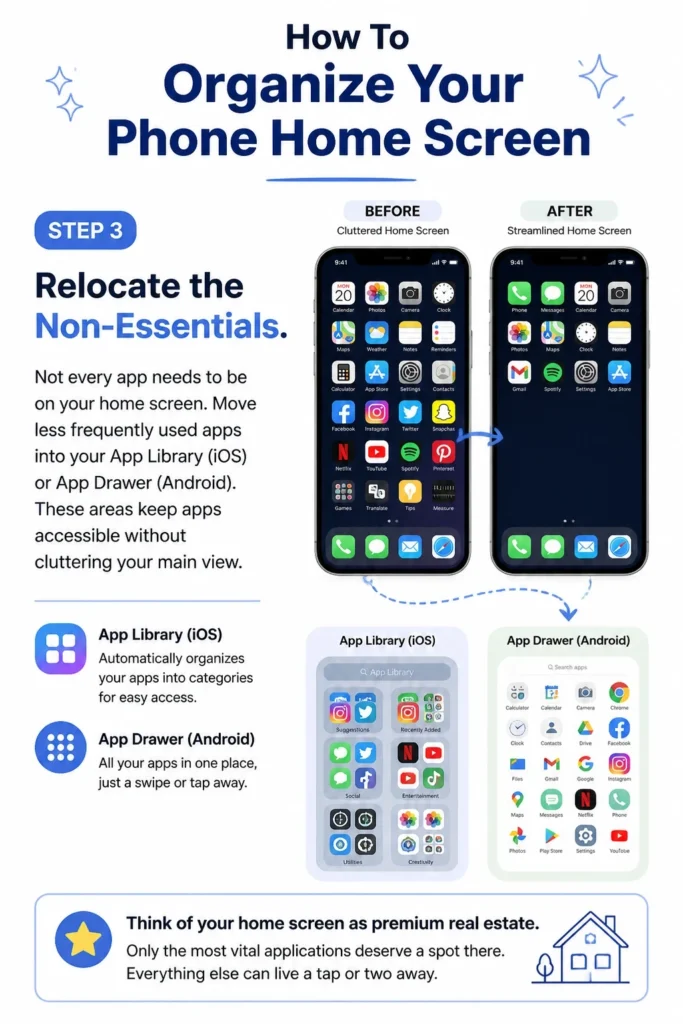
Think of your home screen as premium real estate. Only the most vital applications deserve a spot there. Everything else can live a tap or two away.
Step 4: Group by Function or Frequency
Now it’s time to create logical groupings for your remaining apps. There are two main strategies: grouping by function or by frequency of use. Choose the method that best suits your brain.
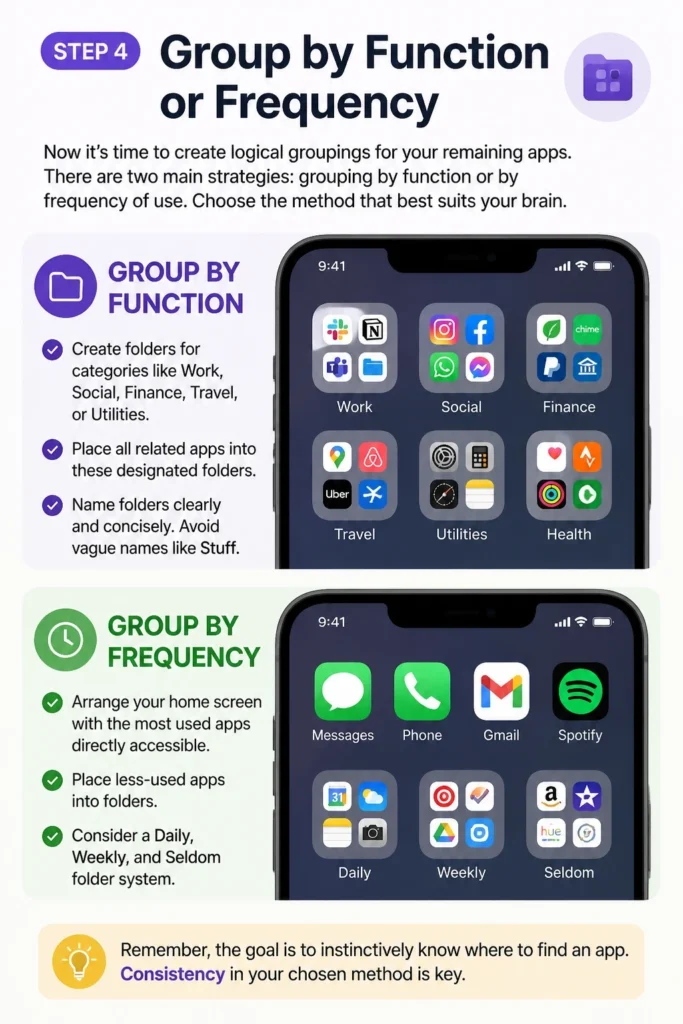
Group by Function:
- Create folders for categories like “Work,” “Social,” “Finance,” “Travel,” or “Utilities.”
- Place all related apps into these designated folders.
- Name folders clearly and concisely. Avoid vague names like “Stuff.”
Group by Frequency:
- Arrange your home screen with the most used apps directly accessible.
- Place less-used apps into folders.
- Consider a “Daily,” “Weekly,” and “Seldom” folder system.
Remember, the goal is to instinctively know where to find an app. Consistency in your chosen method is key.
Step 5: Prioritize Your Dock (The Prime Real Estate)
The dock, located at the bottom of your screen, is the most accessible area. These are the apps you need at a moment’s notice, without swiping or searching. Limit your dock to 3-5 absolute essentials.
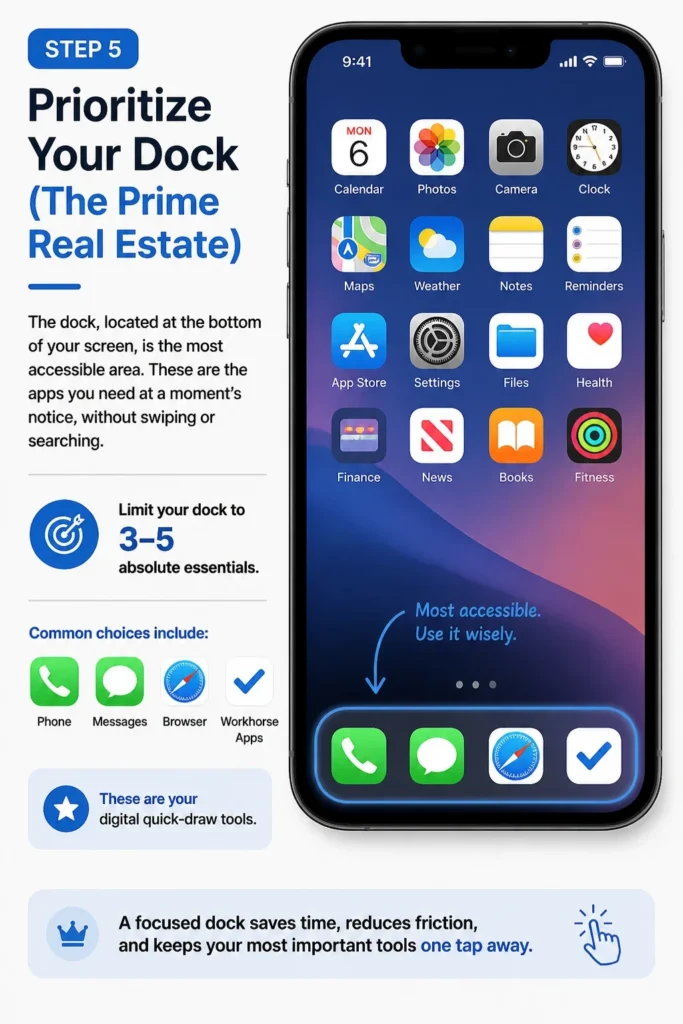
Common choices include your Phone, Messages, Browser, and perhaps one or two workhorse apps. These are your digital quick-draw tools.
Step 6: Choose a Calming Wallpaper
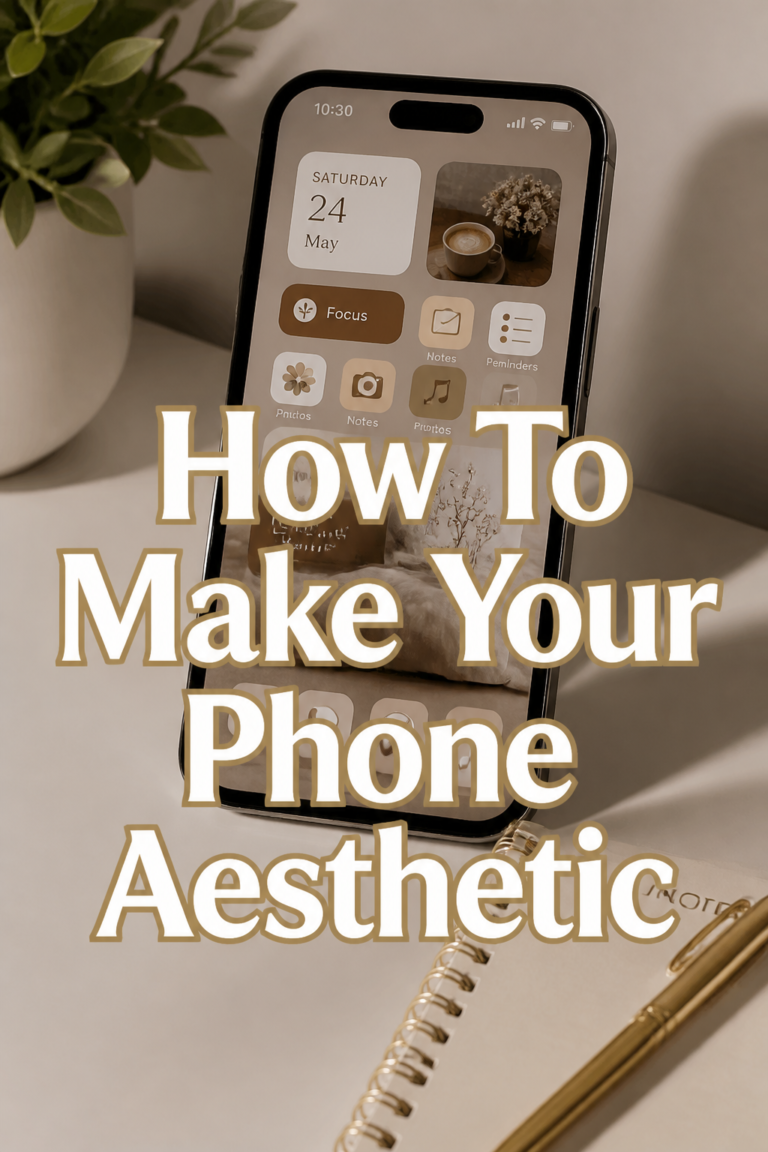
A cluttered background can negate all your organization efforts. Select a simple, non-distracting wallpaper. Solid colors, abstract gradients, or minimalist landscapes work wonderfully.
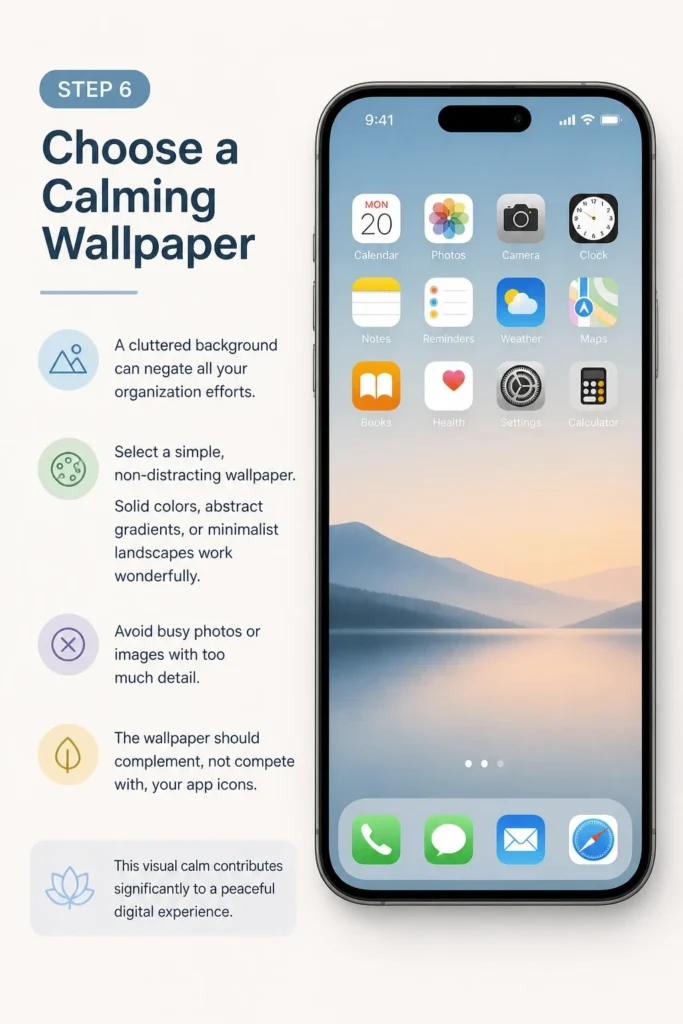
Avoid busy photos or images with too much detail. The wallpaper should complement, not compete with, your app icons. This visual calm contributes significantly to a peaceful digital experience.
Step 7: Implement Widgets Thoughtfully
Widgets offer glanceable information, but they can also add clutter. Use them sparingly and only for truly valuable data. Think weather, calendar, or a music player.
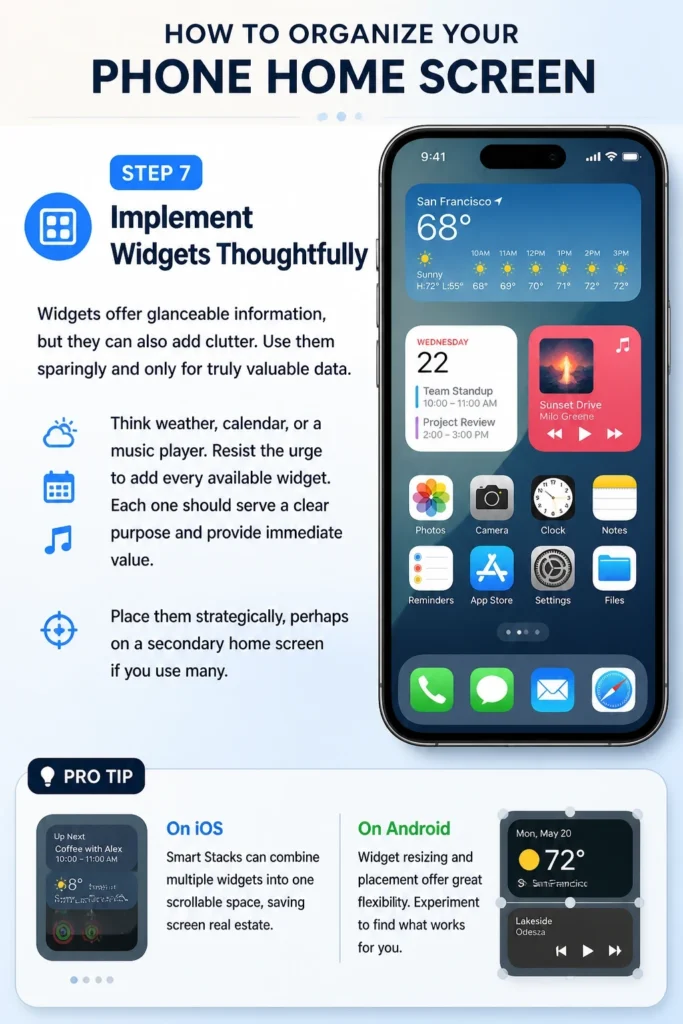
Resist the urge to add every available widget. Each one should serve a clear purpose and provide immediate value. Place them strategically, perhaps on a secondary home screen if you use many.
Pro Tip: On iOS, Smart Stacks can combine multiple widgets into one scrollable space, saving screen real estate. On Android, widget resizing and placement offer great flexibility. Experiment to find what works for you.
Step 8: Leverage Your App Library/Drawer
Both iOS and Android have dedicated areas for all your apps beyond the home screen. On iOS, it’s the App Library, automatically categorizing everything. On Android, it’s the App Drawer, typically an alphabetical list.
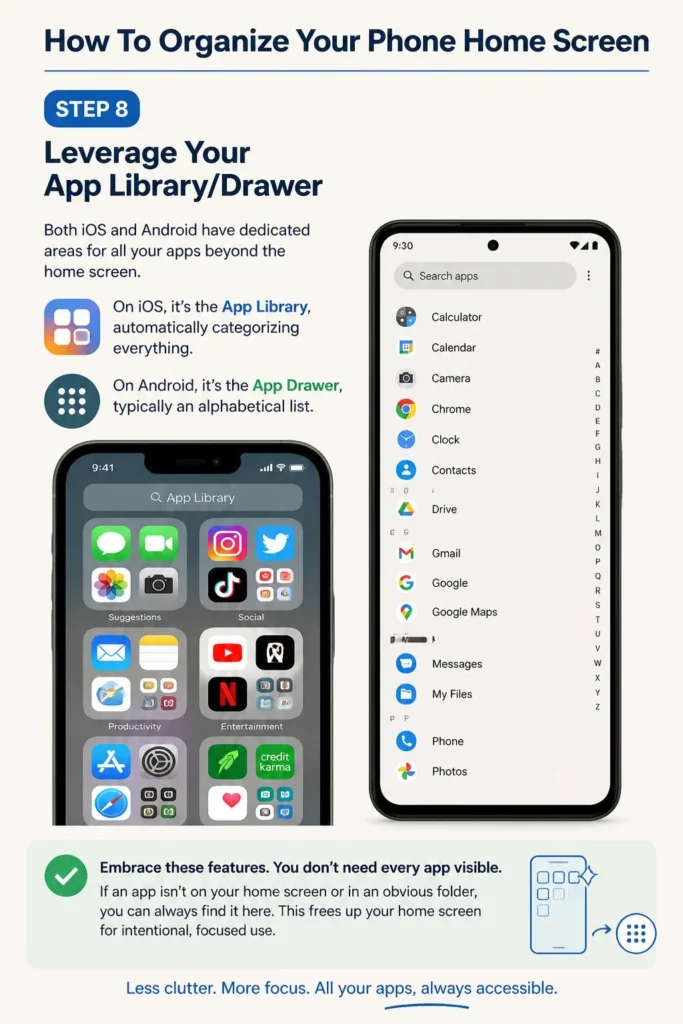
Embrace these features. You don’t need every app visible. If an app isn’t on your home screen or in an obvious folder, you can always find it here. This frees up your home screen for intentional, focused use.
Step 9: Test Drive and Refine
After organizing, live with your new setup for a few days. Pay attention to how you interact with your phone. Are you constantly searching for an app? Do certain folders feel awkward?
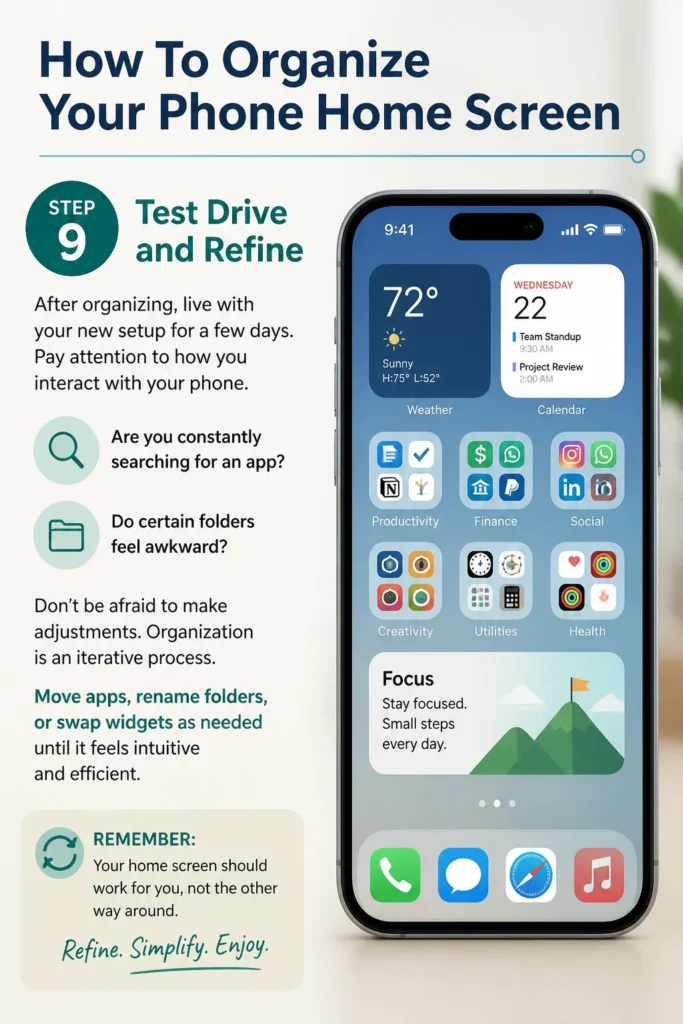
Don’t be afraid to make adjustments. Organization is an iterative process. Move apps, rename folders, or swap widgets as needed until it feels intuitive and efficient.
Step 10: Schedule Regular Maintenance
Your phone screen isn’t a “set it and forget it” project. New apps get downloaded, old habits creep back in. Schedule a quick 15-minute review session once a month.
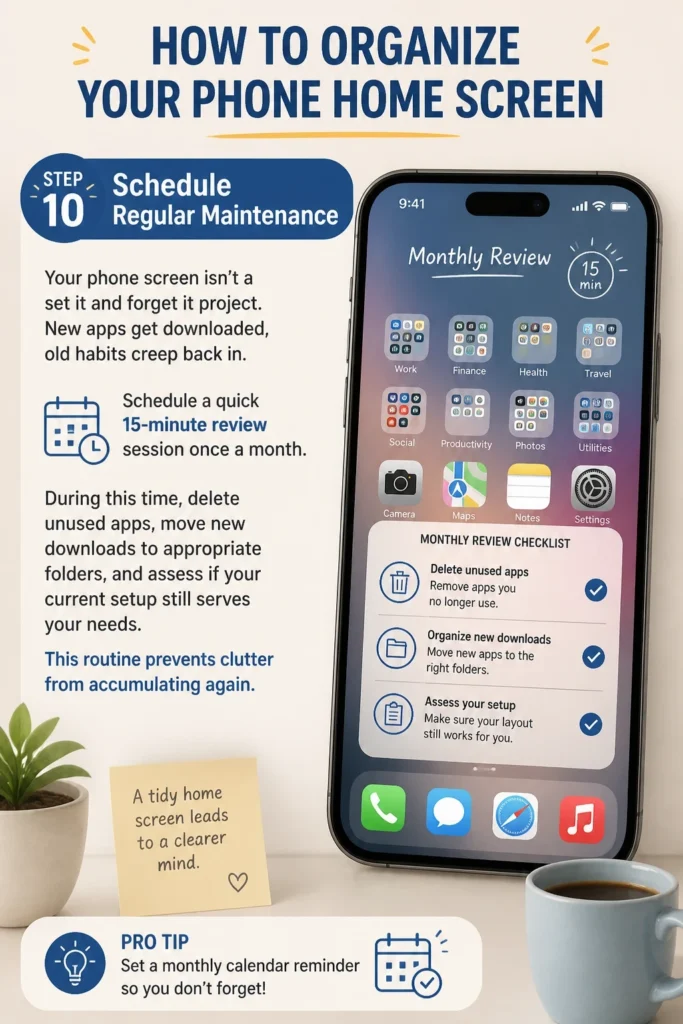
During this time, delete unused apps, move new downloads to appropriate folders, and assess if your current setup still serves your needs. This routine prevents clutter from accumulating again.
Common Mistakes to Avoid
Over-Folderizing Everything
While folders are great for grouping, too many layers can make finding apps more difficult than just swiping through pages. If you have folders within folders, you’ve likely gone too far. Aim for a maximum of 1-2 taps to reach any app. Keep your folder structure flat and intuitive.
Keeping Irrelevant Apps for “Just in Case”
Many people hold onto apps they might “someday” use. This mindset leads to digital hoarding. If an app hasn’t been touched in months and isn’t critical for emergencies, delete it. The peace of mind from decluttering outweighs the minimal effort of re-downloading if that “someday” ever arrives.
Ignoring the Power of Search
Both iOS and Android have powerful search functions (swipe down on iOS, often a search bar in the app drawer on Android). Some users feel compelled to have every app visible. However, for less-used apps, a quick search is often faster than navigating through multiple folders. Trust the search bar for those infrequent accesses.
Trying to Do It All at Once
Organizing your home screen can feel like a big task. Attempting to complete it all in one sitting might lead to burnout or a rushed, less effective outcome. Break it down into smaller chunks. Tackle one step at a time, and take breaks if you feel overwhelmed. Gradual progress is still progress.
Troubleshooting
I Can’t Find an App After Organizing
This is a common concern after a major reorganization. Don’t panic. First, use your phone’s search function (swipe down from the middle of the home screen on iOS, or open your app drawer and look for the search bar on Android). This will locate the app instantly. Next, consider where you expected to find it. Did you move it to a new folder? Did you delete it by mistake? If you deleted it, simply re-download it from your app store.
My Folders Look Messy or Unintuitive
If your folders aren’t working for you, it’s a sign to refine them. Perhaps your naming conventions are too vague, or you’ve grouped apps illogically. Empty the problematic folder and start over. Try a different grouping strategy, like switching from function-based to frequency-based, or vice versa. Sometimes, fewer, broader folders are more effective than many specific ones.
I Feel Overwhelmed by the Process
It’s easy to feel overwhelmed when faced with a digital cleanup. If you’re struggling, take a break. Come back to it with fresh eyes. Focus on one small task at a time, like just deleting unused apps, before moving to folders. Remember, any improvement is a good improvement. You don’t need perfection on the first try; aim for progress.
Key Takeaways
- Start with a Clear Purpose: Define what you want your phone to do for you before organizing.
- Ruthlessly Declutter: Delete or move apps you don’t use regularly to free up mental and digital space.
- Prioritize Prime Real Estate: Reserve your home screen and dock for your most essential, frequently used apps.
- Group Logically: Use folders to categorize apps by function or frequency, making them easy to find.
- Embrace Simplicity: A clean wallpaper and thoughtful widget use contribute to a calm visual environment.
- Maintain Regularly: Schedule periodic check-ins to keep your home screen organized and efficient.
Frequently Asked Questions
Should I use widgets on my home screen?
Widgets can be incredibly useful for glanceable information, like weather or your calendar. However, use them strategically. Only include widgets that provide genuine value and are frequently checked. Too many widgets can quickly clutter your screen, defeating the purpose of organization.
How often should I reorganize my phone home screen?
A thorough reorganization is best done every few months, or whenever you notice clutter creeping back in. For ongoing maintenance, a quick 10-15 minute review session once a month is ideal. This helps keep new downloads in check and ensures your setup still aligns with your current needs.
Are there different strategies for iOS and Android?
While the core principles are the same, implementation differs slightly. iOS relies heavily on the App Library for hidden apps and offers Smart Stacks for widgets. Android provides more customization options for icon packs, launchers, and widget placement. Both platforms benefit from decluttering and logical grouping.
What about custom app icons?
Custom app icons can add a personal touch and visual cohesion to your home screen. On iOS, this is done via the Shortcuts app, and on Android, through custom launchers. If you choose to customize, aim for a consistent aesthetic that enhances clarity rather than adding more visual noise.
Our Top Recommended Finds
- Adjustable Phone Stand: Perfect for keeping your phone upright at your desk, reducing the need to pick it up constantly and maintaining a clean workspace.
- Microfiber Screen Cleaning Kit: A clean screen enhances the organized feel of your device. This kit keeps smudges and fingerprints at bay.
- Portable Charging Bank: Ensures your device is always powered, allowing you to focus on productivity without battery anxiety.
Cultivate Your Digital Calm
Transforming your phone’s home screen is more than just moving icons around. It’s about reclaiming control over your digital environment. It’s about intentionality and peace.
Take the first step today. Start with a single screen, or even just your dock. You’ll be amazed at the clarity and efficiency a well-organized phone can bring. Consider exploring further topics like notification management and digital detoxes for an even deeper sense of digital well-being. Your calmer, more focused self will thank you.