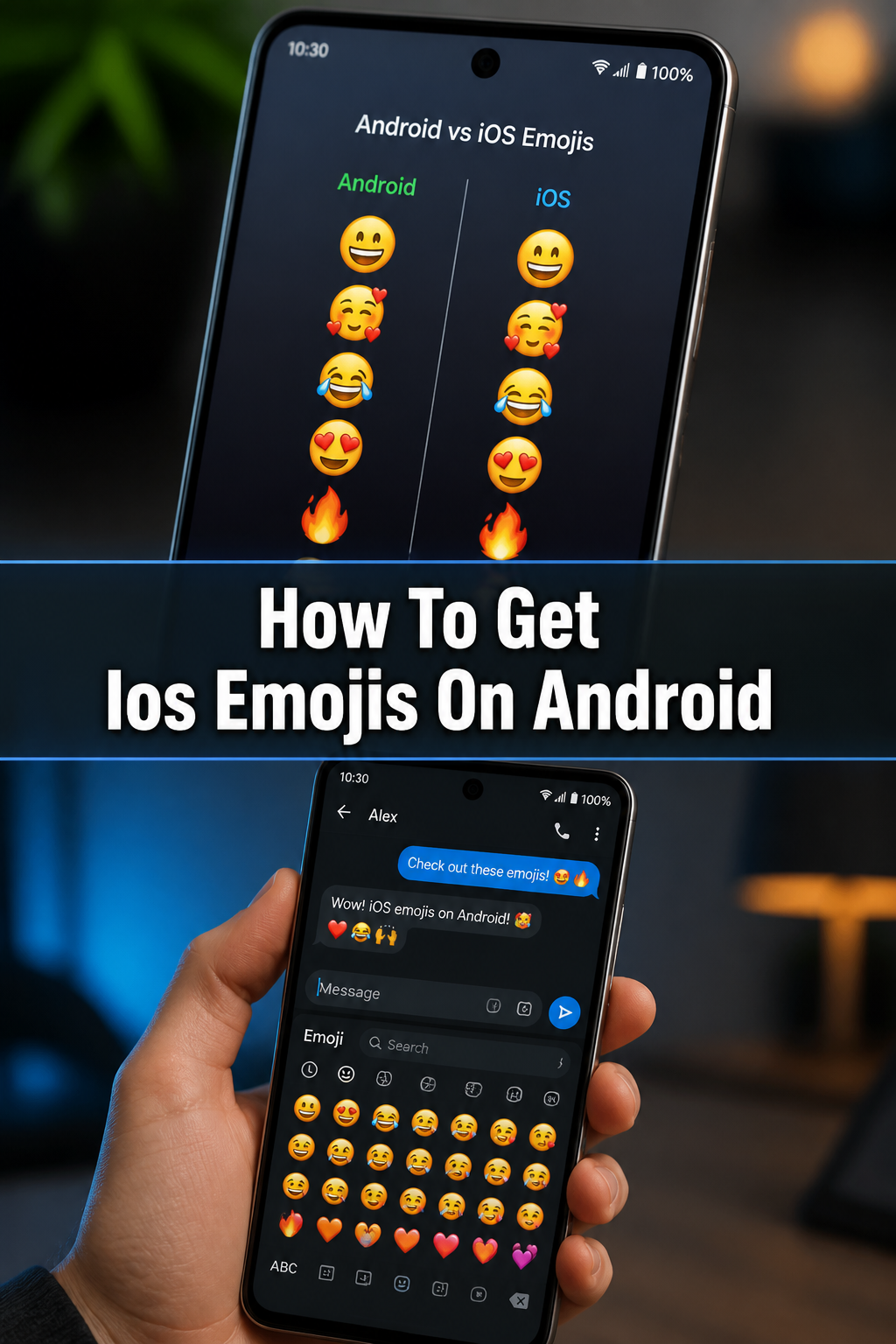
🍎 How To Get Ios Emojis On Android
You love the clean, expressive look of Apple’s emojis.
Seeing those distinct iOS characters on your Android phone feels like a small victory.
I’ve been there, wanting that uniform emoji experience, and through trial and error, I found what works.
Quick Overview
This guide will walk you through the practical steps to bring iOS emojis to your Android device. We’ll cover various methods, focusing on ease of use and accessibility.
- Time needed: 30-60 minutes (depending on method chosen)
- Difficulty: Intermediate
- What you’ll need: An Android smartphone, internet connection, and some storage space for apps.
Step-by-Step Instructions
Step 1: Understand Your Options
Before you begin, it’s helpful to know the main ways to get iOS emojis on Android. Not all methods are equal, and some are more permanent than others.
The primary approaches include using custom keyboard apps, dedicated font changer applications, or more advanced root-based methods.
We will focus on the non-root methods first, as they are generally safer and easier for most users.
Step 2: Choose Your Approach (Non-Root Methods)
For most users, a non-root method is the best starting point. These methods typically involve installing an app that can change your system font or provide an iOS emoji keyboard.
Consider if you want emojis to appear system-wide or just within specific apps.
System-wide changes are often achieved with font changer apps, while keyboard apps only affect what you type.
Step 3: Install a Custom Keyboard App (Partial Solution)
A simple way to type iOS emojis is by using a third-party keyboard. This won’t change how emojis appear from others, but it lets you send them.
Apps like Gboard, SwiftKey, or Facemoji Keyboard often include their own emoji sets, some of which closely resemble iOS.
Download your chosen keyboard from the Google Play Store and open it to begin the setup process.
Pro Tip: Setting a custom keyboard as your default allows you to use its emoji set across most messaging apps. Navigate to your phone’s Settings > System > Languages & Input > On-screen keyboard to manage this.
Step 4: Utilize a Font Changer App (System-Wide, Non-Root)
This is often the most effective non-root method for a system-wide change. Apps like zFont 3, Theme Park (for Samsung devices), or FancyKey can modify your phone’s font.
These apps typically work by replacing your default system font with one that includes iOS emoji glyphs.
Search for “zFont 3” or a similar font changer app on the Google Play Store and install it.
Step 5: Grant Necessary Permissions
Font changer apps require specific permissions to modify system settings. Without these, they cannot apply the new emoji font.
Open the font changer app after installation. It will likely prompt you to grant permissions, such as “Storage” or “Install unknown apps.”
Follow the on-screen instructions carefully to allow these permissions. This is a crucial step for the app to function correctly.
Step 6: Download and Apply the iOS Emoji Font
Inside the font changer app, you’ll usually find a library of fonts. Look for a section specifically for “Emojis” or “Emoji fonts.”
Browse through the available options until you find one explicitly labeled as “iOS Emoji” or similar.
Download this font pack within the app, then tap to apply it. The app will guide you through the process, which might involve installing it as a theme or a custom font.
Pro Tip: Some devices, especially Samsung, have a “Themes” store. Apps like Theme Park integrate directly with this, allowing for seamless font changes. Check your device’s native theme settings first.
Step 7: Reboot Your Device
After applying a new system font, a reboot is often necessary for the changes to take full effect. This ensures that the operating system loads the new font correctly across all applications.
Hold down your power button and select “Restart” or “Reboot.”
Once your phone restarts, open a text editor or a messaging app to verify that the emojis now appear as iOS versions.
Step 8: Consider Rooted Methods (Advanced Users Only)
For users who have rooted their Android device, there are more robust and permanent solutions. These involve using a custom recovery like TWRP or a root manager like Magisk.
Magisk modules, specifically “Magisk Emoji Font modules,” can replace the system emoji font at a deeper level.
This method offers the most comprehensive system-wide change, but it carries higher risks and requires advanced technical knowledge. It’s not recommended for beginners.
Step 9: Verify Your New Emojis
Once you’ve completed your chosen method, it’s time to confirm success. Open various apps to see the changes.
Try sending a message with emojis in WhatsApp, checking social media feeds, or looking at emojis in your phone’s browser.
If you see the distinct iOS emoji style, you’ve successfully made the switch.
Common Mistakes to Avoid
Not Granting Permissions
Many font changer or custom keyboard apps require specific permissions to function. Users often rush through the installation and decline these requests.
Without permissions for storage access or the ability to install unknown apps, the emoji font cannot be downloaded or applied. Always review and grant necessary permissions when prompted.
Expecting System-Wide Changes from Keyboard Apps
Installing a custom keyboard app that offers iOS-like emojis only changes what you type. It does not alter how emojis appear when received from others or displayed in your system.
If you want incoming emojis and all system emojis to look like iOS, you need a font changer app or a rooted method, not just a keyboard.
Ignoring Device Compatibility
Not all Android devices or Android versions handle font changes the same way. What works perfectly on a Samsung phone might not work on a Pixel or OnePlus device.
Always check if the specific app or method you’re attempting is known to be compatible with your phone’s make, model, and Android version. Reading recent app reviews can offer insights.
Forgetting to Reboot
Applying a new system font is a significant change. Your Android operating system often needs a fresh start to fully integrate these changes.
If you apply a new font and don’t immediately see the iOS emojis, a simple reboot of your device can resolve the issue. It’s a quick and often overlooked step.
Troubleshooting
Emojis Still Look Like Android
If you’ve applied a font and your emojis haven’t changed, first ensure you’ve rebooted your device. Sometimes, the changes don’t take effect until a full restart.
If they still look the same, double-check that the correct iOS emoji font was selected and applied within your chosen font changer app. You might need to try a different font variant or app.
App Crashes or Doesn’t Apply Font
An app crashing during the font application process can be due to insufficient permissions or incompatibility. Go to your phone’s Settings > Apps, find the font changer app, and verify all necessary permissions are granted.
If permissions are fine, the app might not be fully compatible with your specific Android version or device model. Consider trying an alternative font changer app from the Play Store.
Emojis Appear as Boxes or Missing Characters
This usually indicates that the font applied is either corrupted, incomplete, or not fully compatible with your system. The system can’t properly render the emoji characters.
Try applying a different iOS emoji font within the app, or uninstall the current font and re-download it. If the issue persists, revert to your default system font and try a different font changer app altogether.
Key Takeaways
- Non-root methods primarily involve custom keyboard apps or font changer apps.
- Font changer apps like zFont 3 offer system-wide emoji changes for many devices.
- Always grant necessary app permissions for font changers to work correctly.
- A device reboot is often essential for new emoji fonts to fully take effect.
- Rooted methods provide the most comprehensive solution but are for advanced users.
- Verify emoji changes across different apps and platforms after application.
Frequently Asked Questions
Is this change permanent?
For non-root methods using font changer apps, the change is usually permanent until you decide to revert to your original font. Keyboard apps only change what you type, so the effect is limited to your typing input.
Will iOS emojis work everywhere on my Android phone?
With a successful system-wide font change using a dedicated app, yes, they should appear in most applications, including messaging apps, browsers, and social media. However, some very specific apps might use their own rendering engines and not fully adopt the system font.
Is it safe to use these apps?
Most font changer apps available on the Google Play Store are generally safe. However, always download from reputable sources. Granting permissions is necessary, but be mindful of what you’re allowing. If you’re concerned, stick to well-reviewed apps.
Do I need to root my Android phone to get iOS emojis?
No, rooting is not necessary for most users. Non-root methods using custom keyboard apps or font changer applications can successfully bring iOS emojis to your Android device with varying degrees of system integration.
Our Top Recommended Finds
- Portable Power Bank: Essential for keeping your phone charged during app installations and reboots, ensuring you don’t run out of battery mid-process.
- High-Speed USB-C Cable: Useful for quick data backups or connecting to a computer if you need to transfer files or troubleshoot more complex issues.
- Screen Protector Kit: Protects your device’s screen during the process, especially if you’re frequently navigating settings and installing new apps.
Embrace Your New Emoji Style
You’ve navigated the steps and now have those crisp iOS emojis on your Android device. It’s a small customization that makes a big difference in your daily mobile experience.
This personal touch reflects your preference and can make your messages feel more consistent.
Take a moment to explore your newly styled emojis across all your favorite apps. Enjoy the refreshed look and feel of your phone’s communication.